Services
Services are downstream endpoints imported from a backend service. These endpoints are not directly accessible via the reverse proxy. Instead, they are available for internal use and configuration within the API Gateway and can be exposed.
Service overview
The service overview page shows the imported APIs grouped by a user given group name and service name.
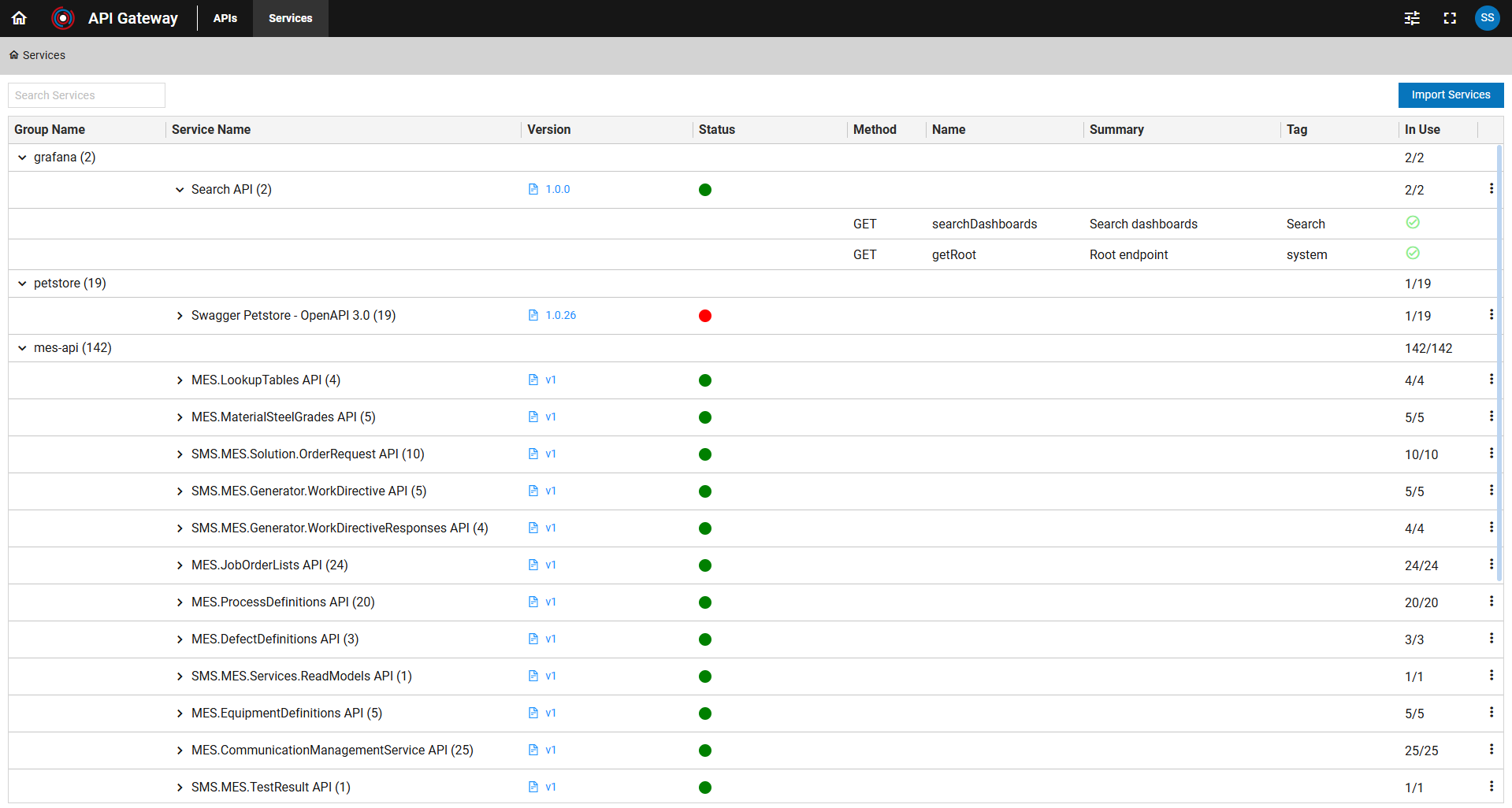
Group Level Information
- Group Name: Provided during import; followed by the number of connected endpoints.
- In Use: Indicates how many downstream endpoints are referenced by upstream APIs.
Service Level Information
- Service Name: Taken from OpenAPI documentation; followed by the number of connected endpoints.
- Version: Indicates backend service version. The link opens Swagger UI for exploration.
- Status: Reflects health monitor status. See Health Monitor.
- In Use: As above, shows referenced endpoints.
- Overflow Menu "⋮":
- Edit: Opens the import dialog prefilled with existing data for editing.
- Monitor: Opens the health monitor popup.
- Documents: Upload, view, download, or delete OpenAPI documents (except the original import document).
Endpoint Level Information
- Method: HTTP method for the endpoint.
- Name: Endpoint name (operationID).
- Summary: Endpoint summary.
- Tag: Endpoint tag.
- In Use: Indicates if the endpoint is referenced by any upstream endpoint. A green circle indicates a used endpoint; a black circle, an unused one.
Importing Services
Currently, only OpenAPI documents up to version 3.0.3 are supported.

Click Import Services to open the dialog for importing backend services as downstream endpoints.
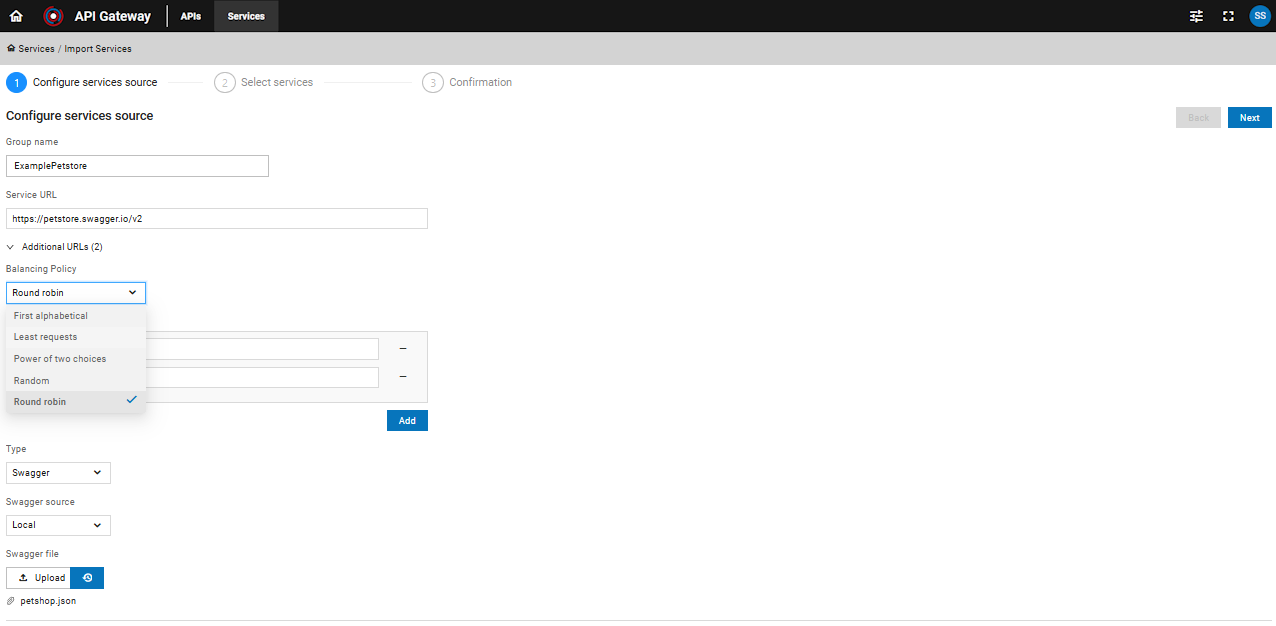
Step 1: Configure the source:
- Group Name: Enter a name for the group of endpoints being imported.
- Service URL: Specify the URL of the backend service accessible to the API Gateway.
- Additional URLs: You can provide multiple URLs for a single service. When multiple URLs are specified, the API Gateway supports several load balancing algorithms:
- First alphabetical: Selects the URL that comes first in alphabetical order.
- Round robin: Distributes requests evenly across all URLs in sequence.
- Random: Selects a URL at random for each request.
- Power of two choices: Randomly picks two URLs and selects the one with fewer active requests.
- Least requests: Routes requests to the URL with the fewest active requests.
Click Next to proceed.
Step 2: Select the services to import. Use checkboxes to limit availability as needed.
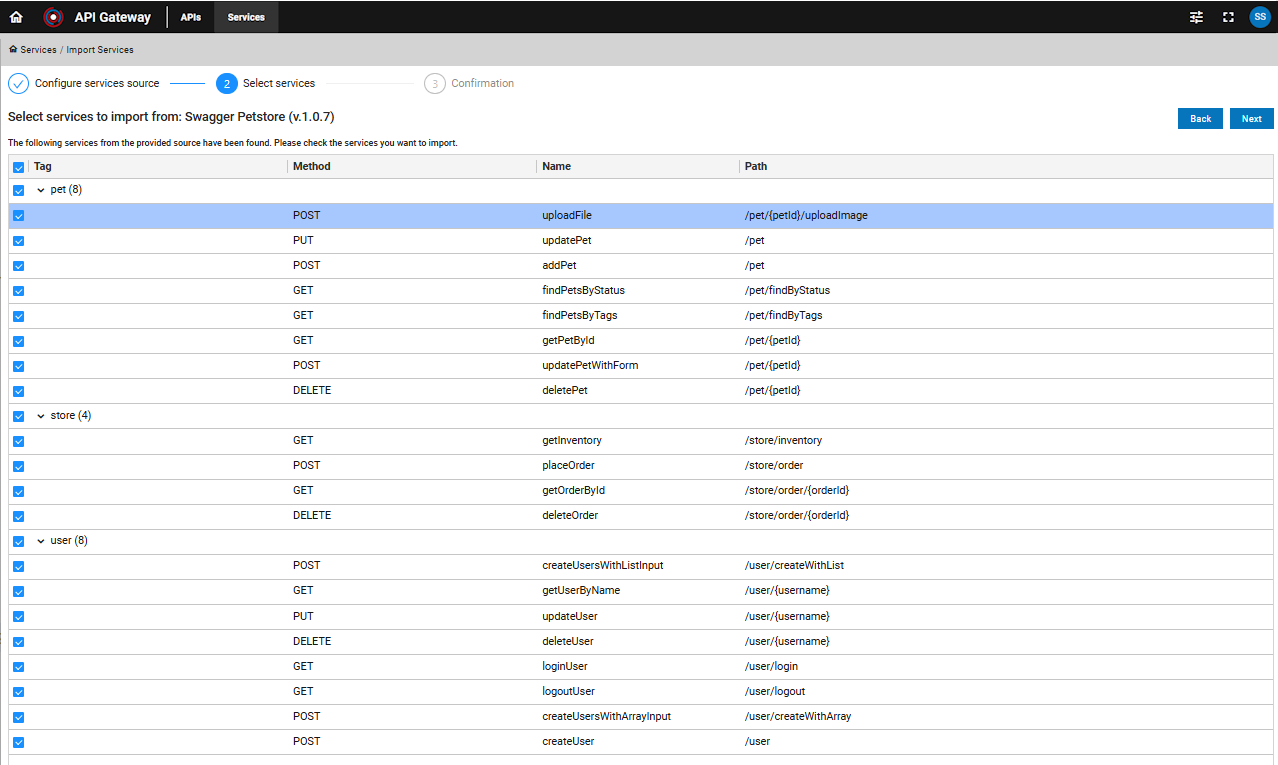
Click Next to confirm your selection.
Step 3: Review the selected services and complete the import process.
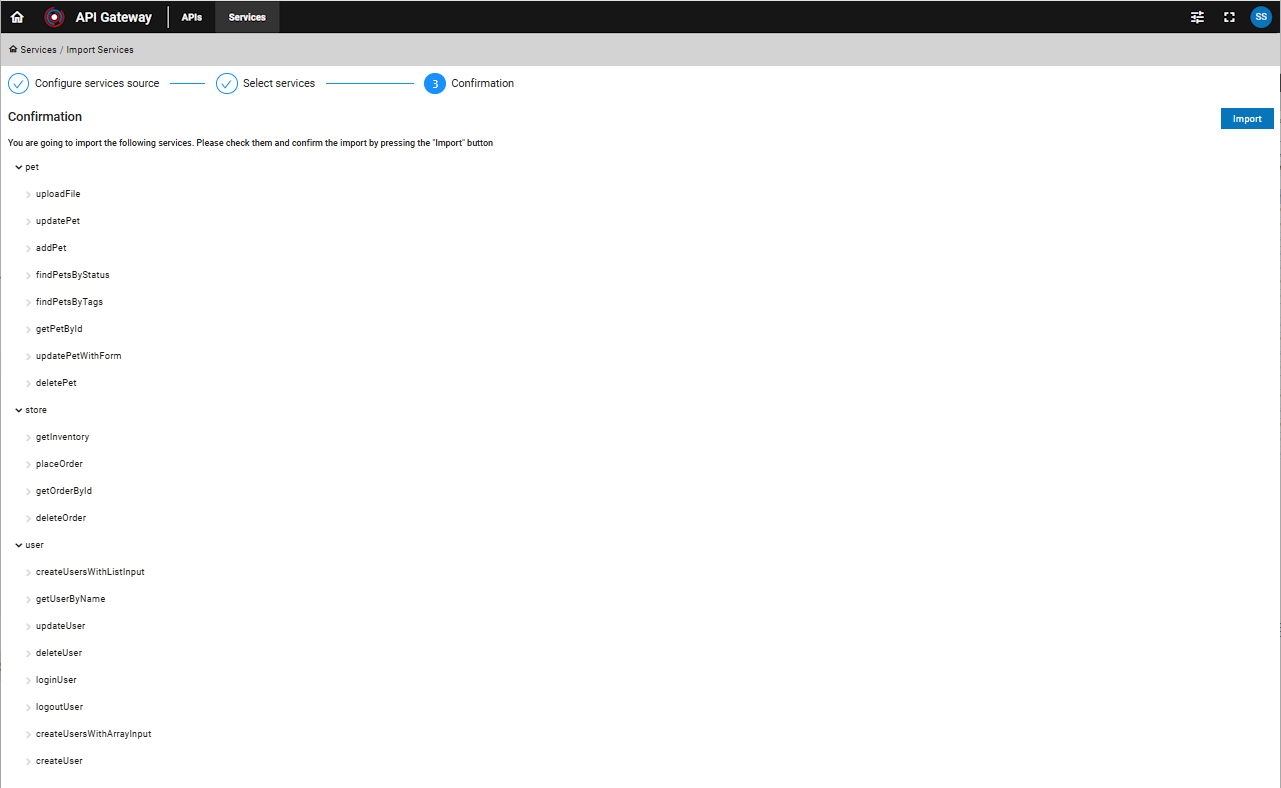
After clicking Import, a system response will indicate whether the import was successful or failed.

If the import fails, verify that the Swagger file is accessible and compliant with the OpenAPI specification.
Health Monitor
Click the status symbol or select Monitor from the overflow menu to open the health monitor.
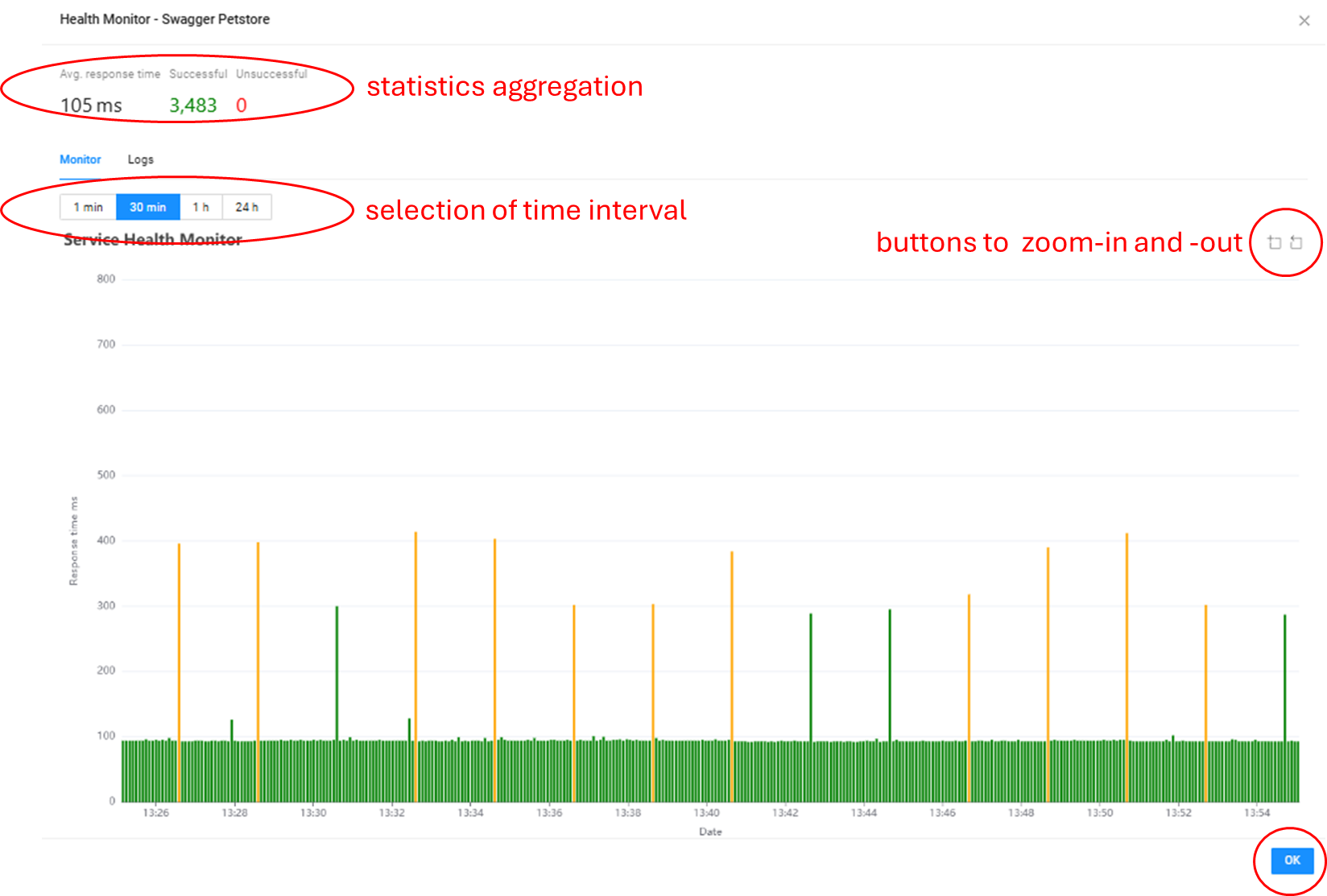
- Statistics: Average response time, successful and unsuccessful calls.
- Zoom: Adjust the time interval (1 minute to 24 hours) or use zoom controls for detailed analysis.
- Logs: View error logs if any occur.
Exit the health monitor by pressing Esc or clicking OK.