Thing Hierarchy View
Thing Hierarchy View allows you to view Things together with their Metrics based on Relation Types and to create new Things.
Inspecting Hierarchy View
The hierarchy view is located on the left side of the Asset Hierarchy:
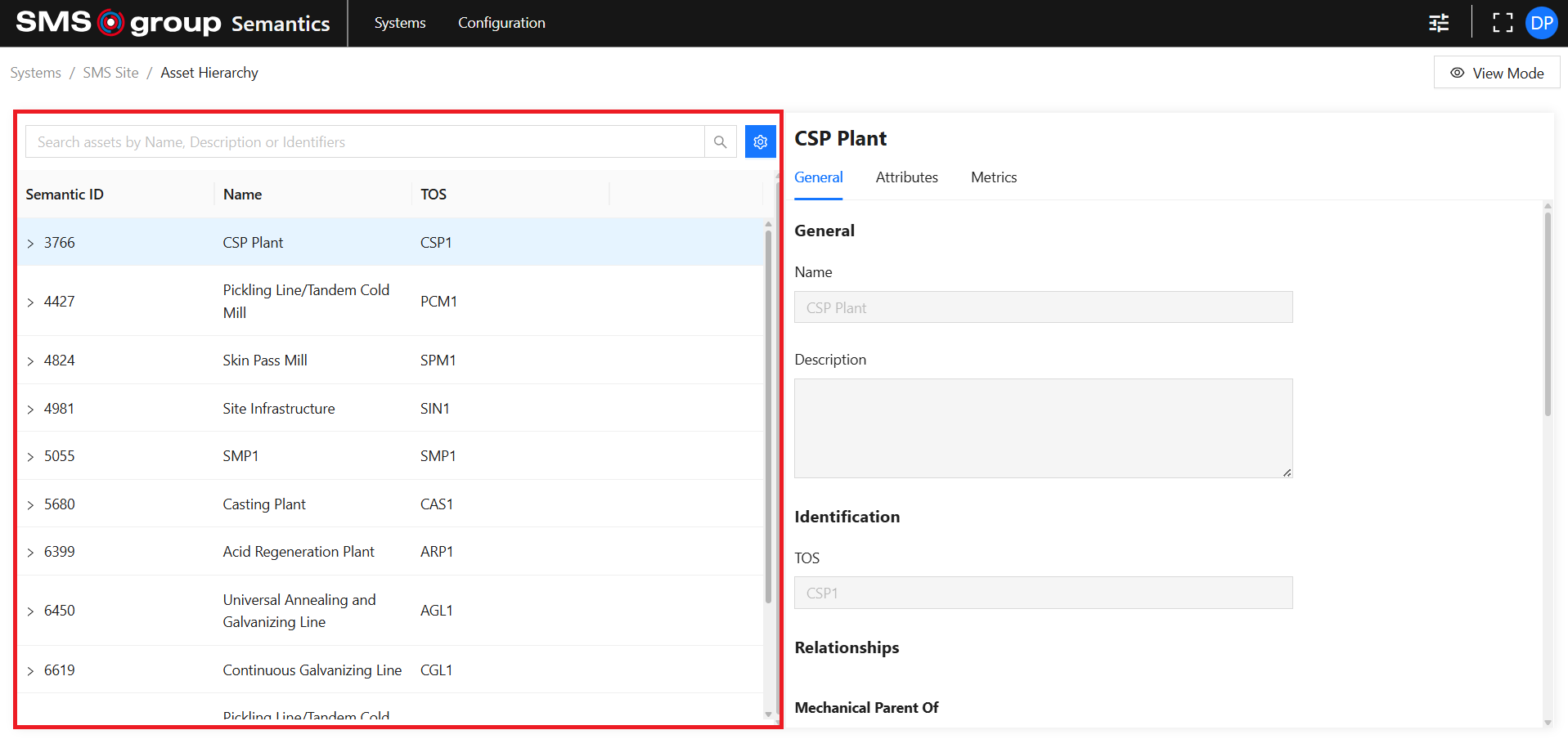
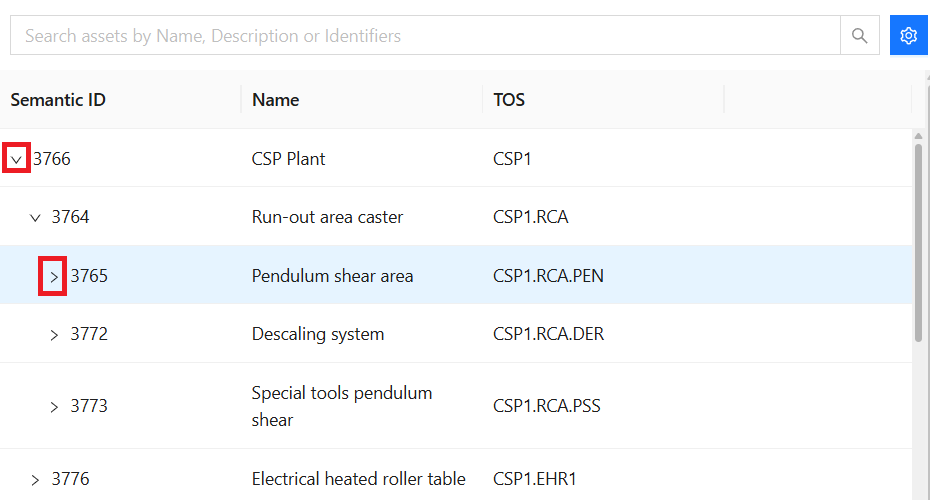
The Things in the view reflect their hierarchical relations. By default, the top level of the hierarchy is shown.
To see deeper levels, use the Expand buttons. To reduce the hierarchy, use the Collapse button.
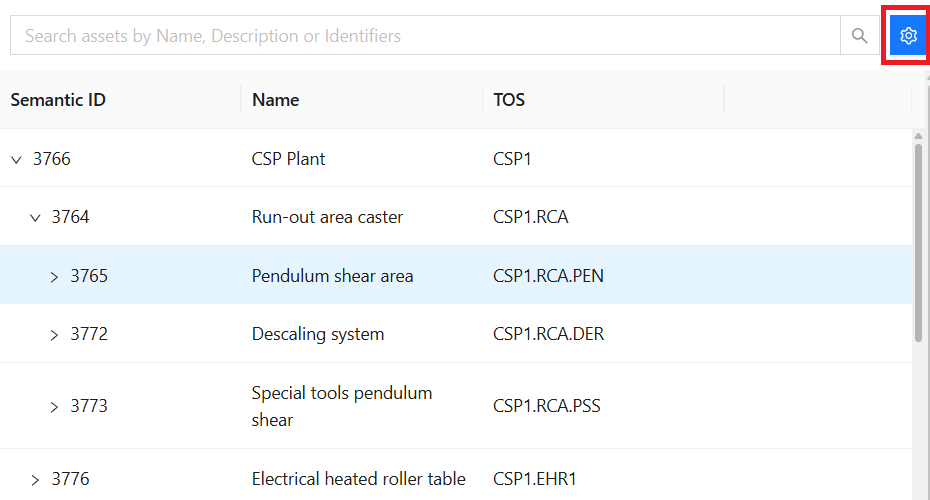
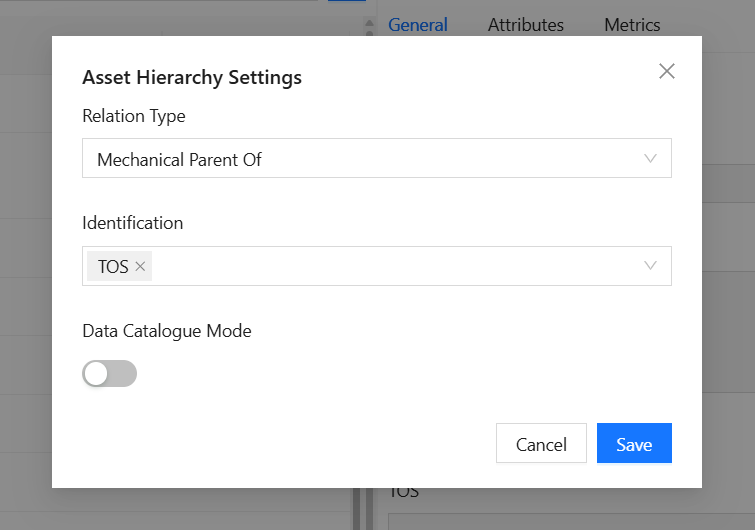
Asset Hierarchy Settings
Use the Settings button to open the settings modal:
Settings allow you to:
- Change Relation Type: This determines how the hierarchy is built. Note that only Relation Types allowed in the System are available as options. See the System Relation Types section for information on how to assign Relation Types.
- Change Identification: This determines which Identifier values are shown in the hierarchy view. See the System Identifiers section for information on how to create and edit Identifiers.
- Enable or disable Data Catalogue Mode, which adds Thing-related Metrics to the hierarchy view and allows extended search.
Use the Save button to save settings and close the modal.
Use the Cancel button to revert settings to the previous state and close the modal.
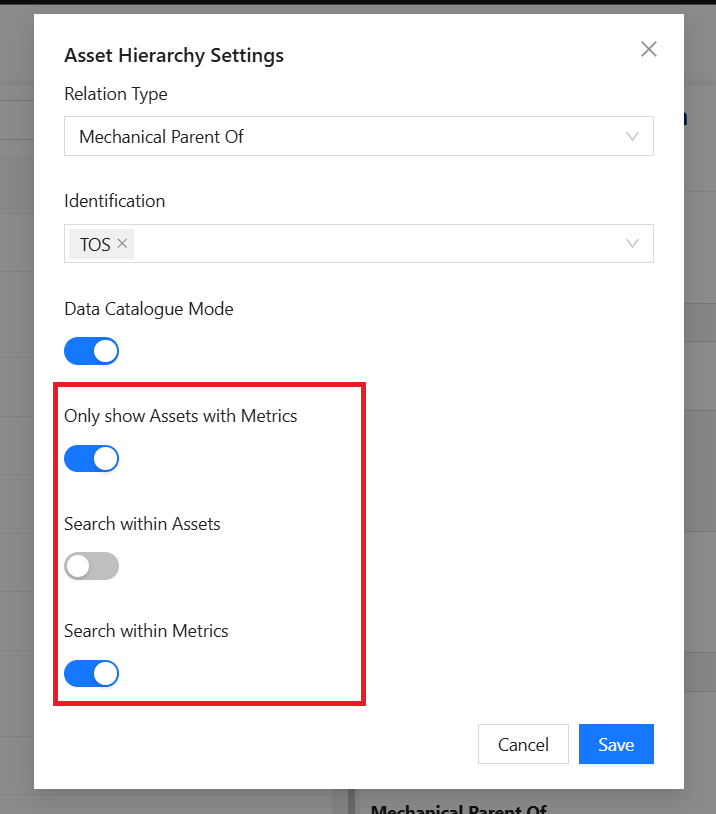
When Data Catalogue Mode is enabled, additional setting options appear:
- Only show Assets with Metrics: defines whether only Things with Metrics are shown in the hierarchy.
- Search within Assets: defines whether search should occur within Things.
- Search within Metrics: defines whether search should occur within Metrics.
Data Catalogue Mode
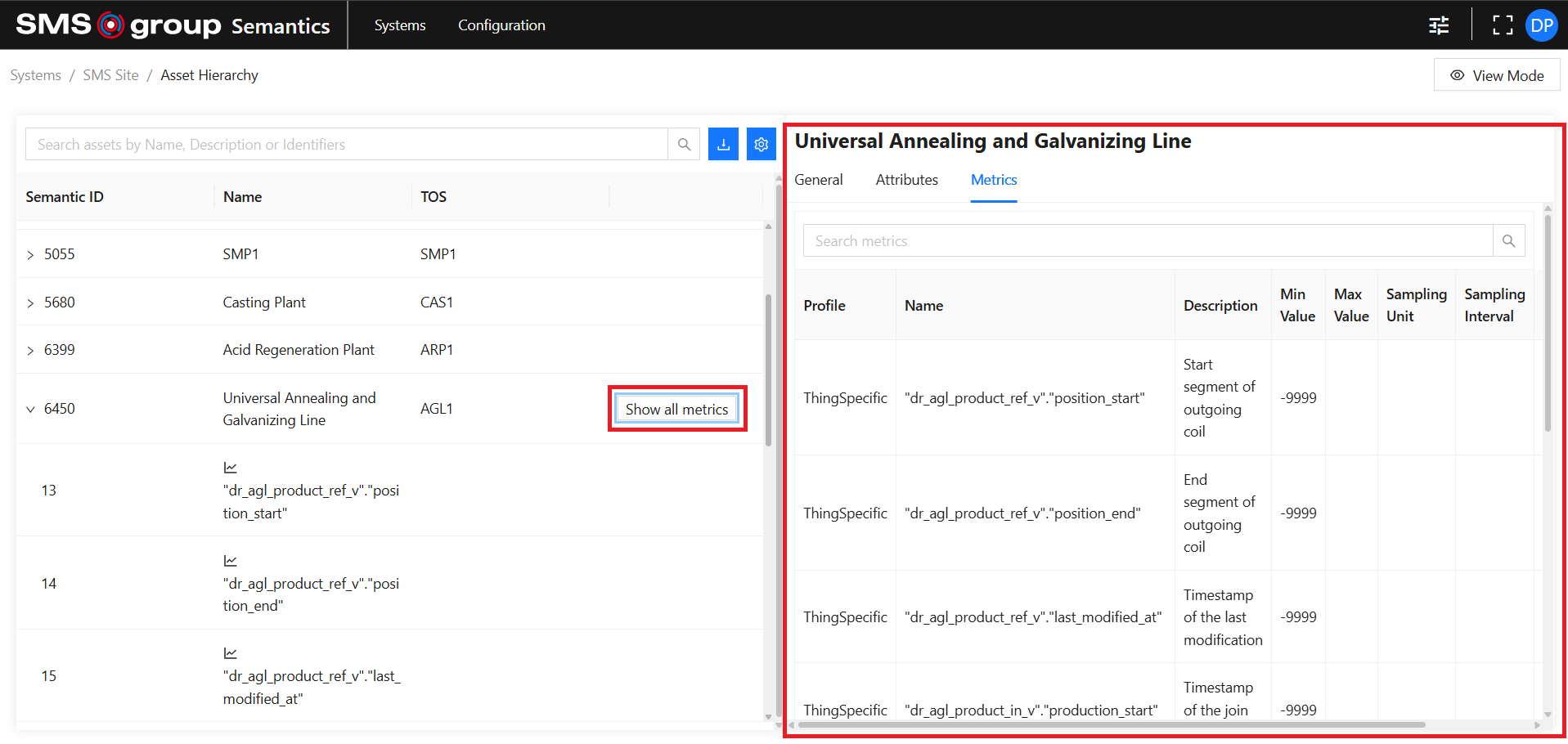
When Data Catalogue Mode is enabled, Metrics are added to the hierarchy view.
Metrics are marked with a specific icon to distinguish them from Things.
If a Thing has more than 10 Metrics, the Show all metrics button appears.

Click the Show all metrics button to open a list of all Thing Metrics on the right side:
Search
Use the Search bar to apply a search parameter.

By default, search occurs within Things by Name, Description, or Identifier values.
In the search results, all found Things are shown in the hierarchy with their ancestors. Things that match the search condition are shown in bold.
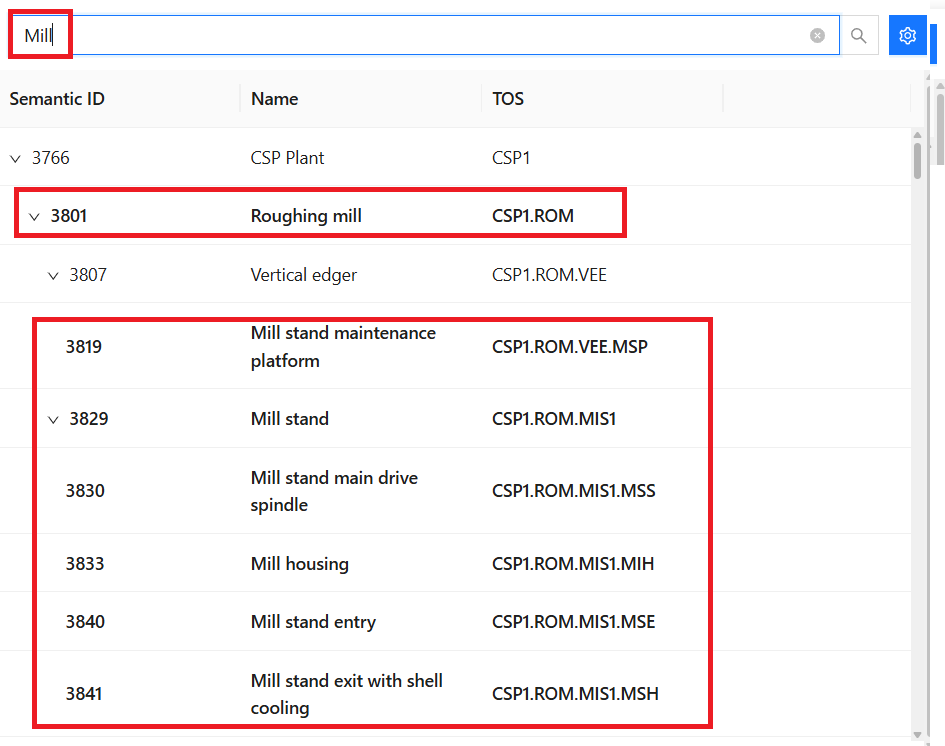
Data Catalogue mode allows you to enable or disable search within Things or within Metrics. For Metrics, search works by Name, Description, or Unit Name.
Export Metrics
The Metrics Export functionality is available only in the Data Catalogue mode.
See Asset Hierarchy Settings section on how to enable the Data Catalogue mode.
Use the Export button to export Metrics of all the Things that are currently shown in the hierarchy view (including nested descendants) as a .csv file.
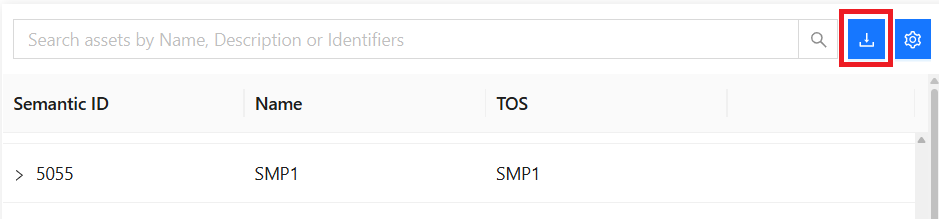
The file will be saved in the browser default saving directory as ThingMetrics.csv.
Create new Thing
Use the View Mode button to enable the Edit mode:

Then use the Create Thing button:

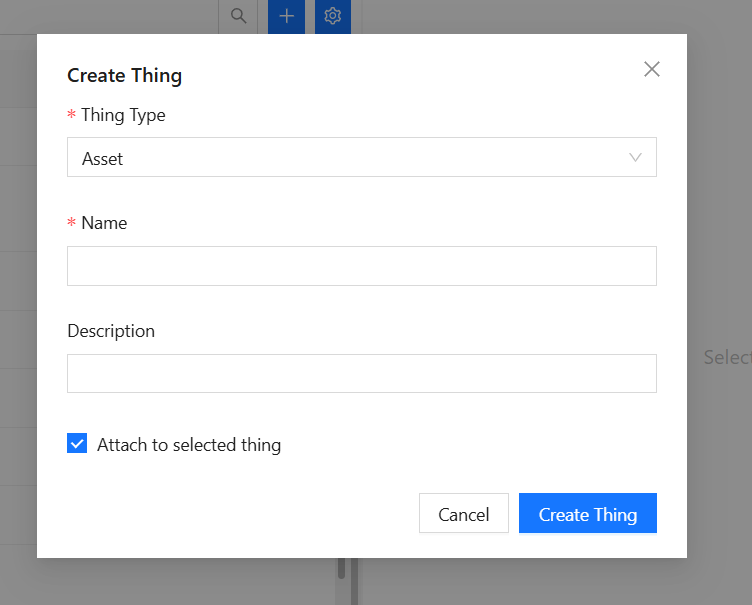
In the Create Thing modal provide:
- Thing Type: is required.
- Name: is required and must be unique within a System.
- Description.
- Attach to selected thing: if selected, the new Thing will be attached to the selected Thing in the hierarchy and Relationships will be automatically configured. If not, the new Thing will be created on the top level of the hierarchy with no Relationships being configured.
Use the Create Thing button to save the Thing and close the modal.
Use the Cancel button to abort Thing creation and close the modal.