Thing Management
Thing Management allows you to configure a specific Thing by setting its General metadata, Identification, Relationships, Profiles, Attributes, and Metrics, as well as previewing Metric signal data.
Inspecting Thing Management
To view the specific Thing, click on it in the hierarchy view:
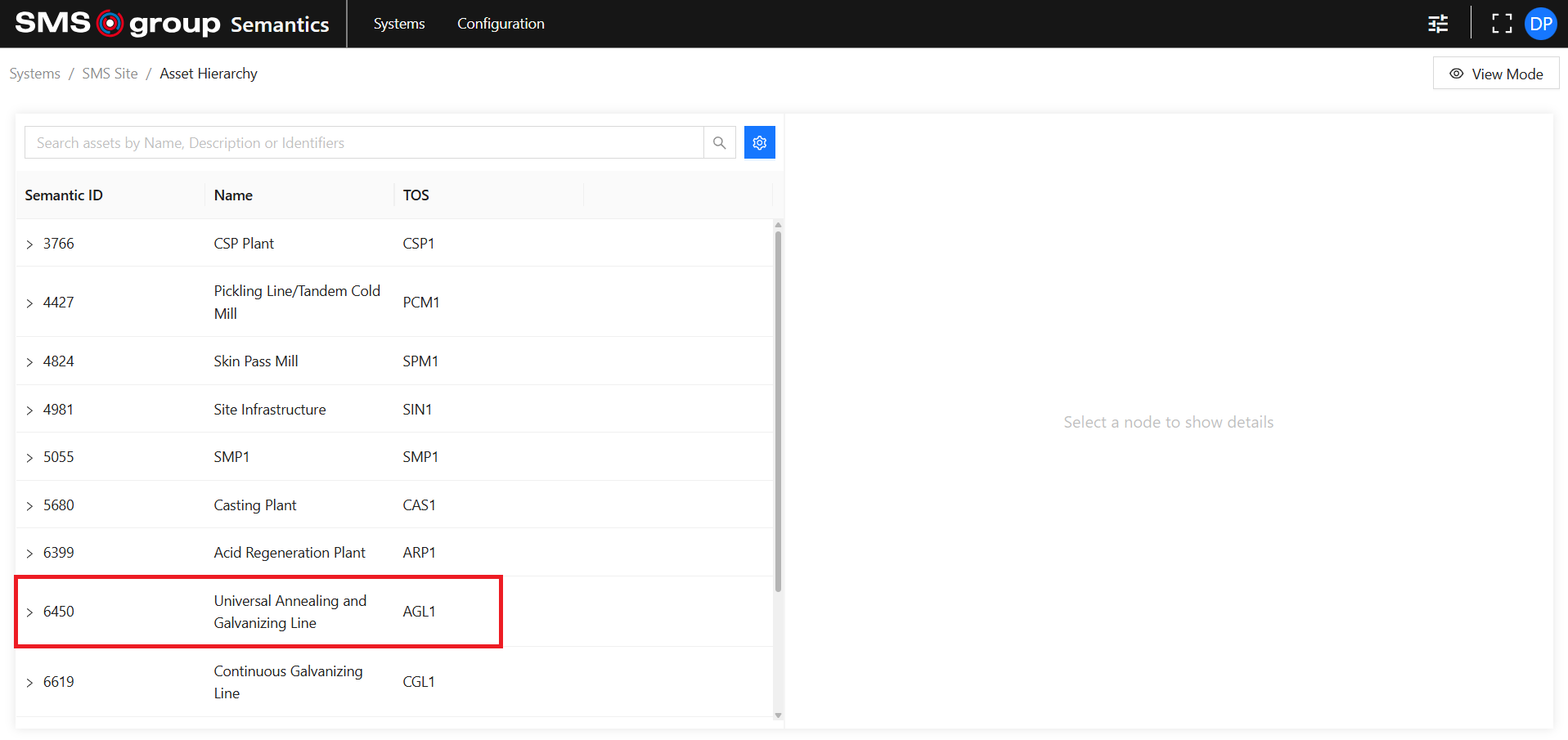
The Thing view is located on the right side of the screen. In the hierarchy view the selected Thing is marked by color.
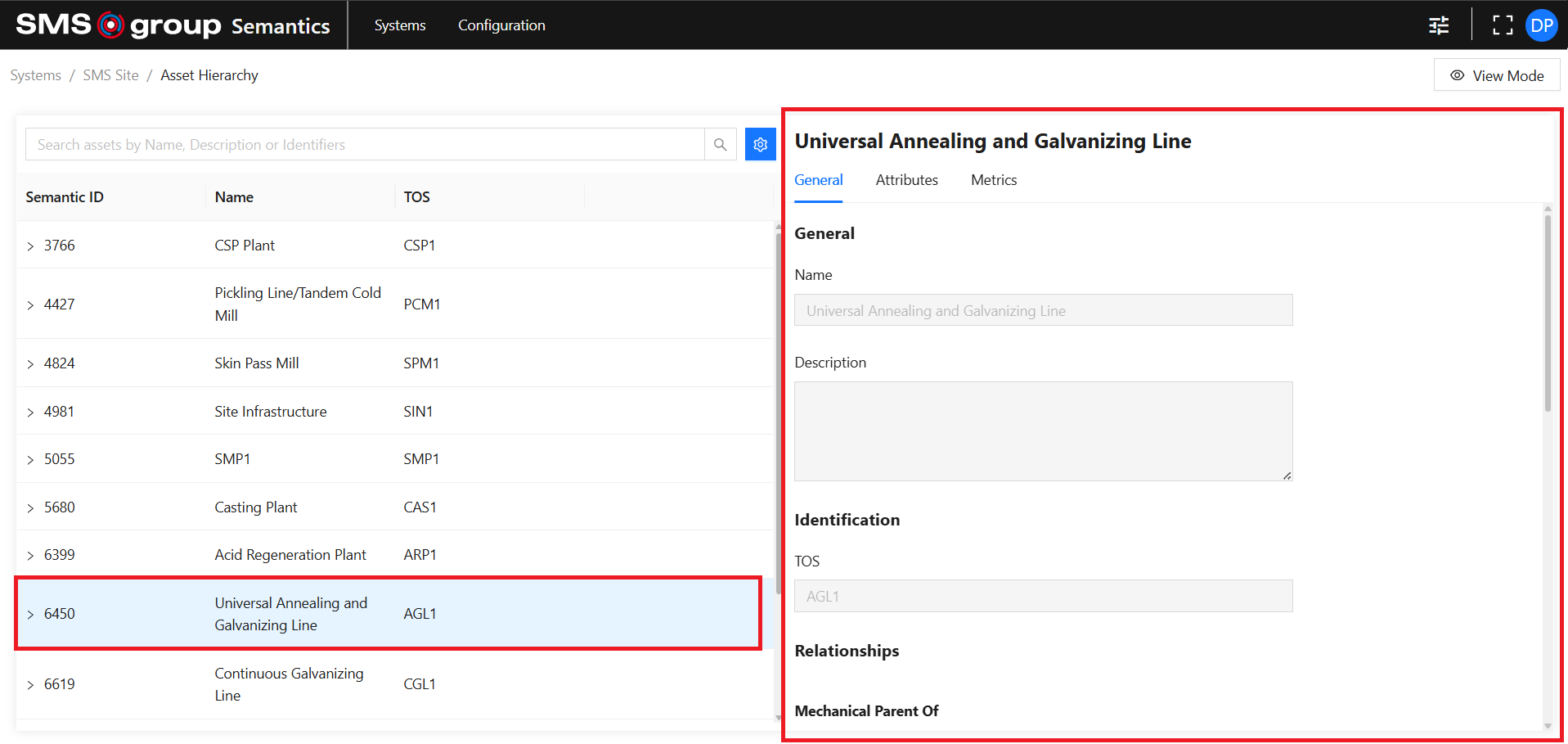
Use the Tab Menu to switch between different configuration categories:

Edit Existing Thing
Note that a Thing cannot be fully configured during creation. Use the edit mode to finalize the configuration.
Use the View Mode button to switch to edit mode:

General
In the General section, provide:
- Name: is required and must be unique within a System.
- Description.
Identification
In the Identification section, provide the Identifier values for Identifiers allowed in System.
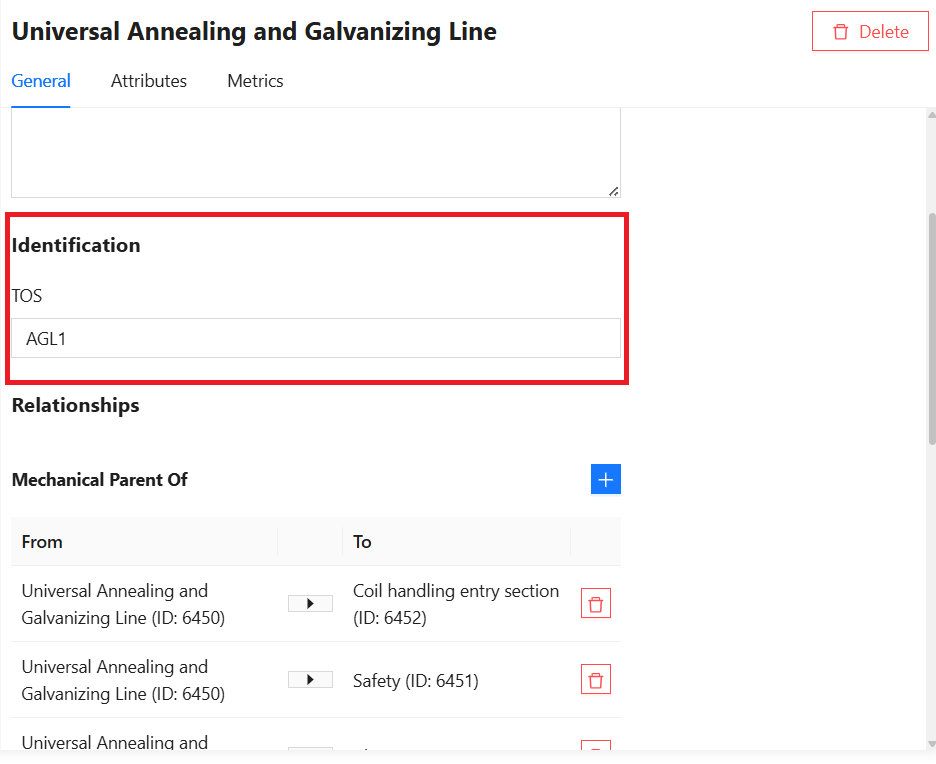
Use the Save button to save changes for the specific Identifier.
Use the Cancel button to discard changes.

Relationships
In the Relationships section, use the Add button to add relations of the specific Relation Type that is allowed in the System.
Note that only the Mechanical relation with a parent is set automatically if Attach to selected thing is selected during Thing creation.
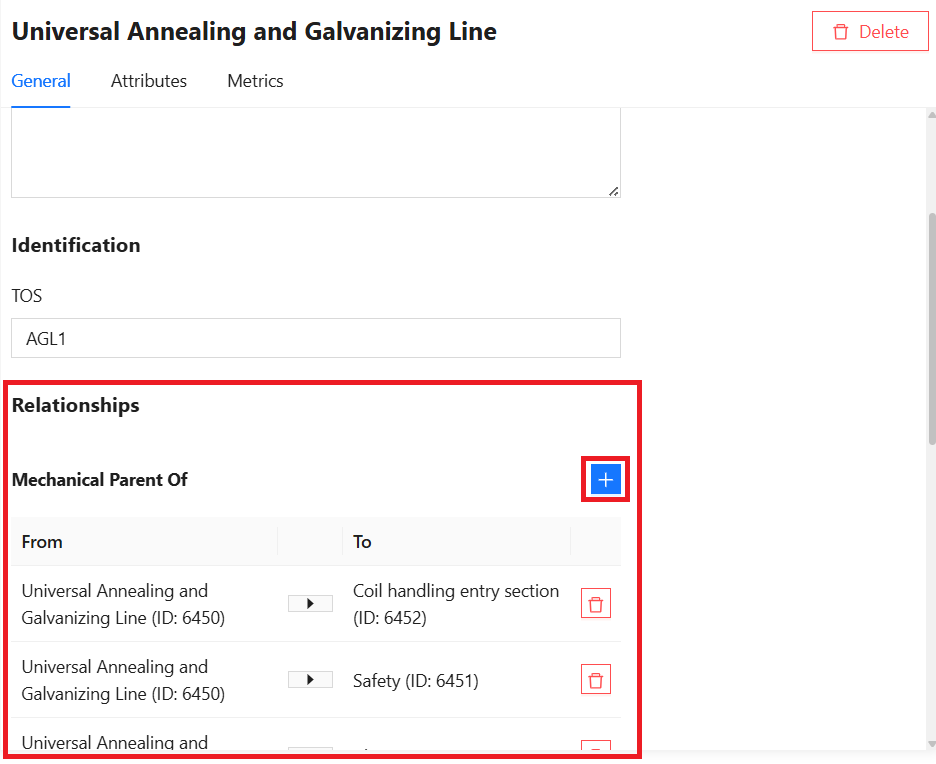
When adding a new relation, the current Thing is by default considered as the From side.
Use the Select field to select a second Thing in the relation. This field supports search by Thing Name.
Use the Invert button to invert the position of the current Thing in the relation.
Use the Save button to save the relation. Note that the confirm button is enabled only when both sides of a relation are set.
Use the Cancel button to discard the changes.
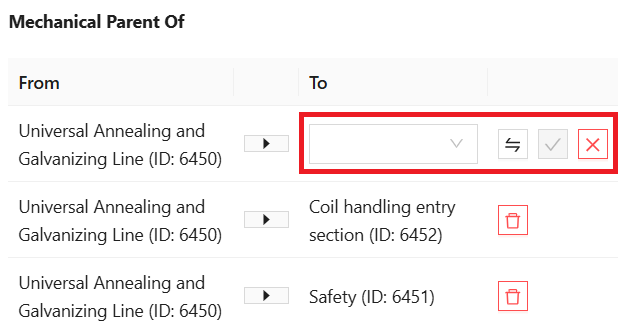
Use the Delete button to delete a relation:

Profiles
In the Profiles section, use transfer functionality to assign or unassign Profiles that are allowed in the System.
A Profile can inherit other Profiles, which leads to inheritance of Profile Attributes and Metrics.
Profile composition can be nested: if a Profile inherits another Profile which inherits a third Profile, the first Profile inherits Attributes and Metrics from both the second and third Profiles.
Select which Available Profiles should be assigned to the Thing and click the transfer button:
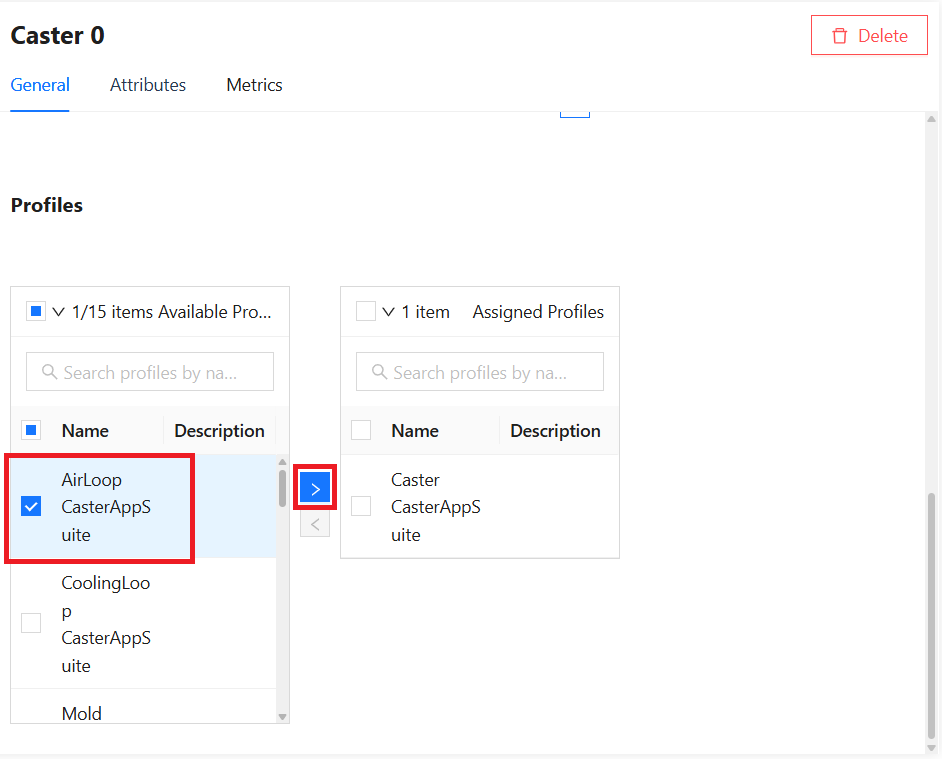
Check the Assigned Profiles for newly assigned Profiles. If an assigned Profile has inherited Profiles, they are shown, but grayed out.
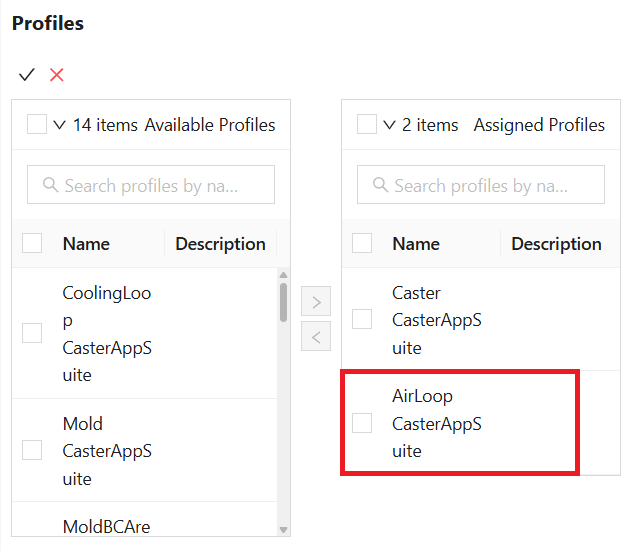
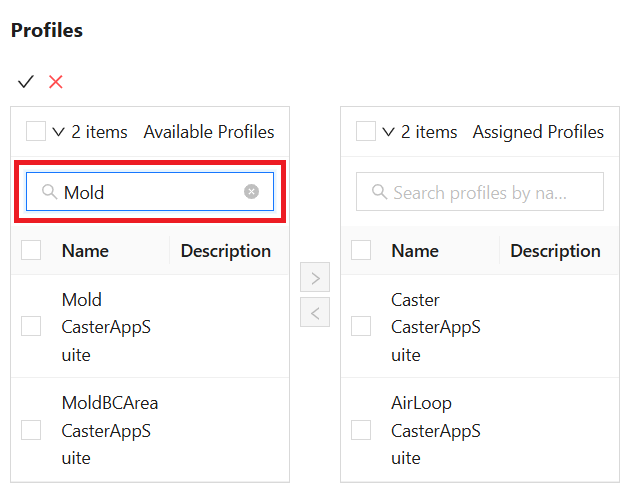
Available Profiles and Assigned Profiles are searchable by Profile Name:
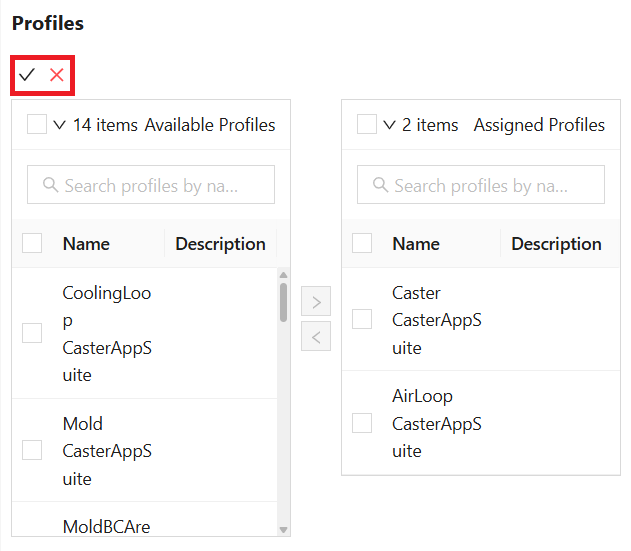
Use the Save button to save new assignments.
Use the Cancel button to discard changes.
Attributes Overview
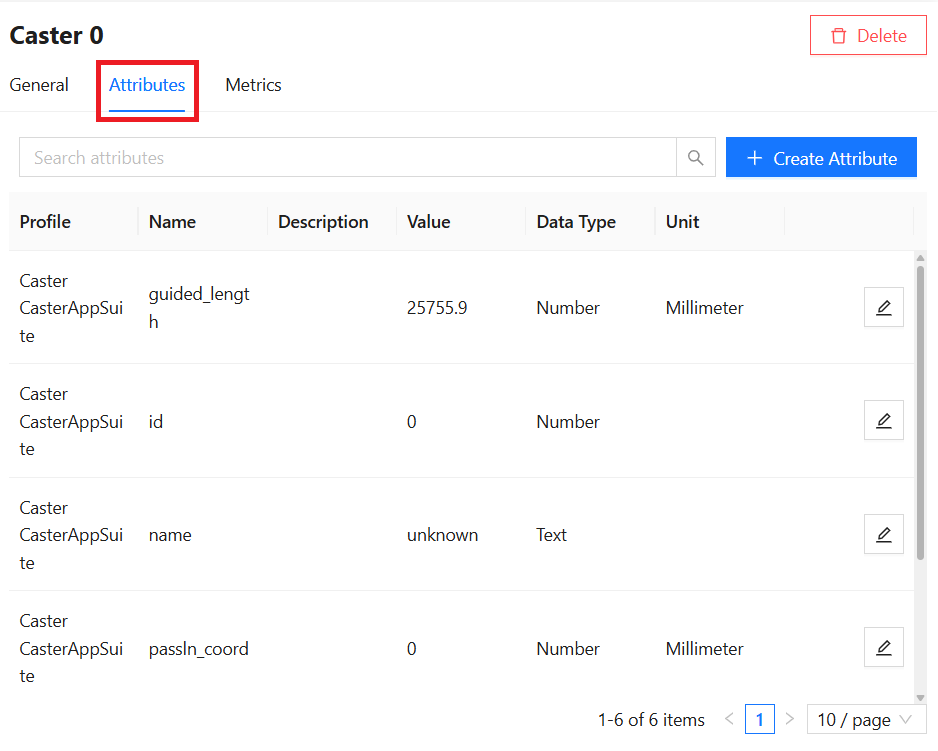
The Attributes tab shows Thing-specific and Profile Attributes.
Thing-specific Attributes can be viewed, fully edited, and deleted. Profile Attributes can be viewed and their Value can be edited. To fully edit or delete them, edit the Profile they belong to.
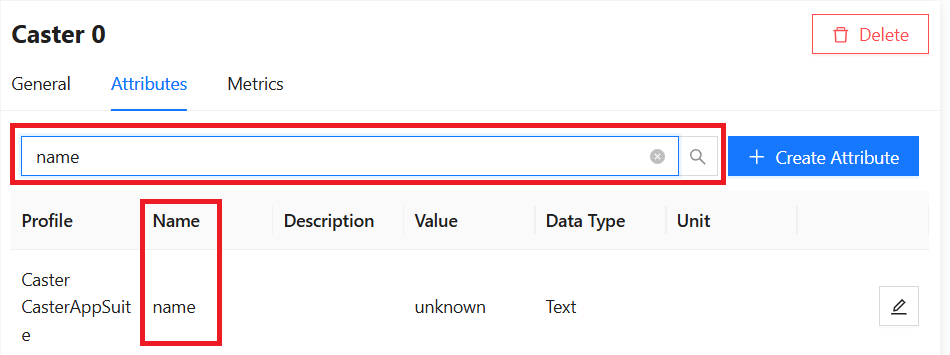
Attributes can be searched by Name, Description, Value, Profile Name or Unit Name:
Create new Attribute
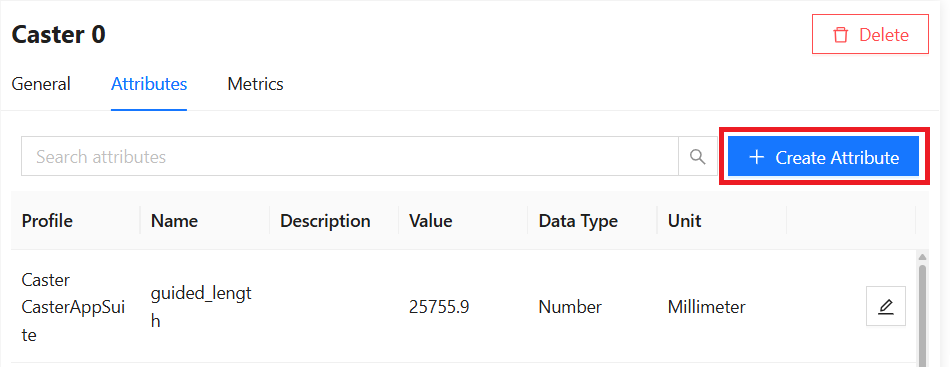
Click on the Create Attribute button to create a new Thing-specific Attribute. See how to create a Profile Attribute.
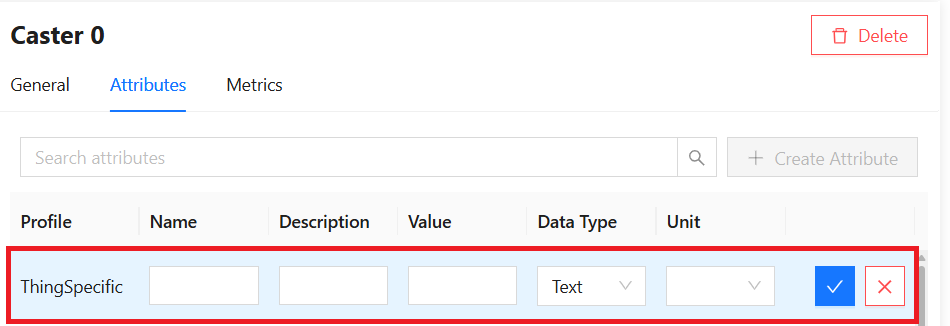
Provide:
- Name: is required and must be unique within the Profile.
- Description.
- Value.
- Data Type: The available options are pre-configured and cannot be changed by the User.
- Unit: is searchable by Name. The available options are pre-configured and cannot be changed by the User.
Use the Save button to save an Attribute.
Use the Cancel button to abort the Attribute creation process.
Edit Existing Attribute
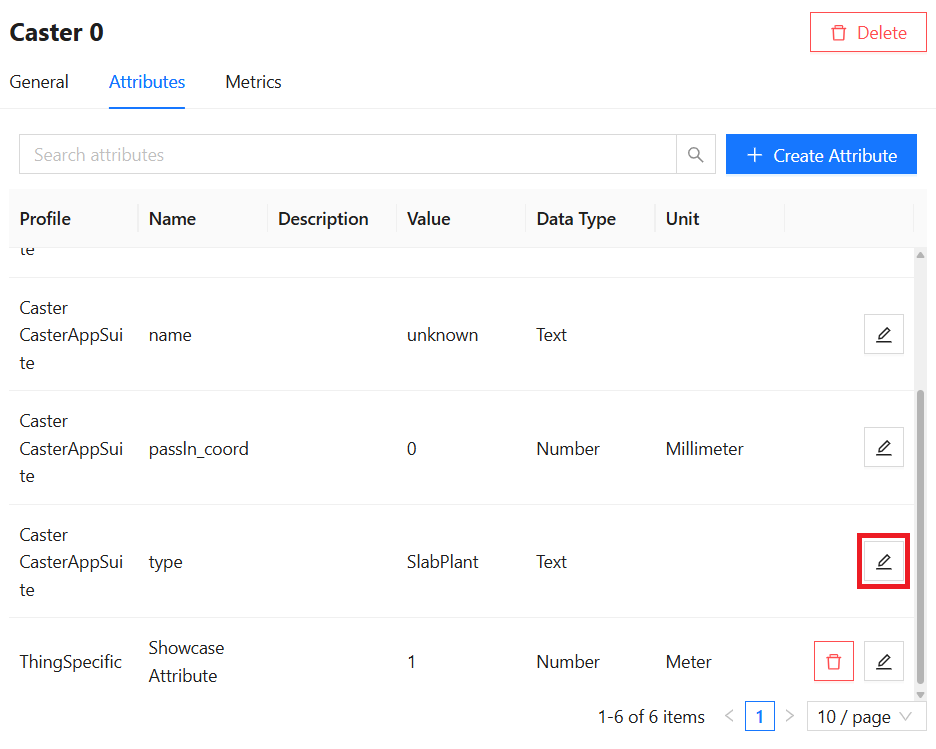
To edit an existing Attribute, use the Edit button of the desired Attribute.
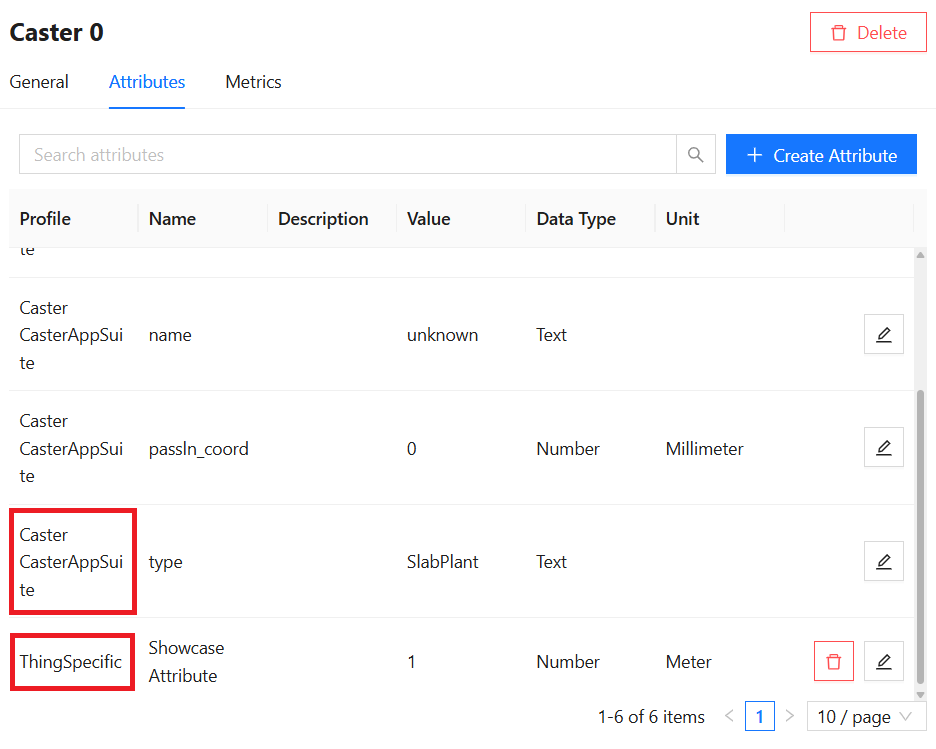
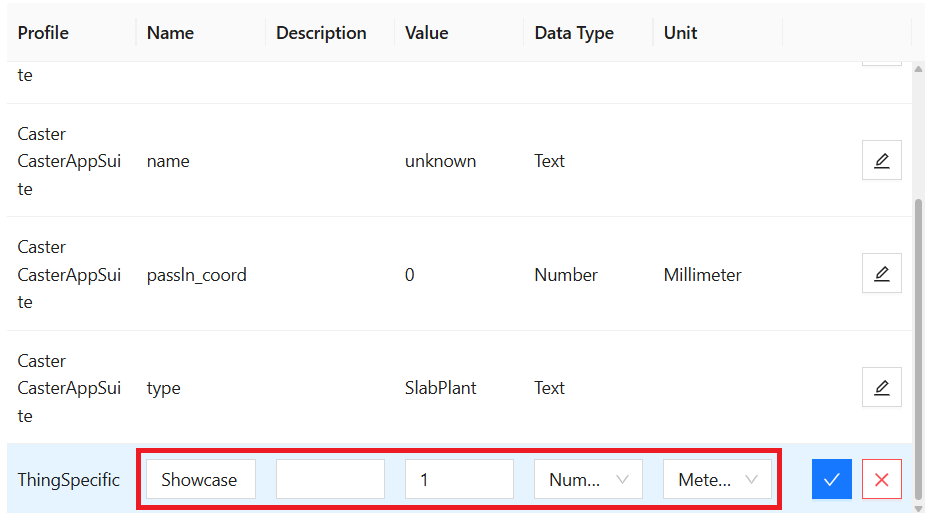
To distinguish between Profile Attribute and Thing-specific Attribute, see the Profile column. Thing-specific Attribute's Profile is always named ThingSpecific.
For Thing-specific Attributes, all properties can be edited:
For Profile Attributes, only Value can be edited from the Thing side. See how to edit other properties of a Profile Attribute.
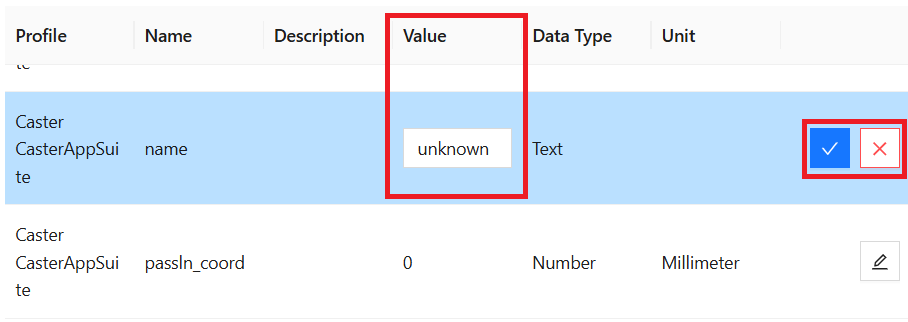
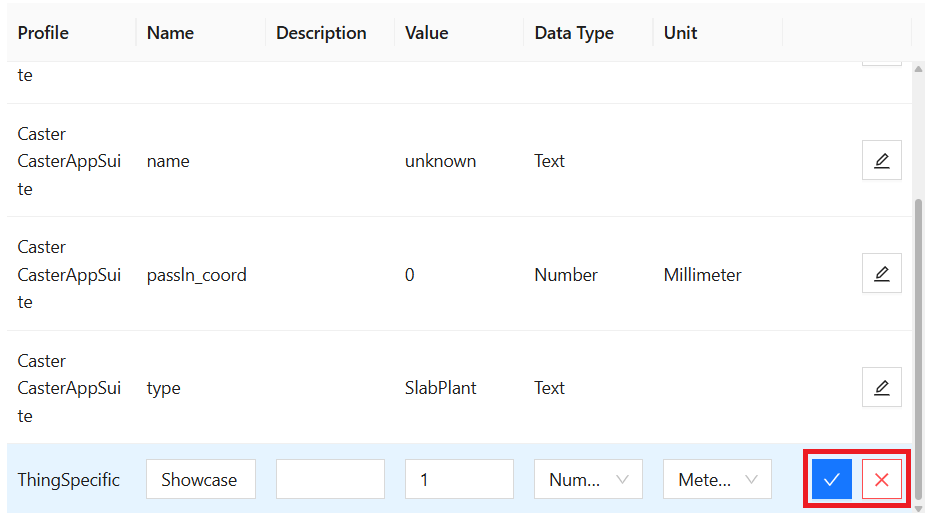
Use the Save button to save changes.
Use the Cancel button to discard changes.
Delete Existing Thing Specific Attribute
Use the Delete button to delete an Attribute. Note that only Thing-specific Attributes can be deleted from the Thing side. See how to delete a Profile Attribute.

Metrics Overview
The Metrics tab shows Thing-specific and Profile Metrics.
Thing-specific Metrics can be viewed, fully edited, and deleted. Profile Metrics can be viewed and their Min Value, Max Value, Sampling Unit, Sampling Interval, and Data Provider Settings can be edited. To fully edit or delete them, edit the Profile they belong to.
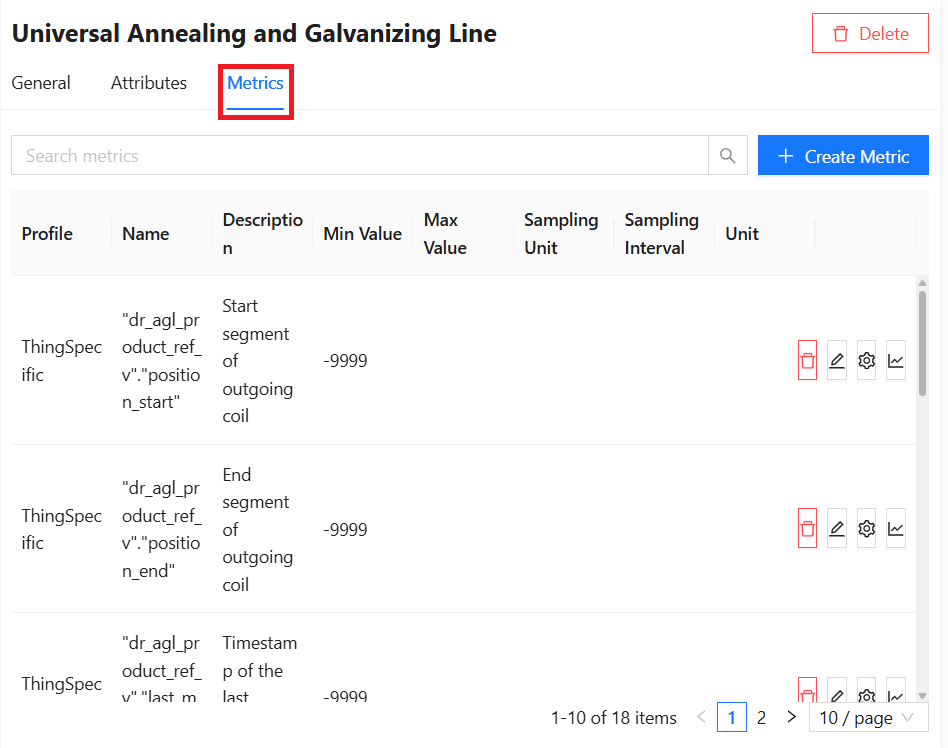
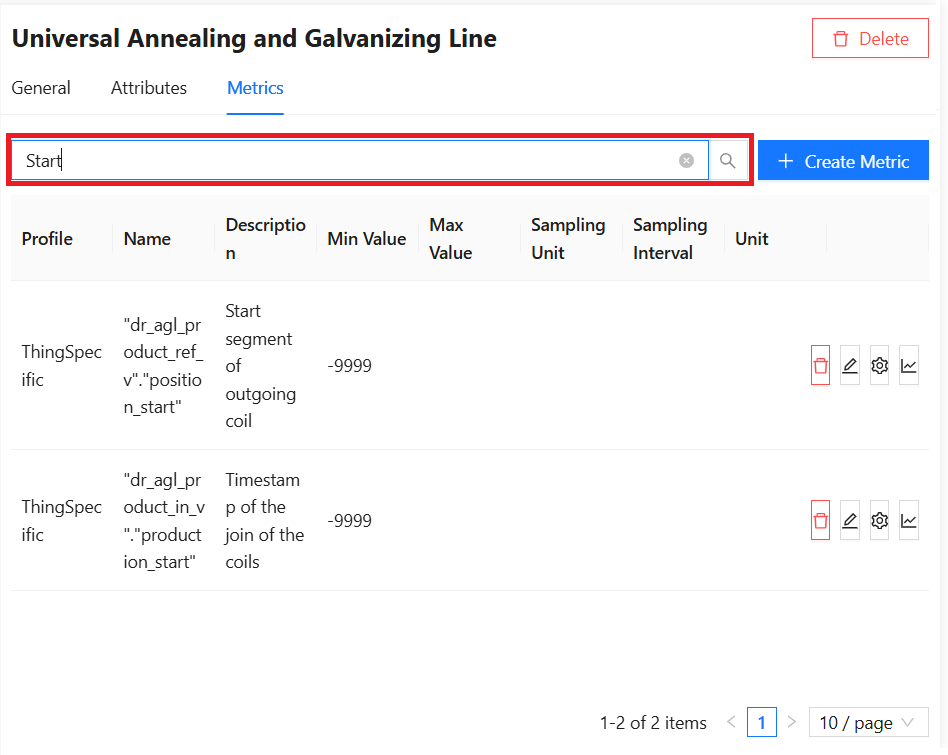
Metrics can be searched by Name, Description, Min Value, Max Value, and Unit Name:
Create new Metric
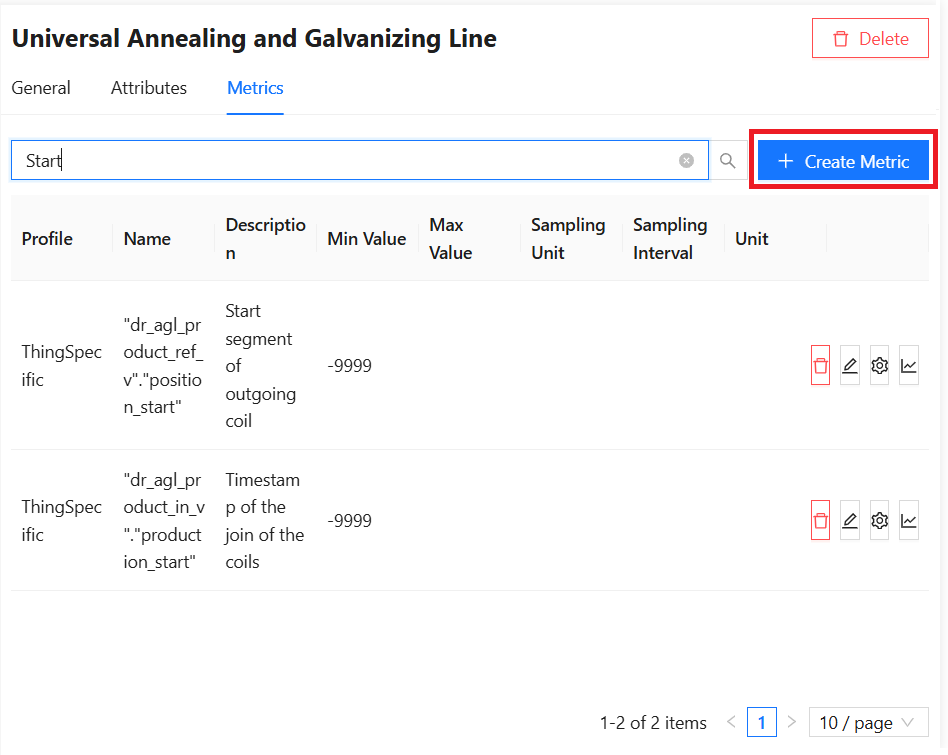
Click on the Create Metric button to create a new Thing-specific Metric. See how to create a Profile Metric.
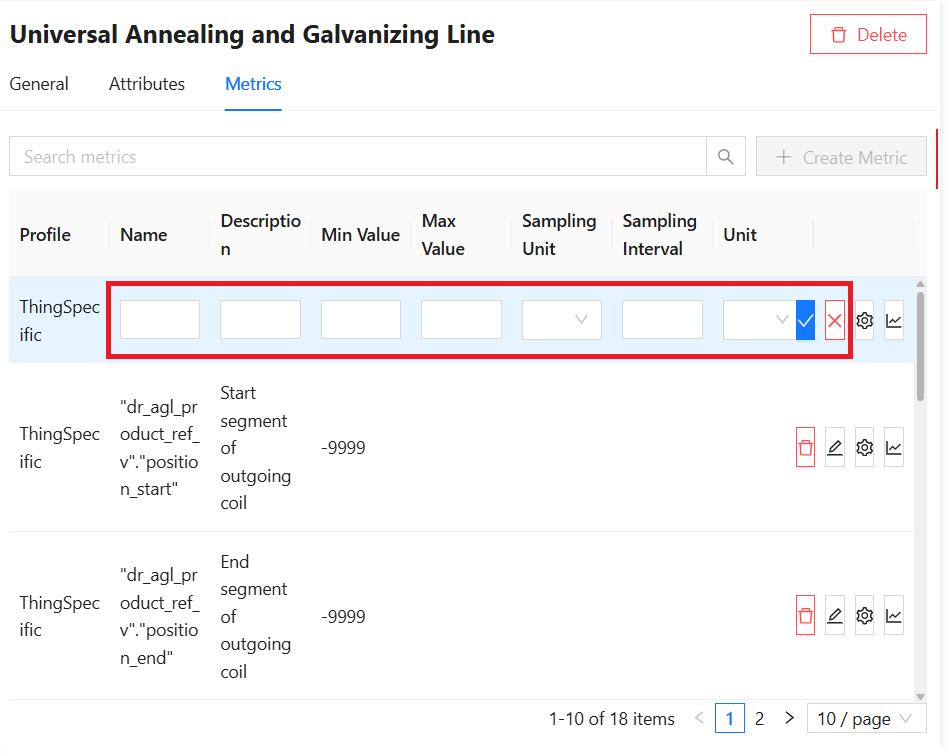
Provide:
- Name: is required and must be unique within the Profile.
- Description.
- Min Value: must be smaller than Max Value.
- Max Value: must be greater than Min Value.
- Sampling Unit: is searchable by Name. The available options are pre-configured and cannot be changed by the User.
- Sampling Interval.
- Unit: is searchable by Name. The available options are pre-configured and cannot be changed by the User.
Use the Save button to save a Metric.
Use the Cancel button to abort the Metric creation process.
Edit Existing Metric
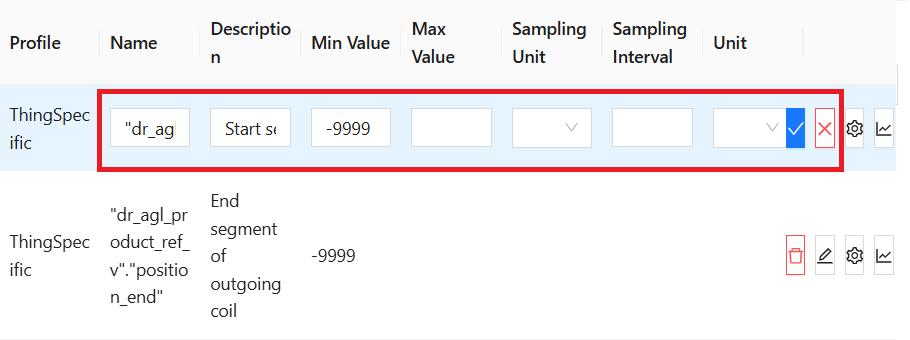
To edit an existing Metric, use the Edit button of the desired Metric.

To distinguish between Profile Metric and Thing-specific Metric, see the Profile column. Thing-specific Metric's Profile is always named ThingSpecific.

For Thing-specific Metrics, all properties can be edited. For a Profile Metric, Min Value, Max Value, Sampling Unit, Sampling Interval, and Data Provider Settings can be edited from the Thing side. See how to edit other properties of a Profile Metric.
Use the Save button to save changes.
Use the Cancel button to discard changes.
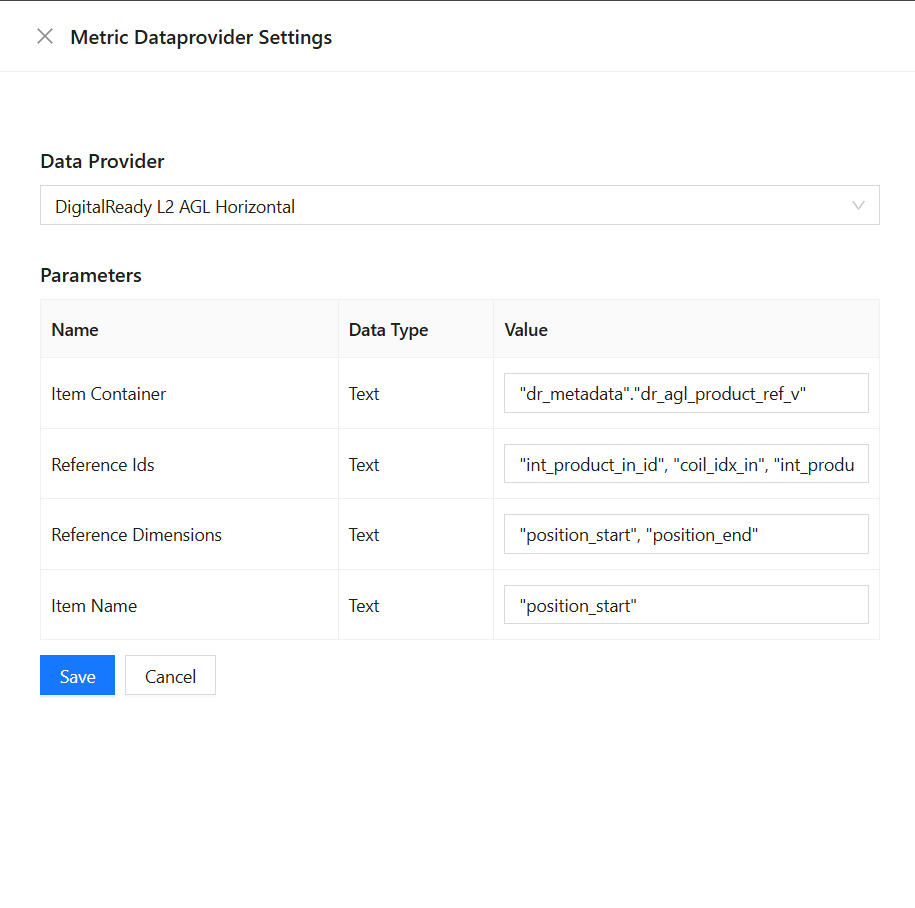
Data Provider Settings
Use the Settings button to configure access to the Metric's data source:

Select a Data Provider that is allowed in the System.
Then provide the required parameter values. The list of parameters depends on the Data Provider. See how to declare Data Provider Parameters.
Use the Save button to save the settings and close the side panel.
Use the Cancel button to discard changes and close the side panel.
Metric Data Preview
Use the Data Preview button to access the Metric data preview.

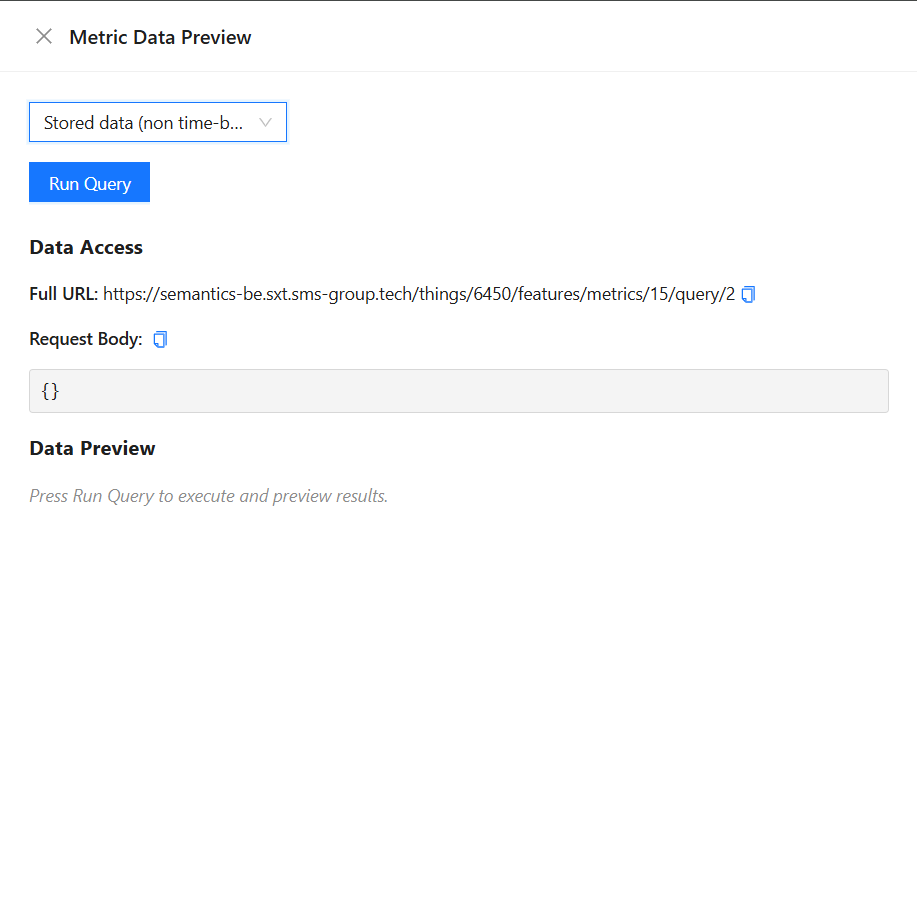
Select the Data Query Type. See how to define the available Data Query Type for Data Provider.
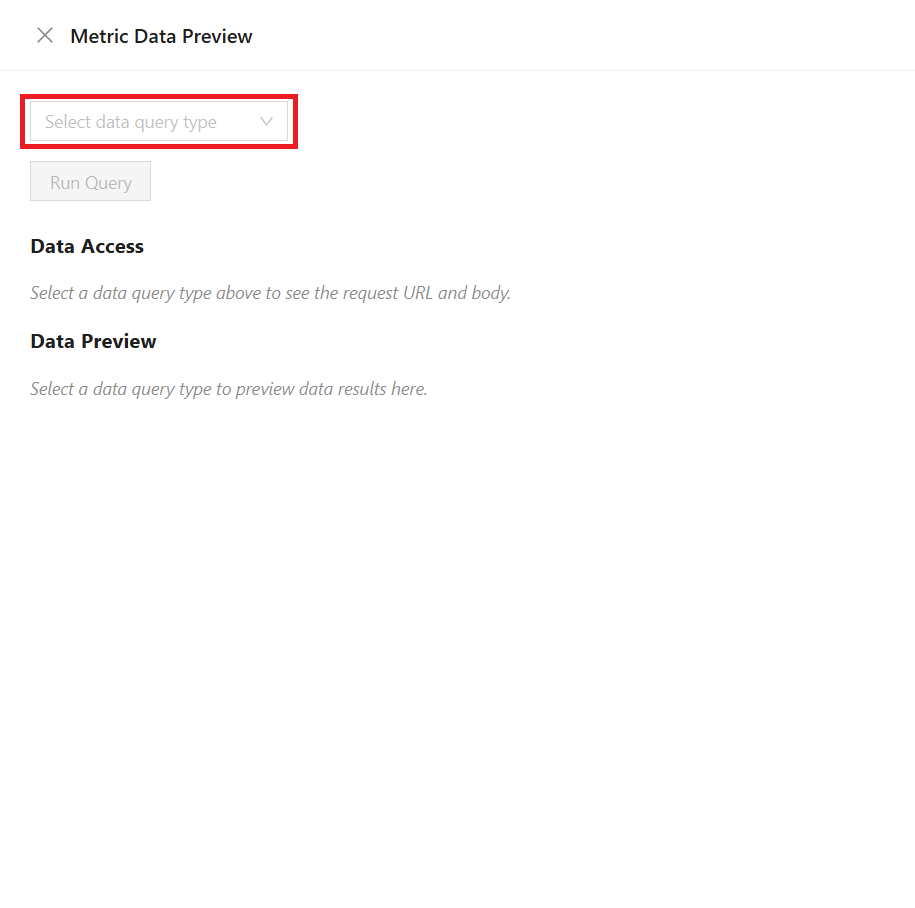
Provide query parameter values if required. It depends on the Data Provider Query configuration.
Example without required parameters for Stored data (non time-based) Data Query Type:
Example with required parameters for Stored data (time-based) Data Query Type:
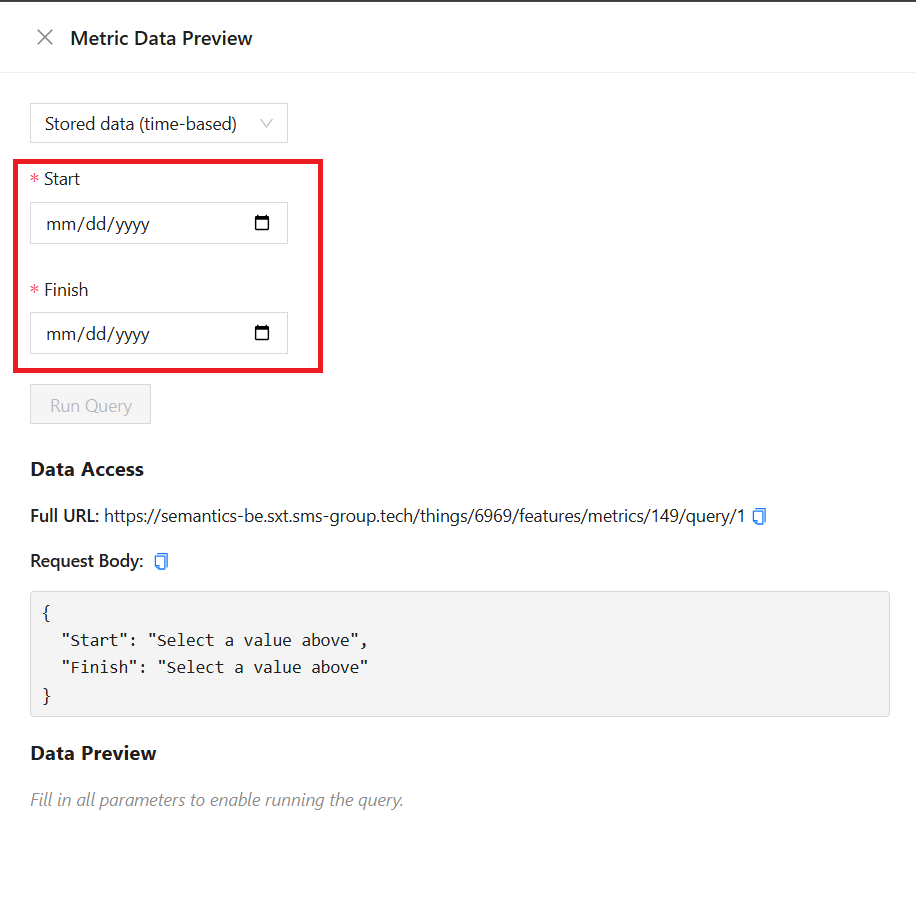
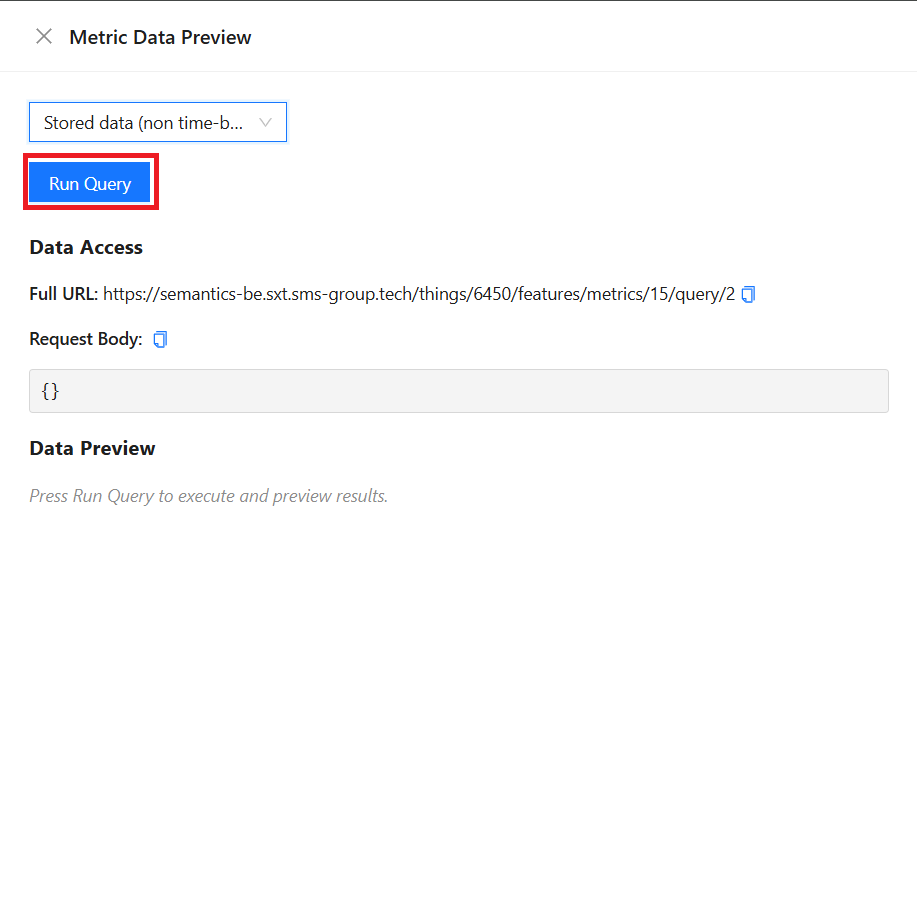
Use the Run Query button to access the Metric data:
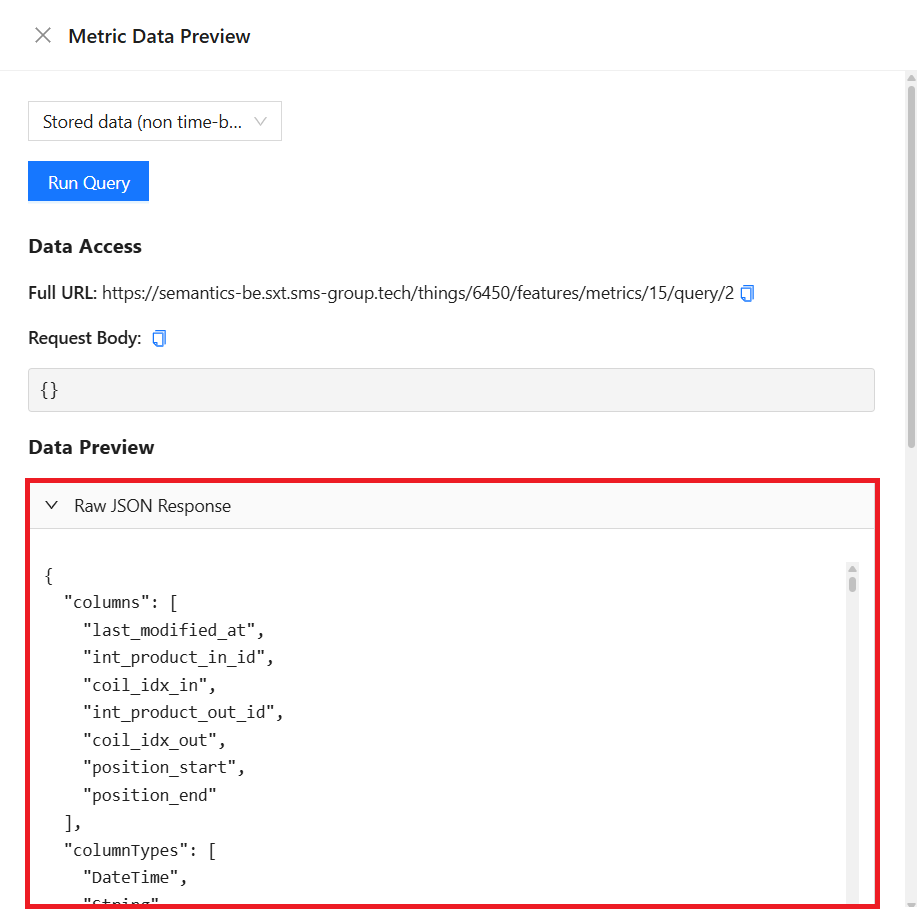
View the Data Preview section for the raw JSON response:
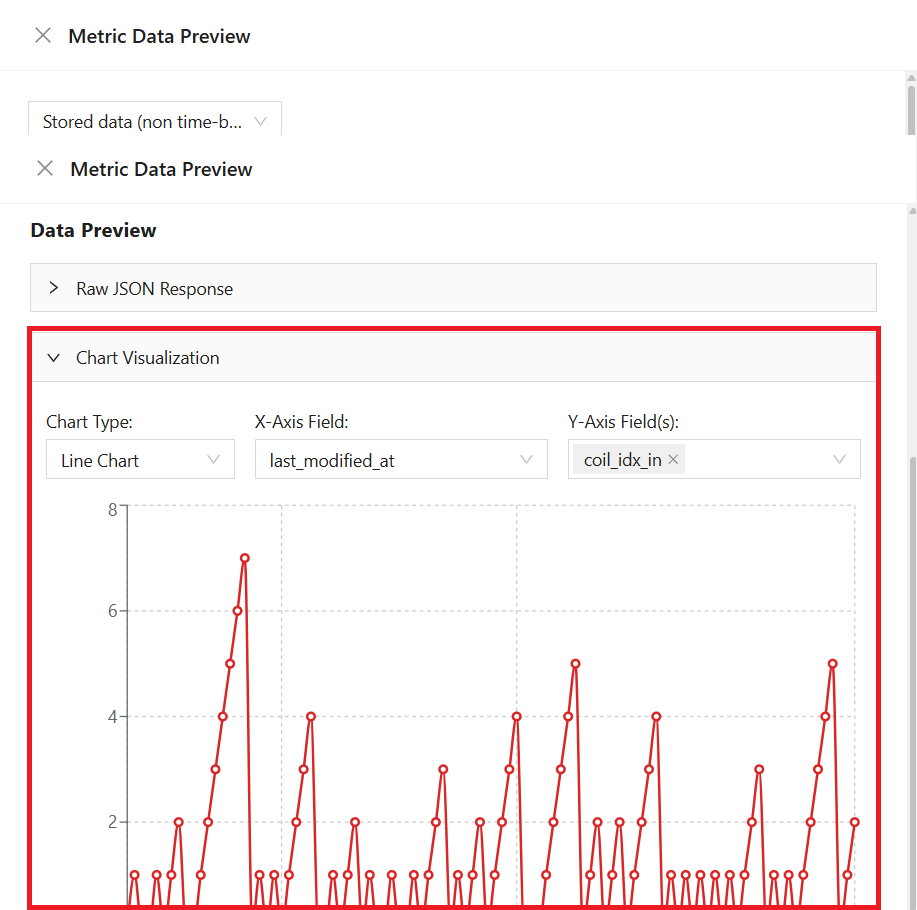
View the Chart Visualization for the data visualization:
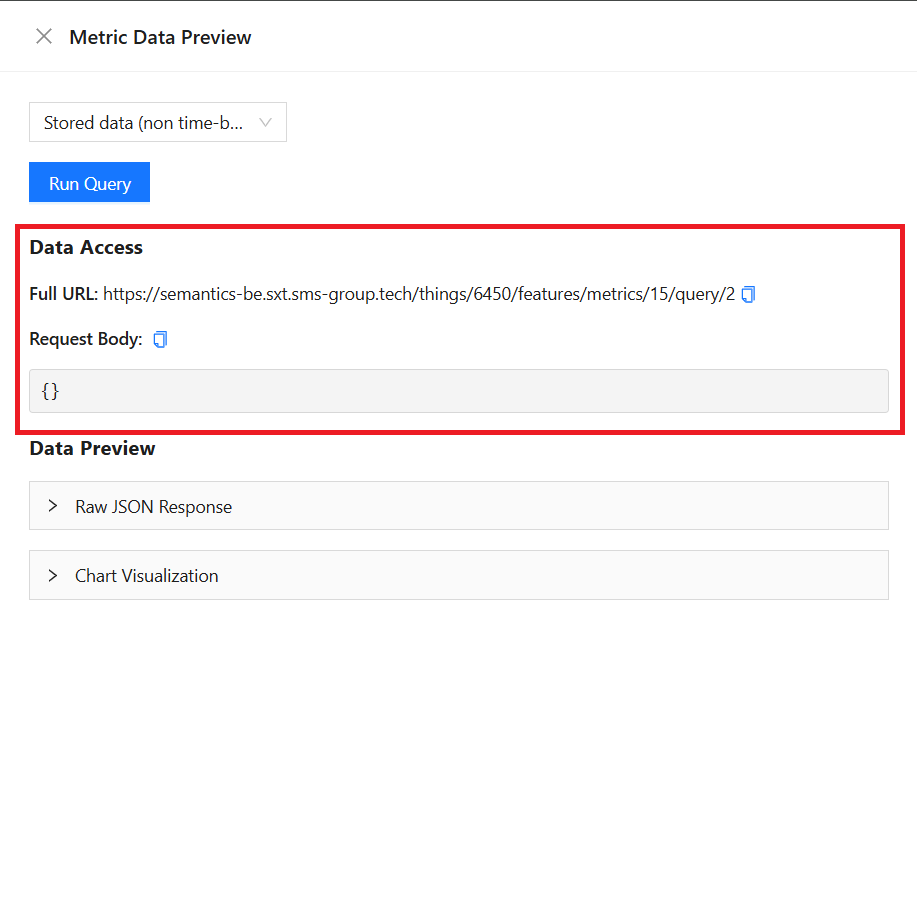
View the Data Access section for information on how to access the Metric data with an API call:
Delete Existing Thing Specific Metric
Use the Delete button to delete a Metric. Note that only Thing-specific Metrics can be deleted from the Thing side. See how to delete a Profile Metric.

Delete Existing Thing
To delete the existing Thing, enter the Edit Mode and use the Delete button to open a delete modal:

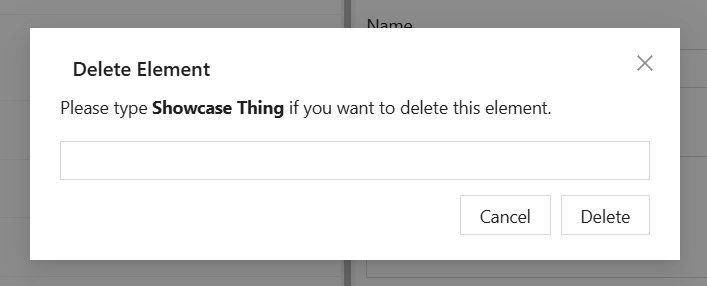
Type in the name of the Thing to be deleted in the input field and click the Delete button.
Use the Cancel button to abort deletion and close the delete modal.