Profiles
Profiles are composable type fragments attached to a Thing (e.g., BOF, Furnace, Plant) that contributes properties. Profiles can stack (BOF is a Furnace; Furnace is part of a Plant).
Profiles Overview
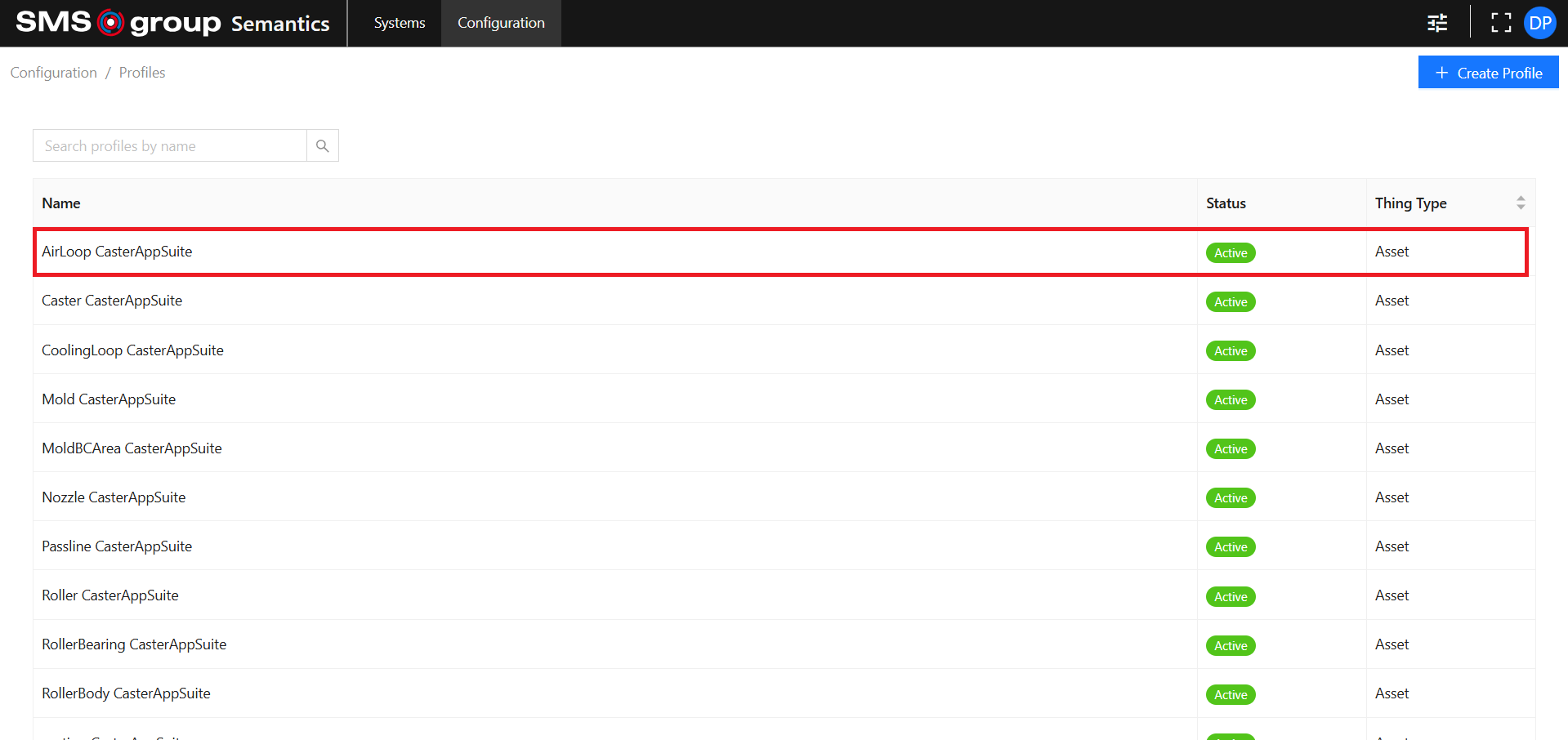
The Profiles overview page shows all the existing Profiles.
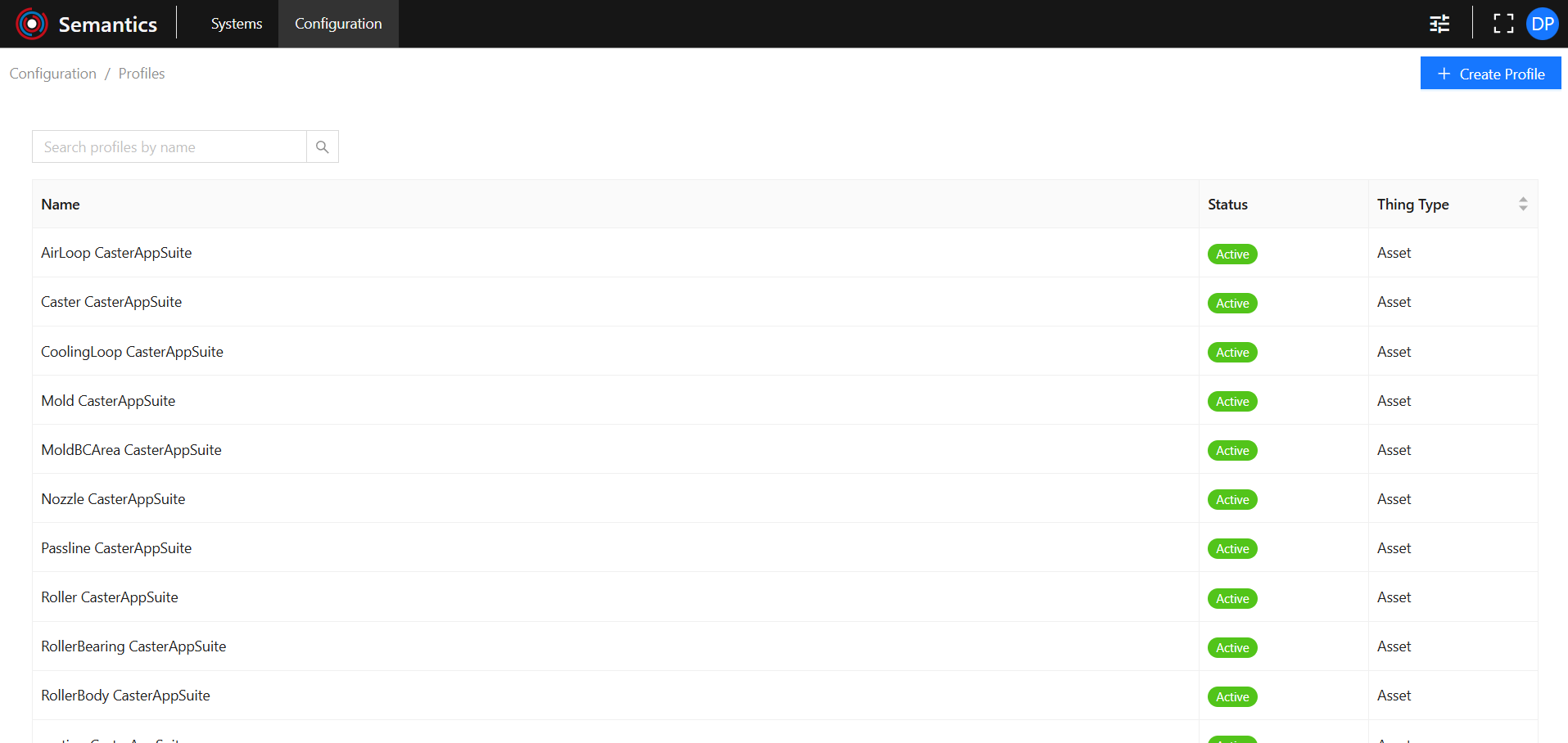
It allows you to search for a Profile by Name and to sort Profiles by Thing Type.

Create new Profile
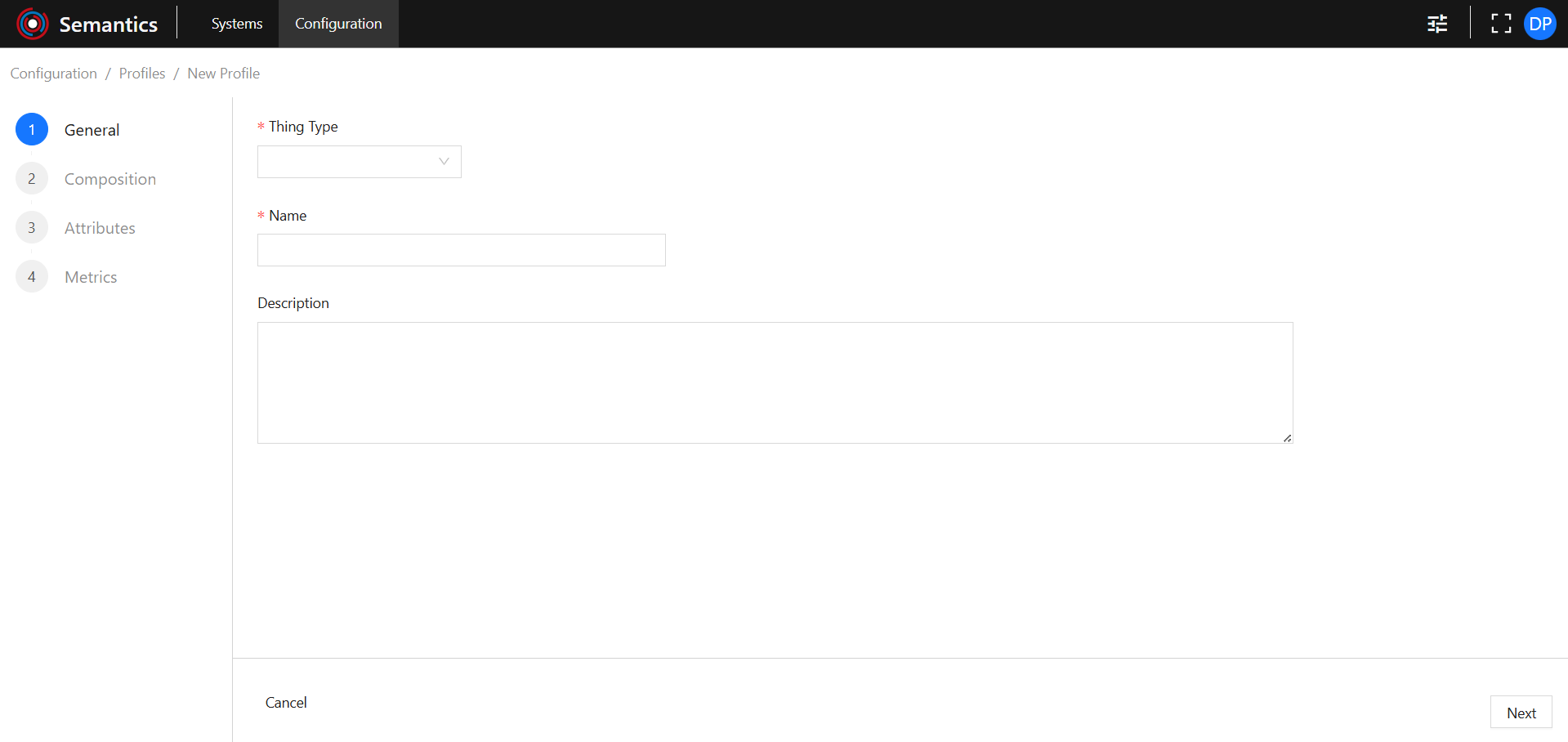
Click on the Create Profile button to open the new Profile creation page:

General
Select Thing Type from the dropdown. Thing Type is required.
See the Thing Types section for information on how to create or edit Thing Types.
Note that Profiles can be assigned to Things of the same Thing Type only and can be inherited by other Profiles only of the same Thing Type.
Provide:
- Name: is required and must be unique.
- Description.
Composition
A Profile can inherit other Profiles, which leads to inheritance of Profile Attributes and Metrics.
Profile composition can be nested: if a Profile inherits another Profile which inherits a third Profile, the first Profile inherits Attributes and Metrics from both the second and third Profiles.
Select which Available Profiles to assign and click the transfer button:
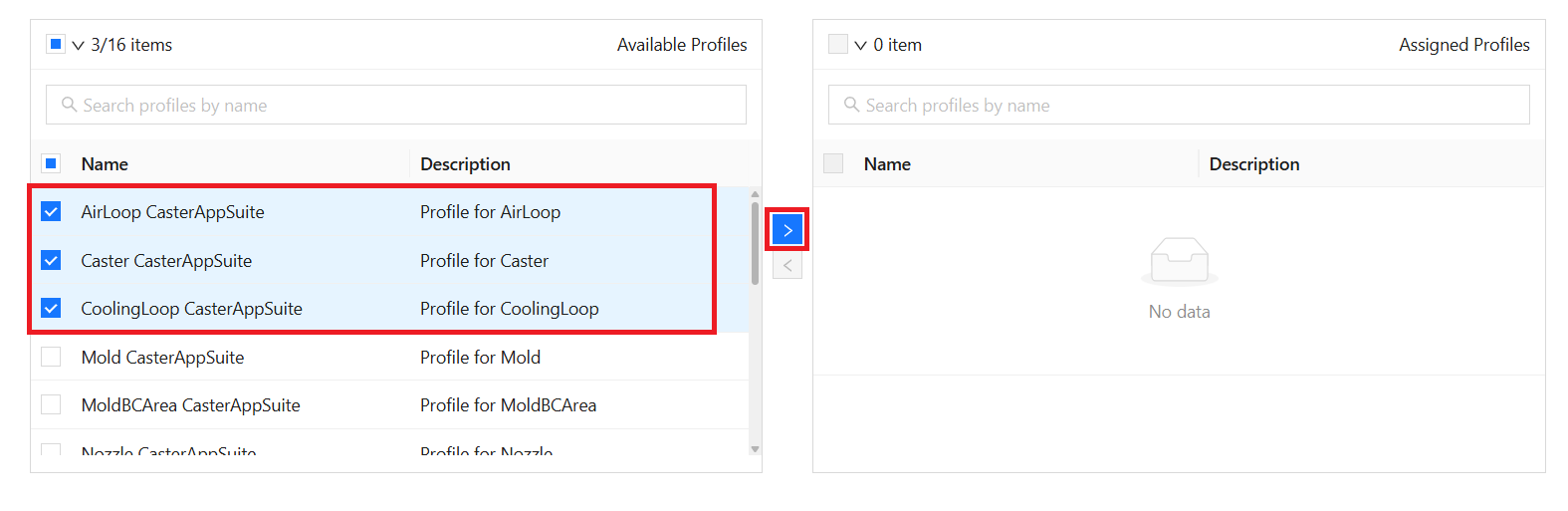
Check the Assigned Profiles for newly assigned Profiles. If an assigned Profile has inherited Profiles, they are shown, but grayed out.
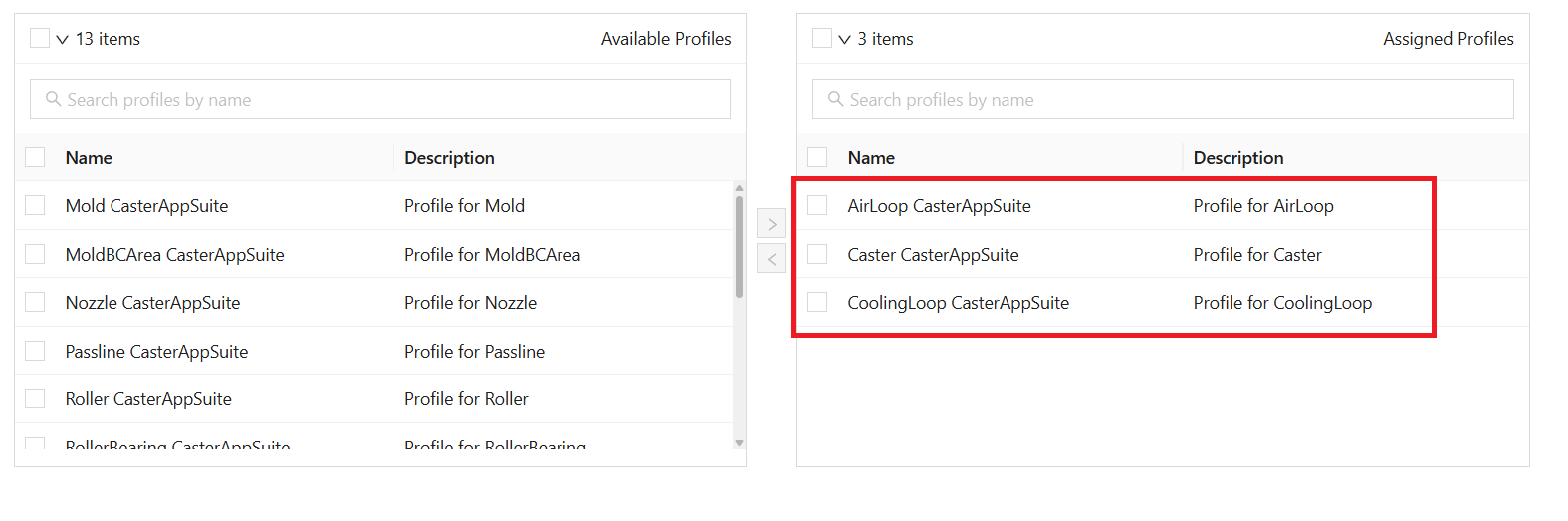
Available Profiles and Assigned Profiles are searchable by Profile Name:

Attributes Overview
The Attributes tab shows direct and inherited Attributes.
Direct Attributes can be viewed, edited, and deleted. Inherited Attributes can only be viewed. To edit or delete them, edit the Profile they belong to.
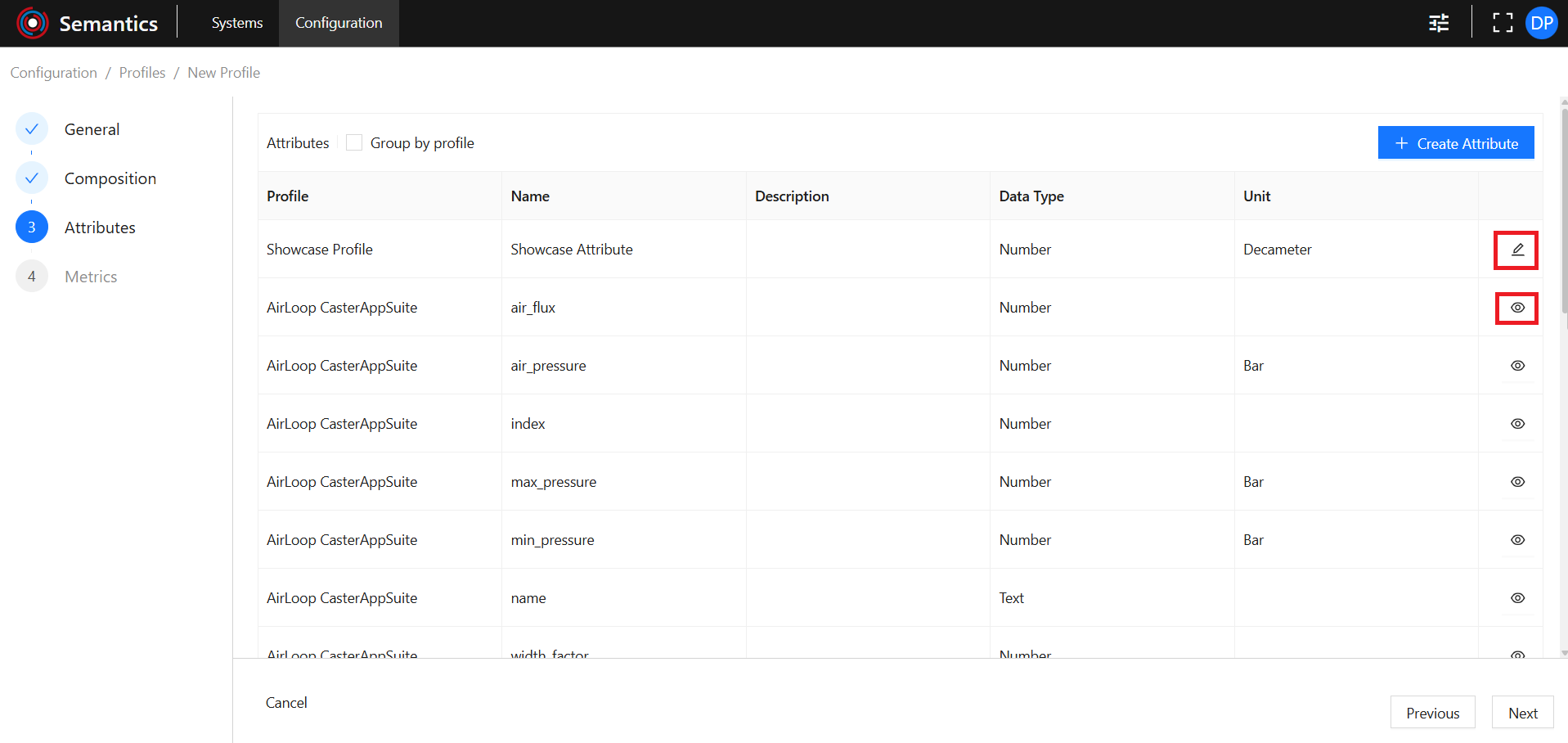
Attributes can be grouped by Profile:
Create new Attribute
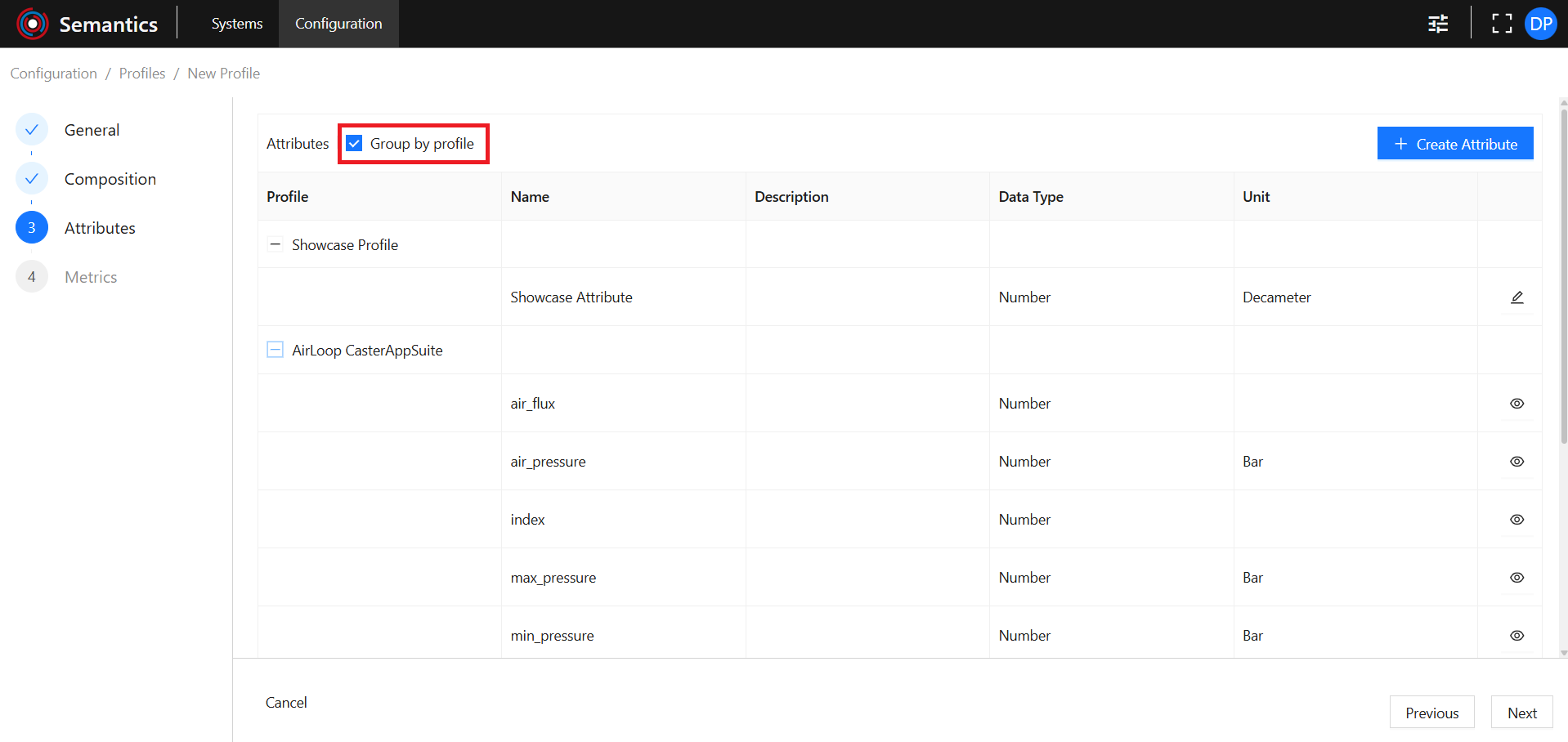
Click on the Create Attribute button to open the Attribute Configuration side panel:

Provide:
- Name: is required and must be unique within the Profile.
- Description.
- Data Type: The available options are pre-configured and cannot be changed by the User.
- Unit: is searchable by Name. The available options are pre-configured and cannot be changed by the User.
- Required: is required, defaults to False. If an Attribute Required is set to True, the respective Thing Attributes must have the Value property set. Otherwise, the Thing is marked as misconfigured.
Use the Save button to finish the Attribute creation process and close the Attribute Configuration side panel.
Use the Cancel button to abort the Attribute creation process and close the Attribute Configuration side panel.
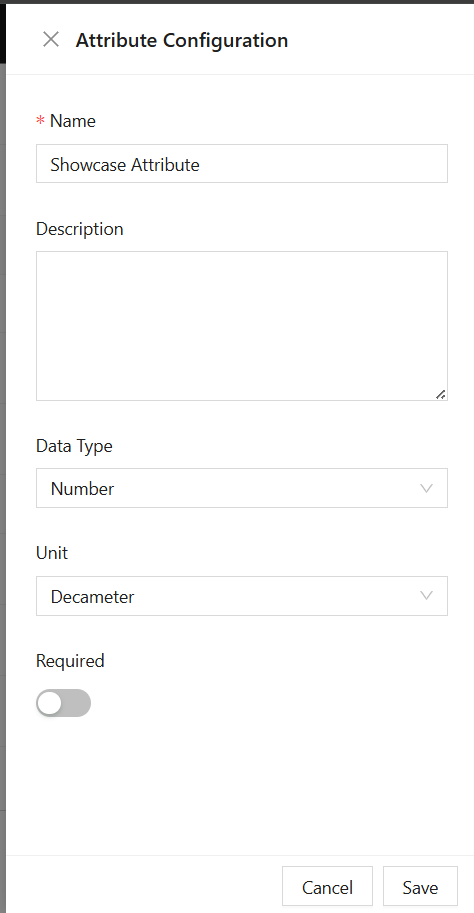
View Existing Inherited Attribute
To view an existing inherited Attribute use the View button of the desired Attribute:

View or Edit Existing Direct Attribute
To view or edit an existing direct Attribute use the Edit button of the desired Attribute:

Delete Existing Direct Attribute
From the Attribute Configuration panel, use the Delete button to open the delete modal:
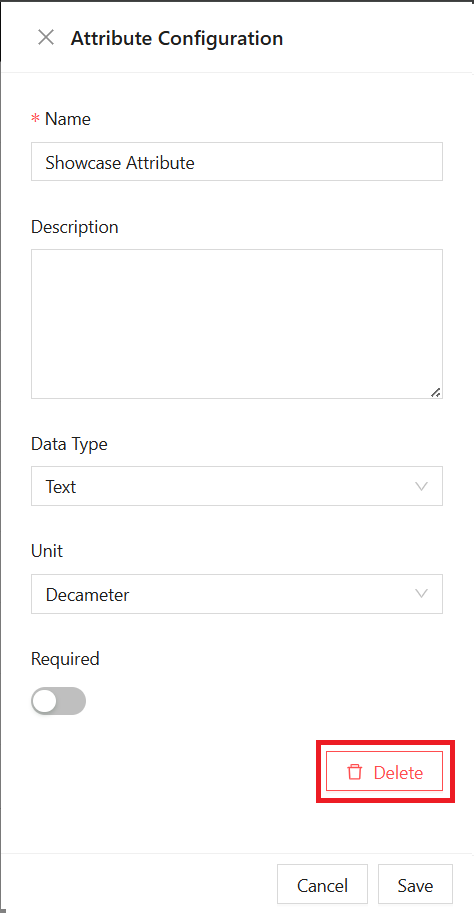
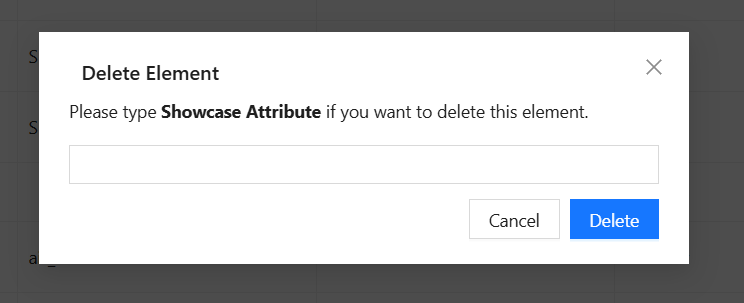
Type in the name of the Attribute to be deleted in the input field and click the Delete button.
Use the Cancel button to abort deletion and close the delete modal.
Metrics Overview
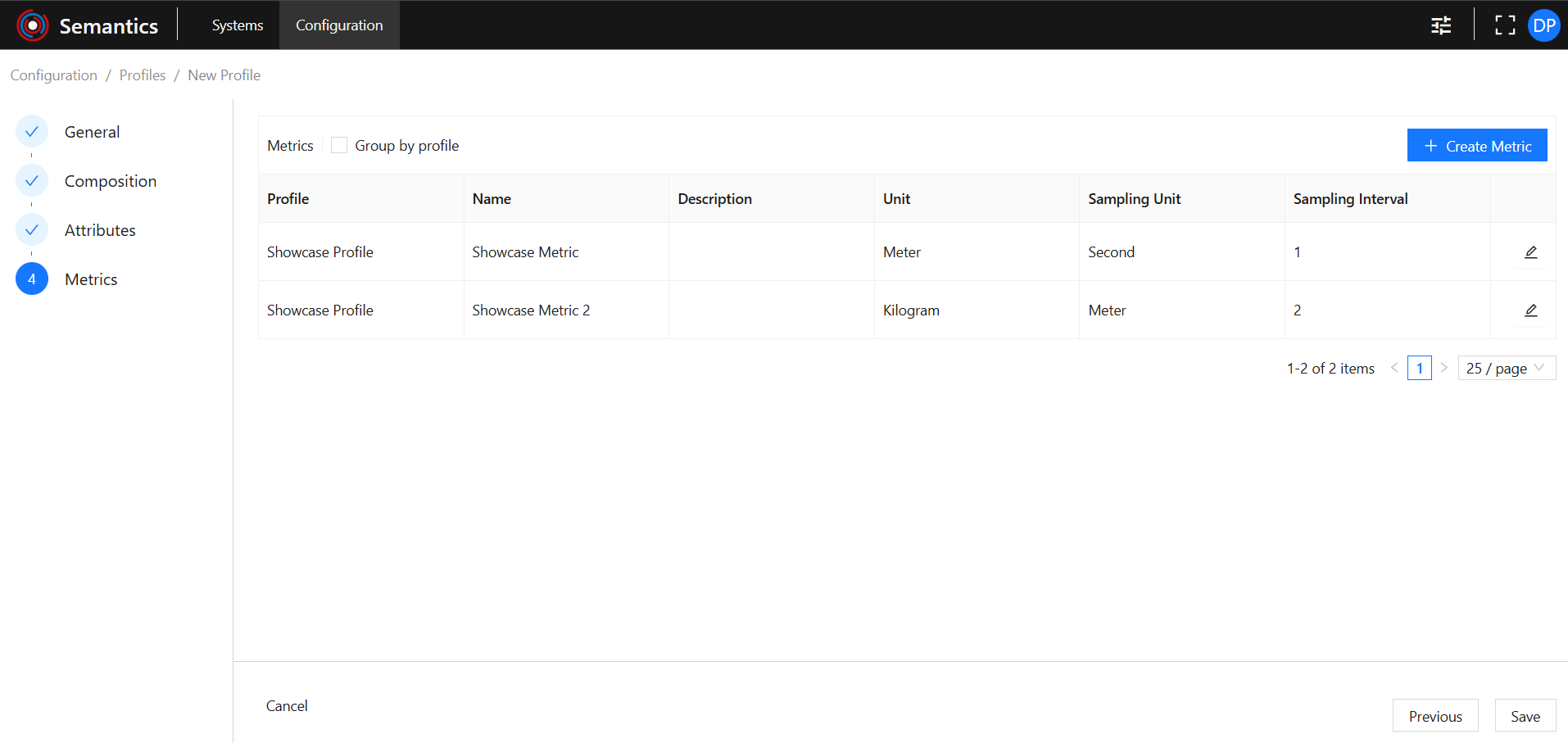
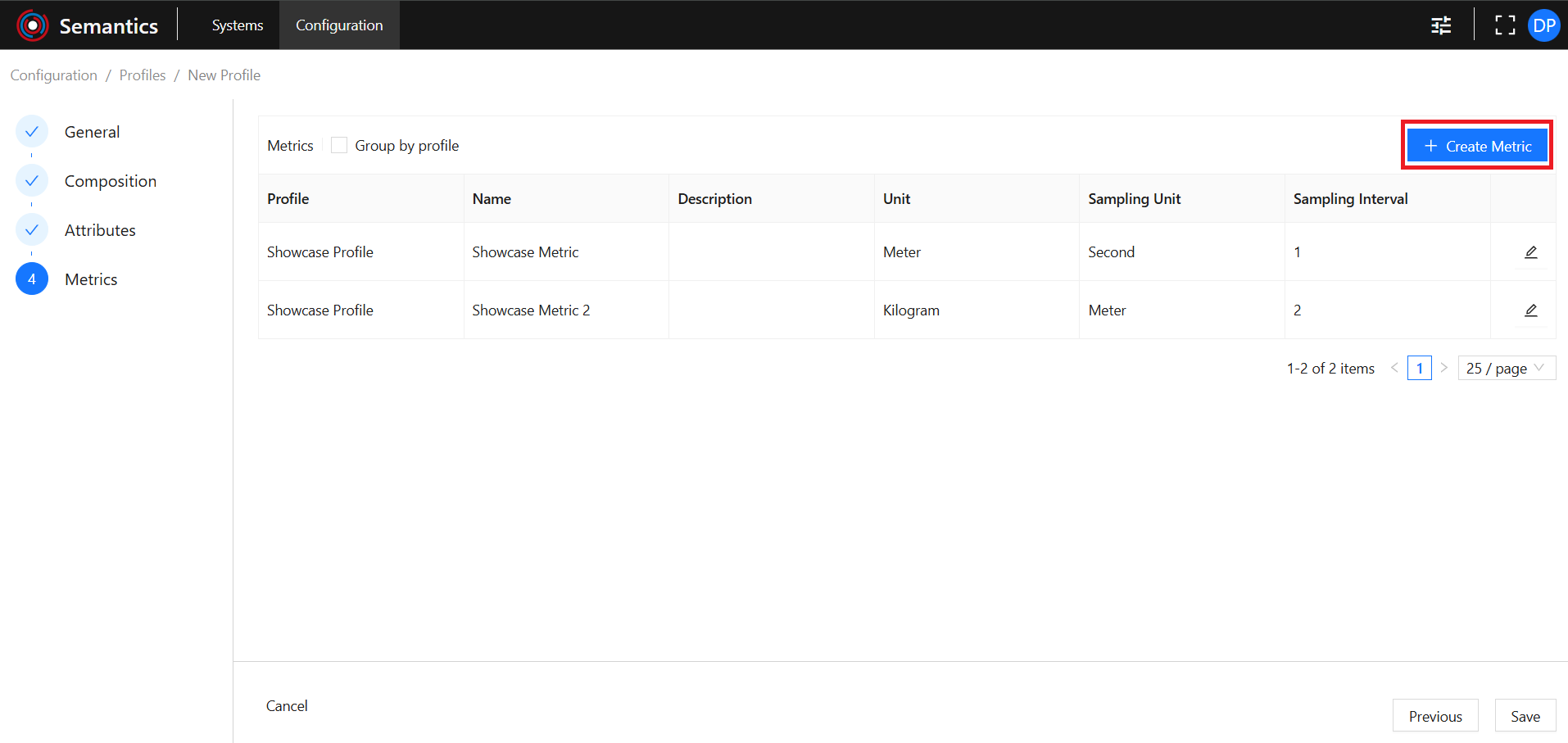
The Metrics tab shows direct and inherited Metrics.
Direct Metrics can be viewed, edited, and deleted. Inherited Metrics can only be viewed. To edit or delete them, edit the Profile they belong to.
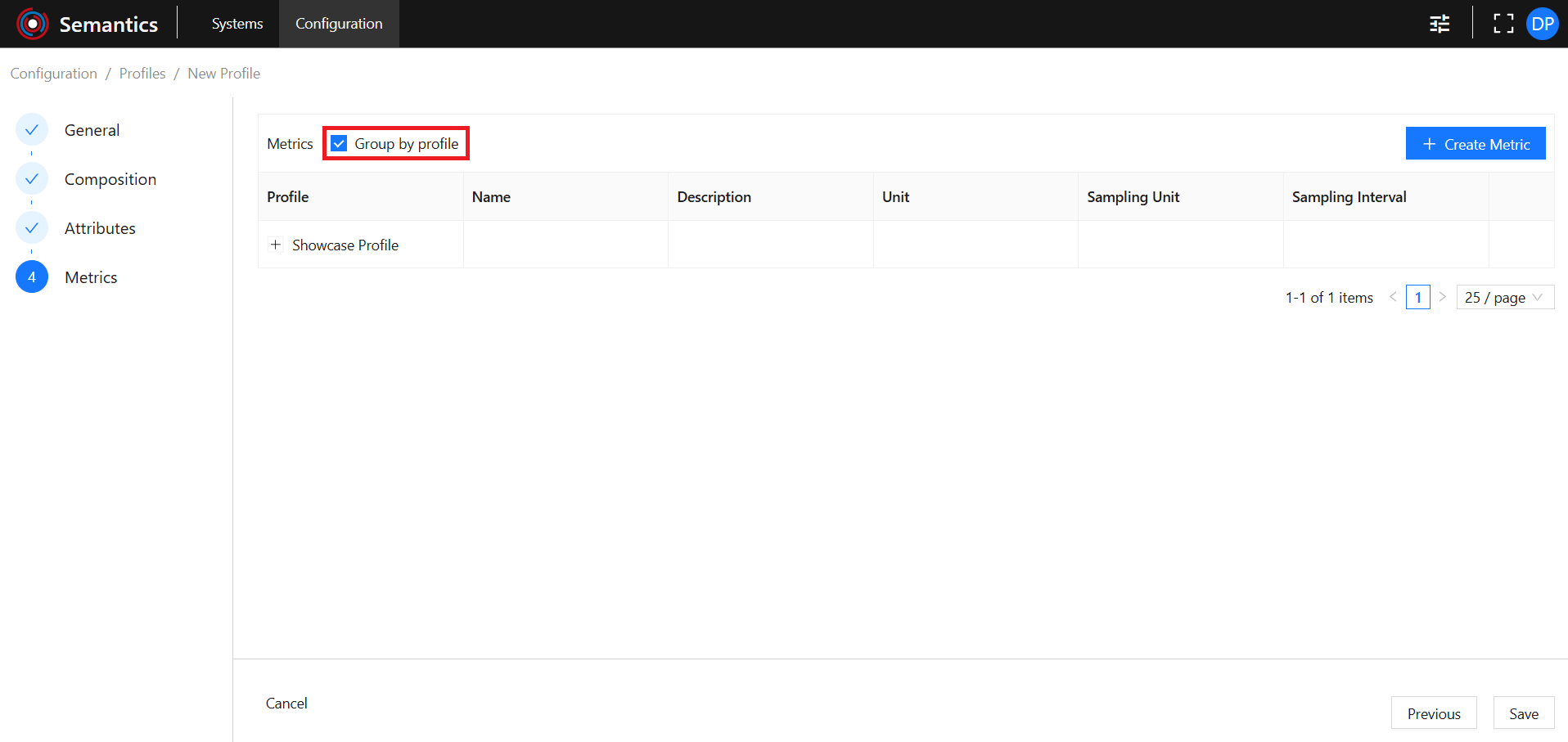
Metrics can be grouped by Profile:
Create new Metric
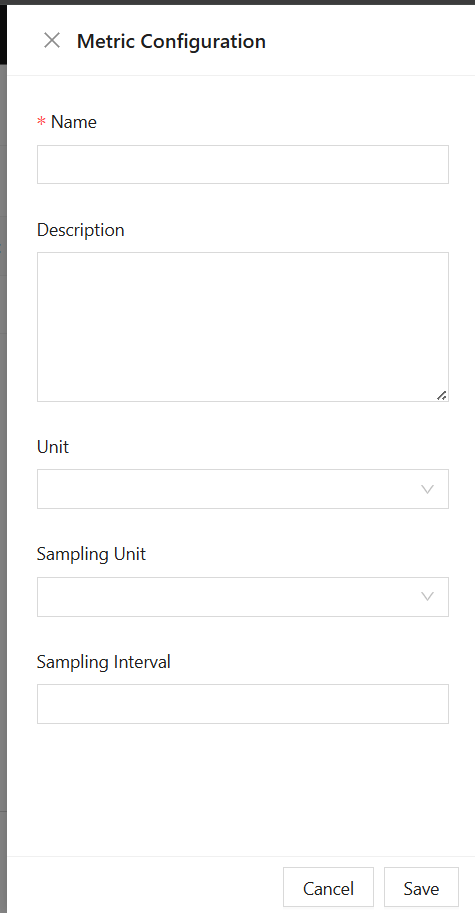
Click on the Create Metric button to open the Metric Configuration side panel:
Provide:
- Name: is required and must be unique within the Profile.
- Description.
- Unit: is searchable by Name. The available options are pre-configured and cannot be changed by the User.
- Sampling Unit: is searchable by Name. The available options are pre-configured and cannot be changed by the User.
- Sampling Interval.
Use the Save button to finish the Metric creation process and close the Metric Configuration side panel.
Use the Cancel button to abort the Metric creation process and close the Metric Configuration side panel.
View Existing Inherited Metric
To view an existing inherited Metric use the View button of the desired Metric:

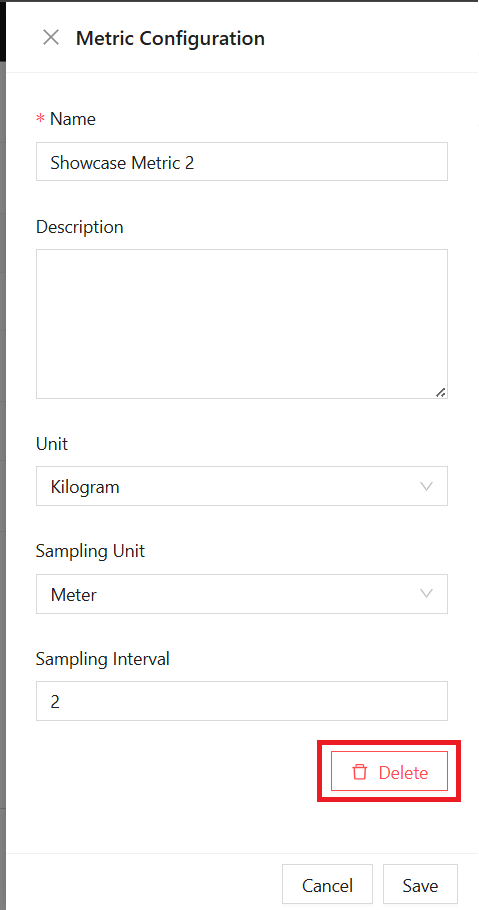
View or Edit Existing Direct Metric
To view or edit an existing direct Metric use the Edit button of the desired Metric:

Delete Existing Direct Metric
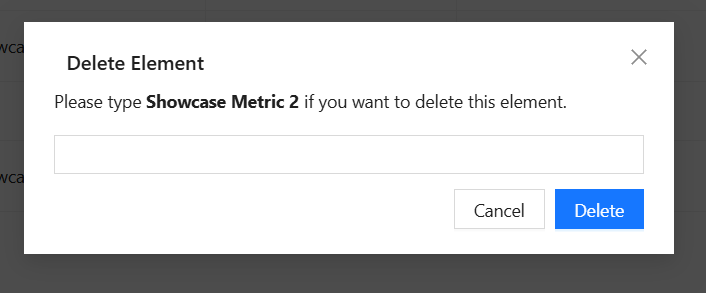
From the Metric Configuration panel, use the Delete button to open the delete modal:
Type in the name of the Metric to be deleted in the input field and click the Delete button.
Use the Cancel button to abort deletion and close the delete modal.
Navigation
Navigate through creation steps using the Previous and Next buttons.
Use the Save button to save changes and close the creation page.
Use the Cancel button to discard changes and close the creation page.


View Existing Profile
To view the existing Profile click on the desired Profile:
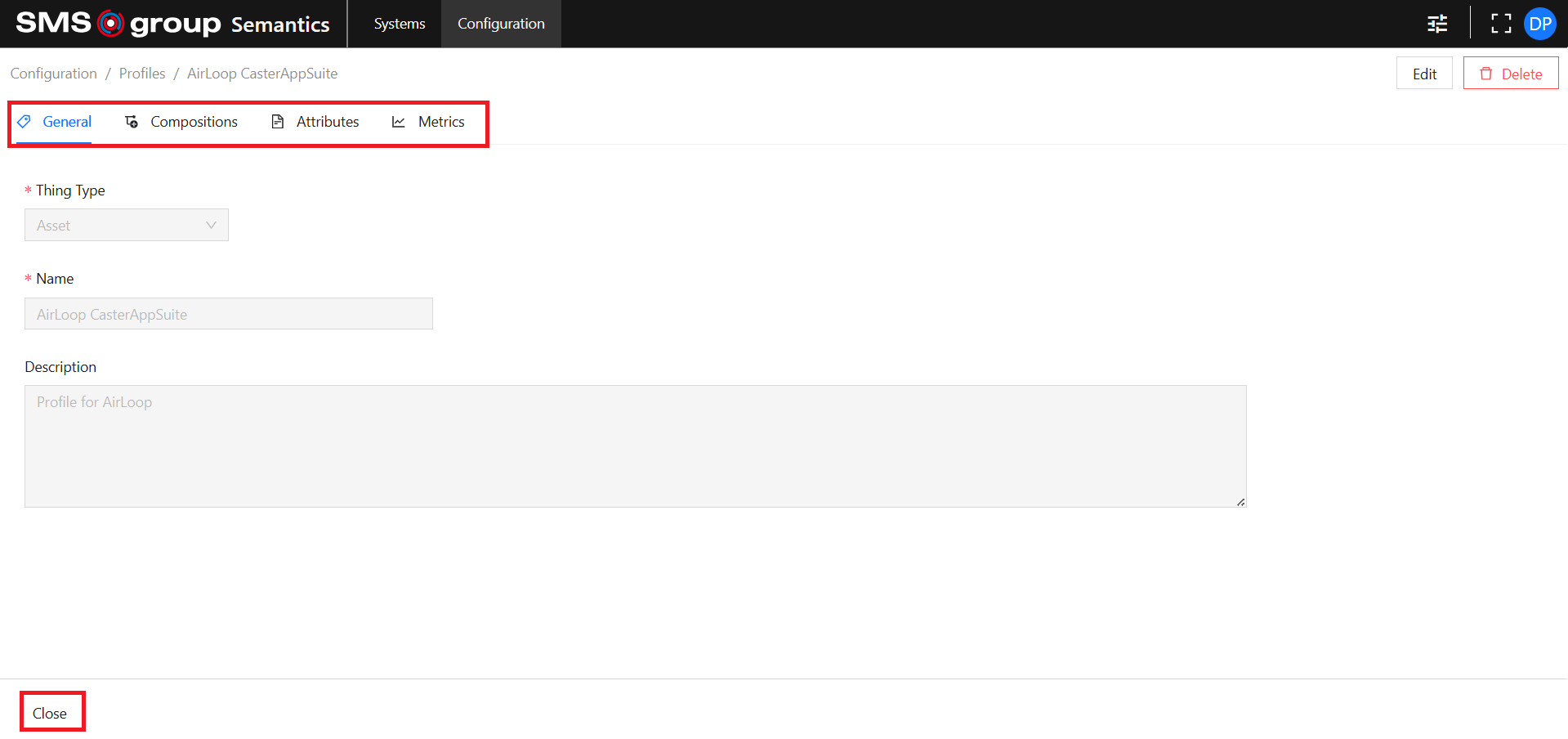
Use the Tab Menu to switch between different metadata categories.
Use the Close button to close the specific Profile page.
Edit Existing Profile
Use the Edit button to open the Profile edition page:

It has the same functionalities as the Create new Profile page.
Delete Existing Profile
Use the Delete button to open the delete modal:

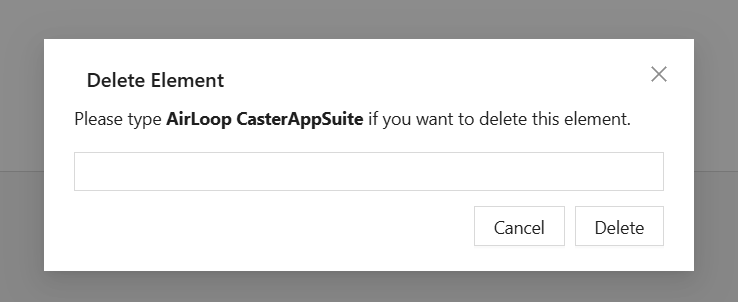
Type in the name of the Profile to be deleted in the input field and click the Delete button.
Use the Cancel button to abort deletion and close the delete modal.