Relation Types
Relation Types are types of links between two Things (hierarchy, connection, transformation, lineage) expressed without technology bias. E.g. mechanical parent-child, electrical connection, input→output material, asset→product.
Relation Types Overview
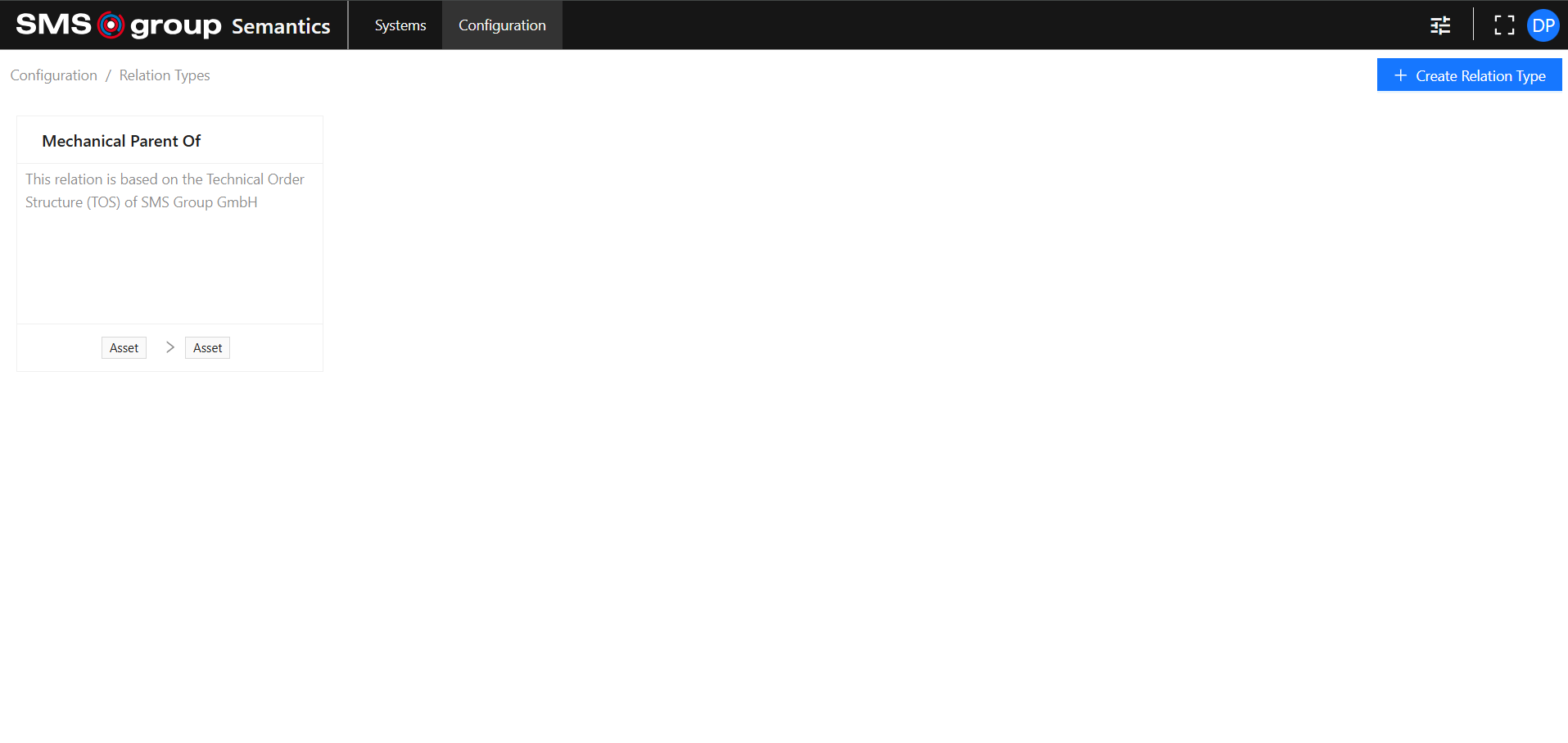
The Relation Types overview page shows all the existing Relation Types:
Create new Relation Type
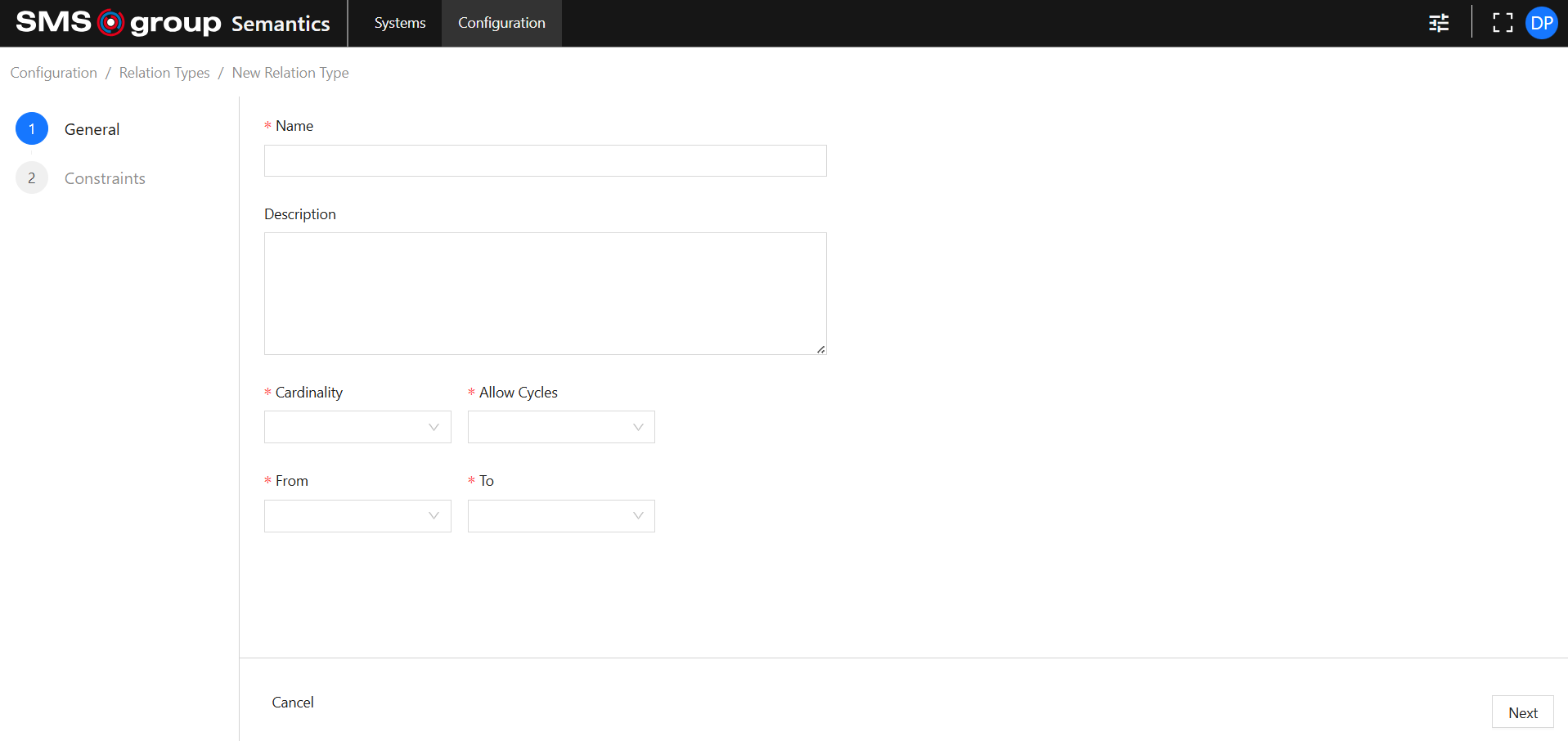
Click on the Create Relation Type button to open the new Relation Type creation page:

General
Provide:
- Name: is required and must be unique.
- Description.
- Cardinality: is required. The available options are pre-configured and cannot be changed by the User.
- Allow cycles: is required. Defines whether the Relation Type can be cyclic or not.
- From: is required. Defines the first Thing Type in the relation sequence.
- To: is required. Defines the second Thing Type in the relation sequence.
Note that only Things with matching Thing Types can use this Relation Type.
See the Thing Types section for information on how to create or edit Thing Types.
Constraints
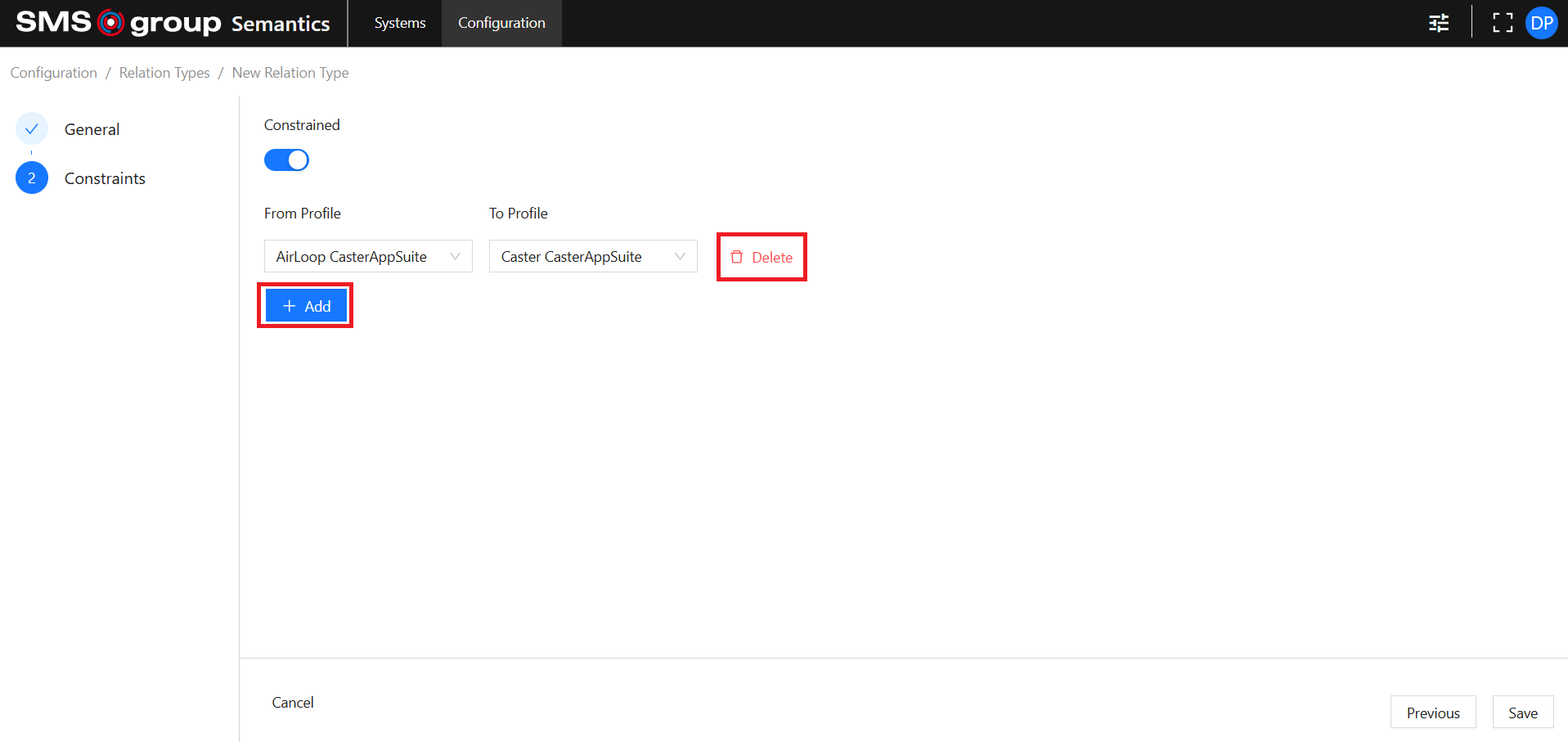
Switch Constrained to enable or disable constraints on the particular Relation Type.
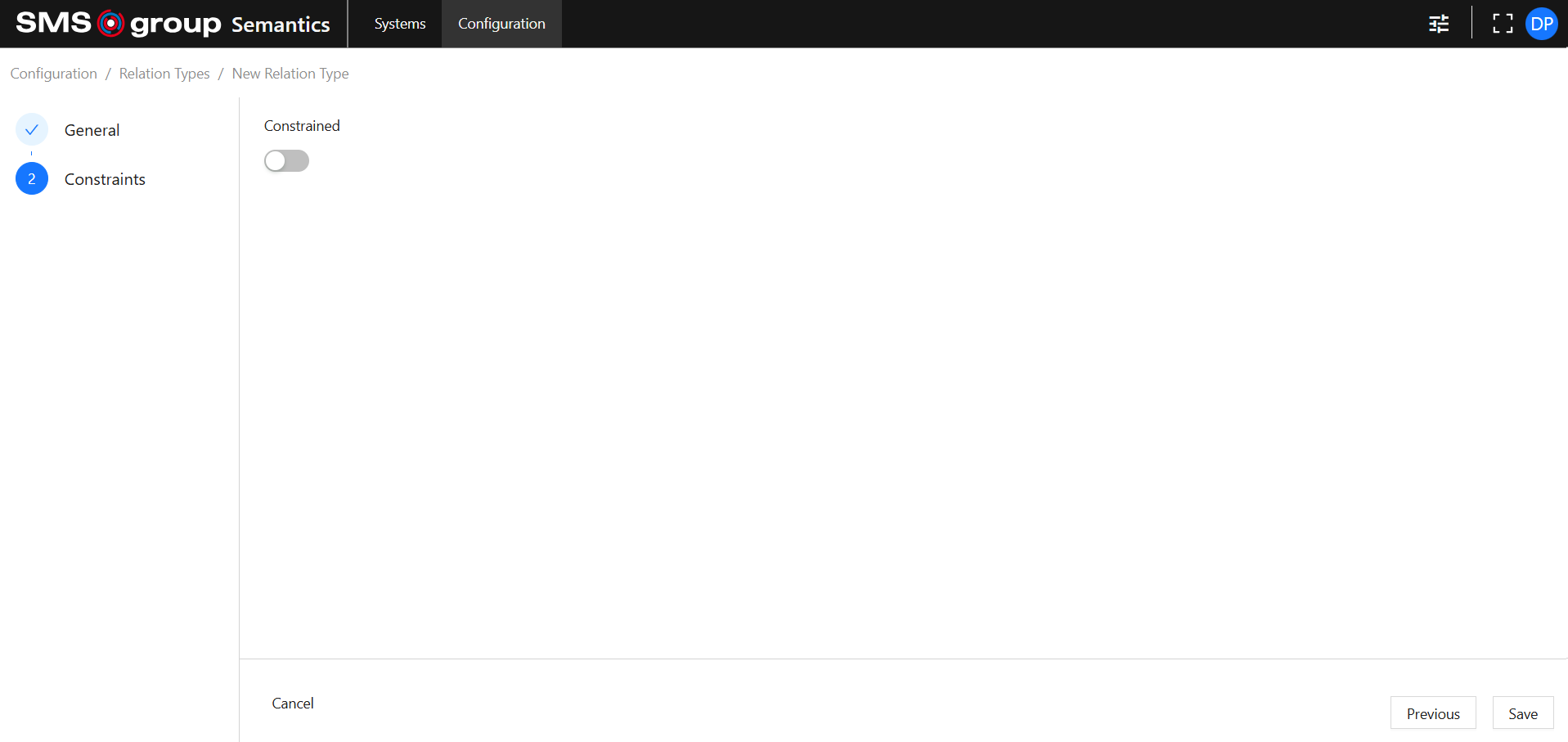
If enabled, select the From Profile and To Profile.
To add more constraints, use the Add button. To delete a constraint, use the Delete button.
If a constraint is set, this Relation Type can only be assigned to a pair of Things that respectively use the same Profiles.
Note that only Profiles with matching Thing Types are allowed.
See the Profiles section for information on how to create or edit Profiles.
Navigation
Navigate through creation steps using the Previous and Next buttons.
Use the Save button to save changes and close the creation page.
Use the Cancel button to discard changes and close the creation page.


View Existing Relation Type
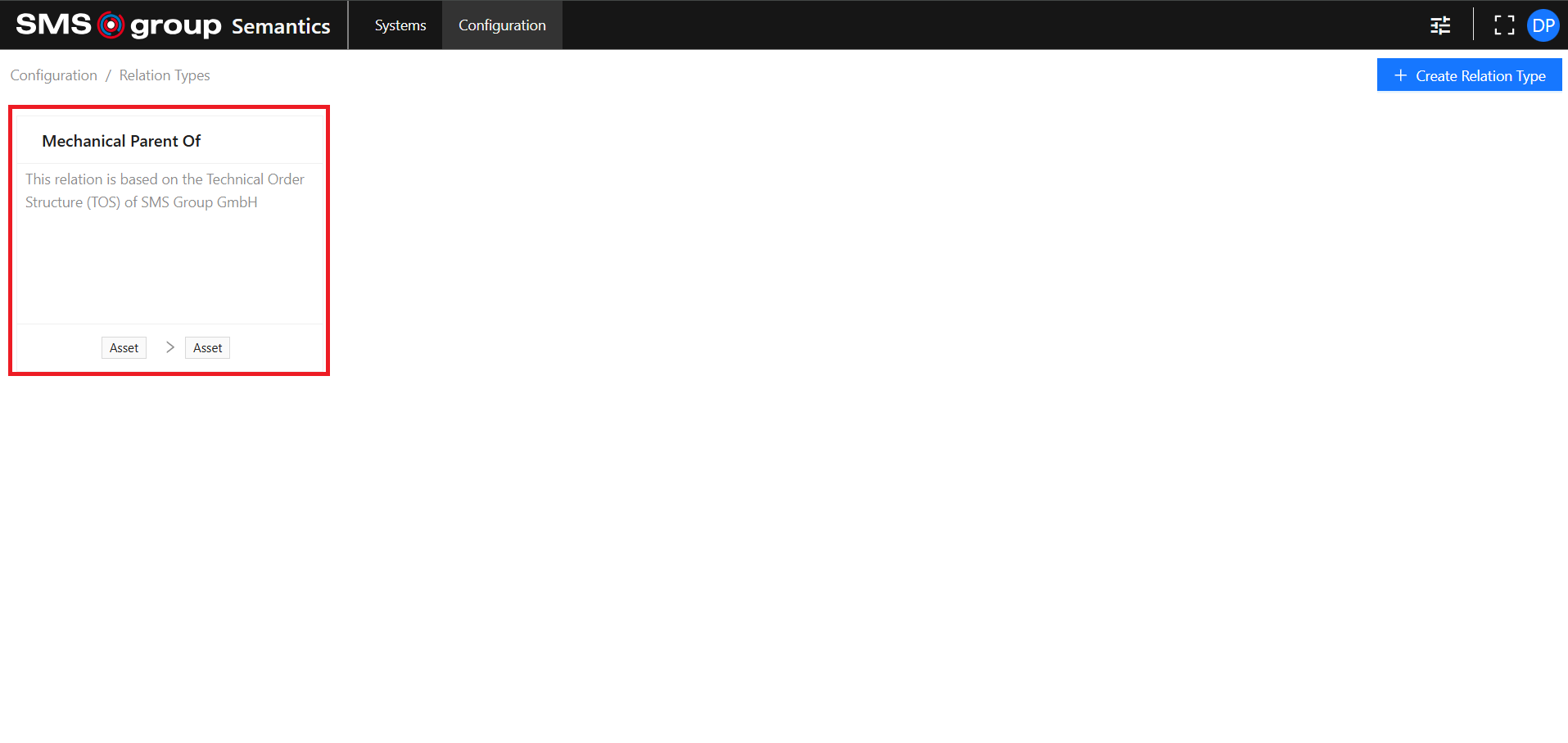
To view the existing Relation Type click on the desired Relation Type card:
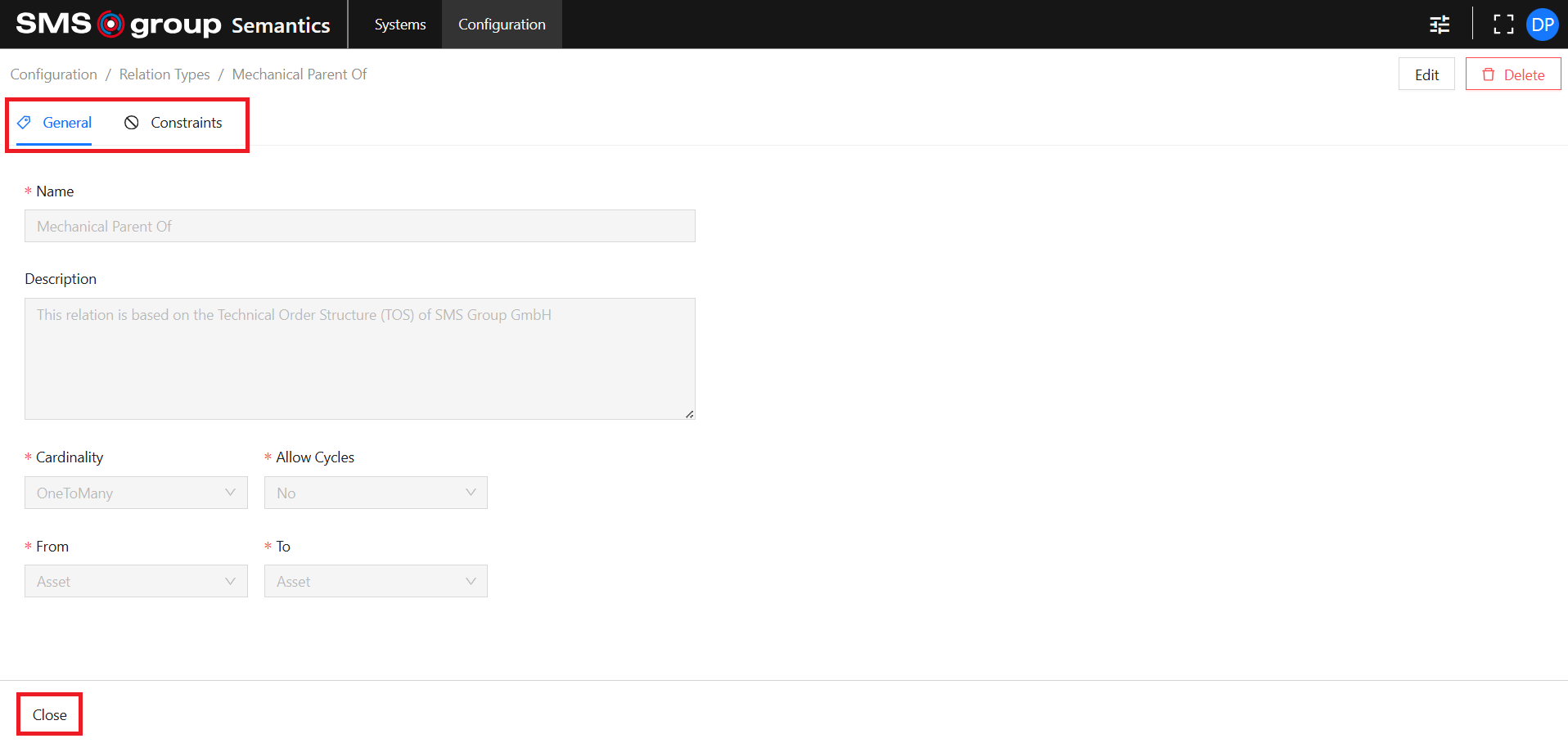
Use the Tab Menu to switch between different metadata categories.
Use the Close button to close the specific Relation Type page.
Edit Existing Relation Type
Use the Edit button to open the Relation Type edition page:

It has the same functionalities as the Create Relation Type page.
Delete Existing Relation Type
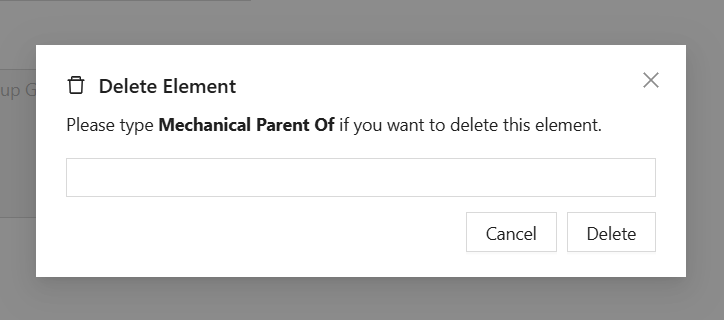
Use the Delete button to open the delete modal:

Type in the name of the Relation Type to be deleted in the input field and click the Delete button.
Use the Cancel button to abort deletion and close the delete modal.