Data Providers
Data Providers are a pluggable layer that uses any connector (HTTP, SQL, other protocols) to access arbitrary source systems uniformly.
Data Providers Overview
The Data Providers overview page shows all the existing Data Providers:
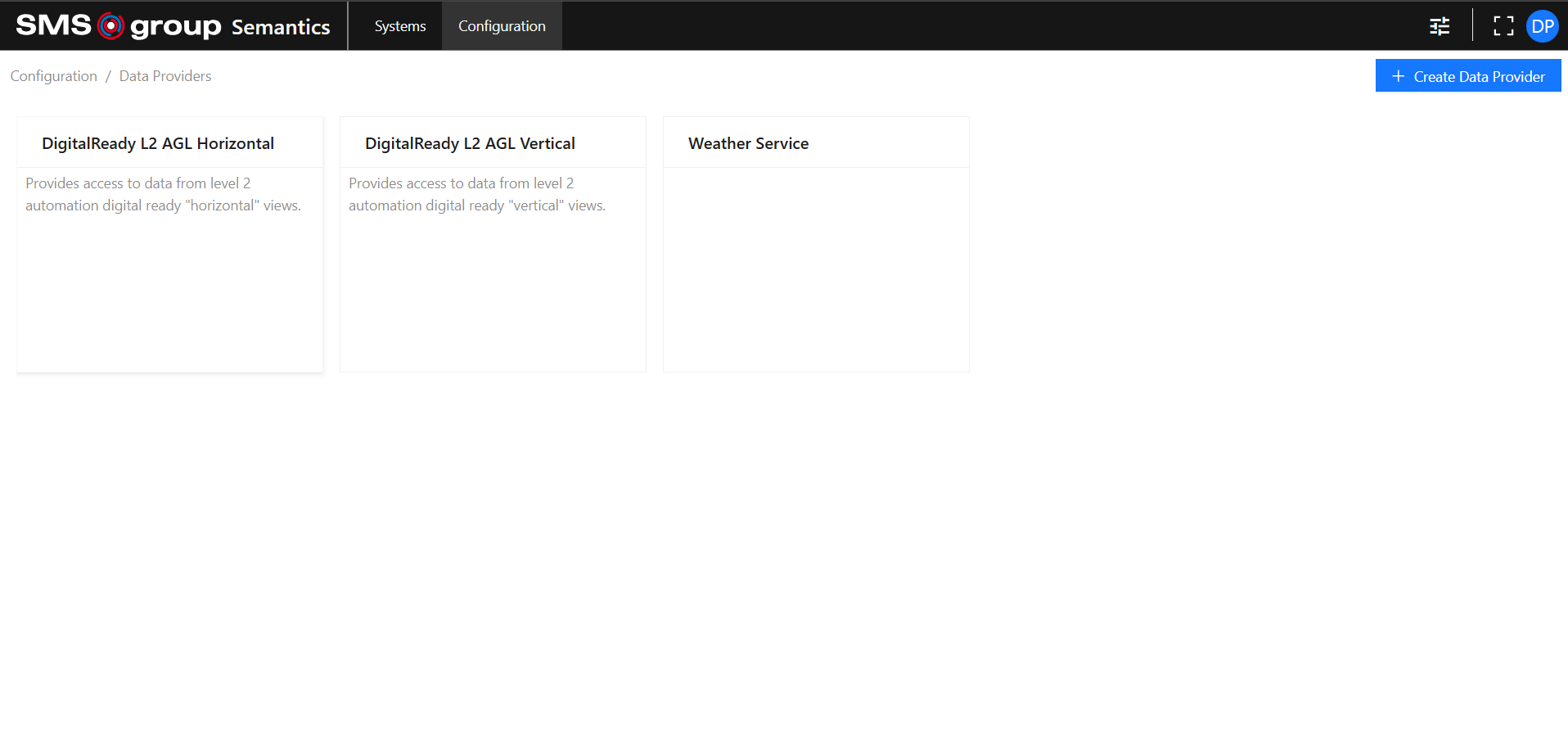
Create new Data Provider
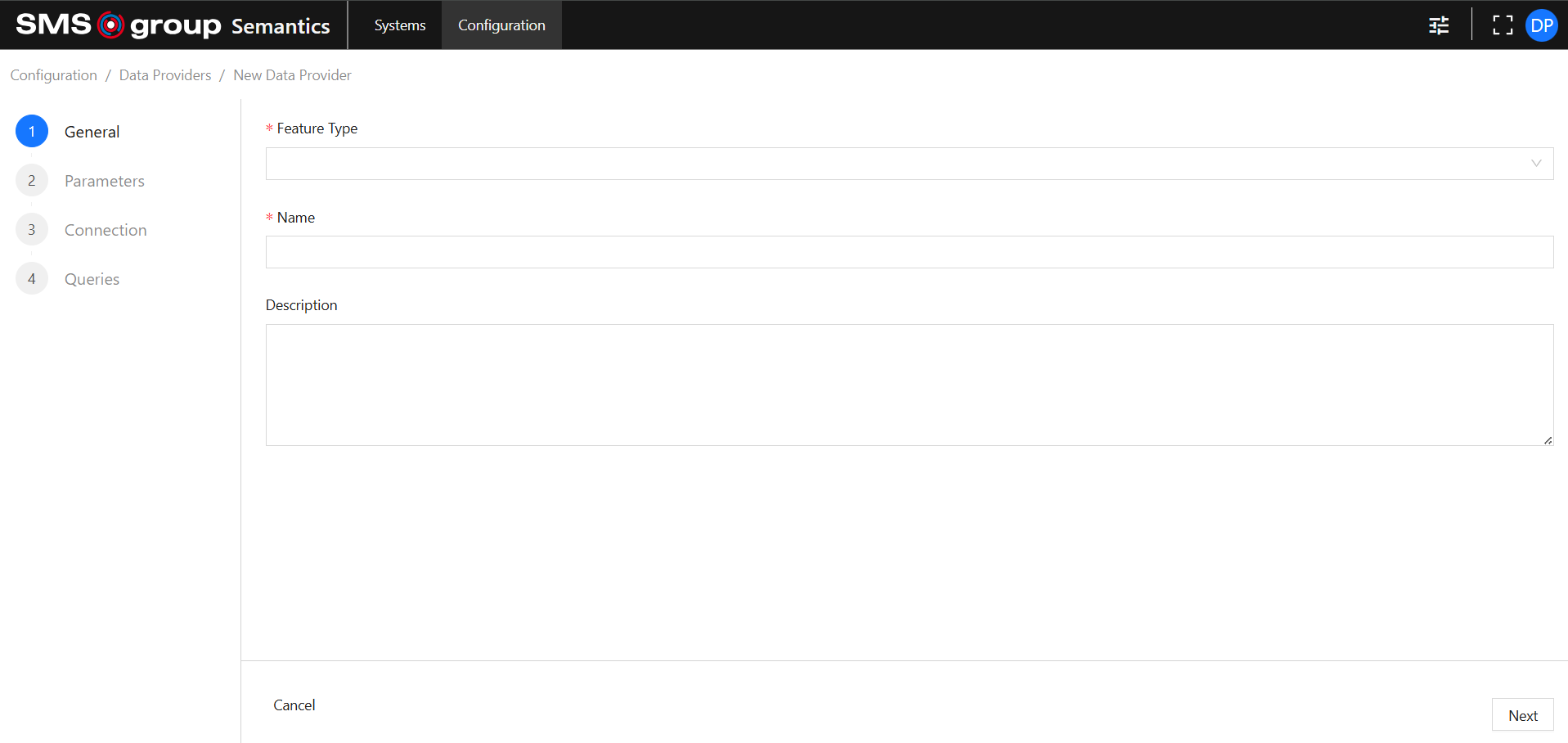
Click on the Create Data Provider button to open the new Data Provider creation page:

General
Provide:
- Feature Type: is required. The available options are pre-configured and cannot be changed by the User.
- Name: is required and must be unique.
- Description.
Parameters
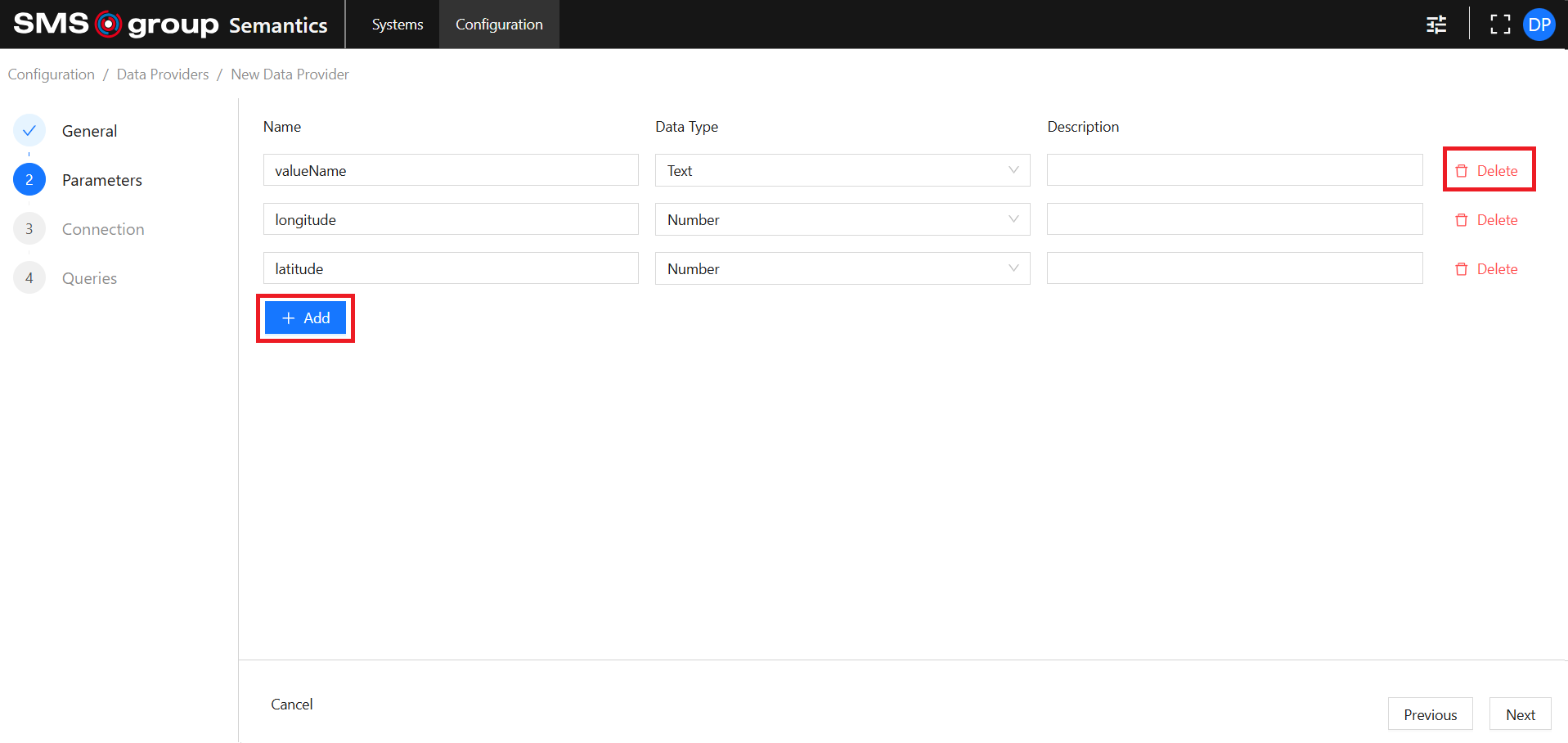
Data Provider Parameters are used to store values configured in Metric Data Provider Settings that can be used for connector parameters.
Check Queries settings for information on how to map them.
To add more parameters, use the Add button. To delete a parameter, use the Delete button.
Provide:
- Name: is required.
- Data Type: if nothing is chosen, Text is the default value.
- Description.
Connection
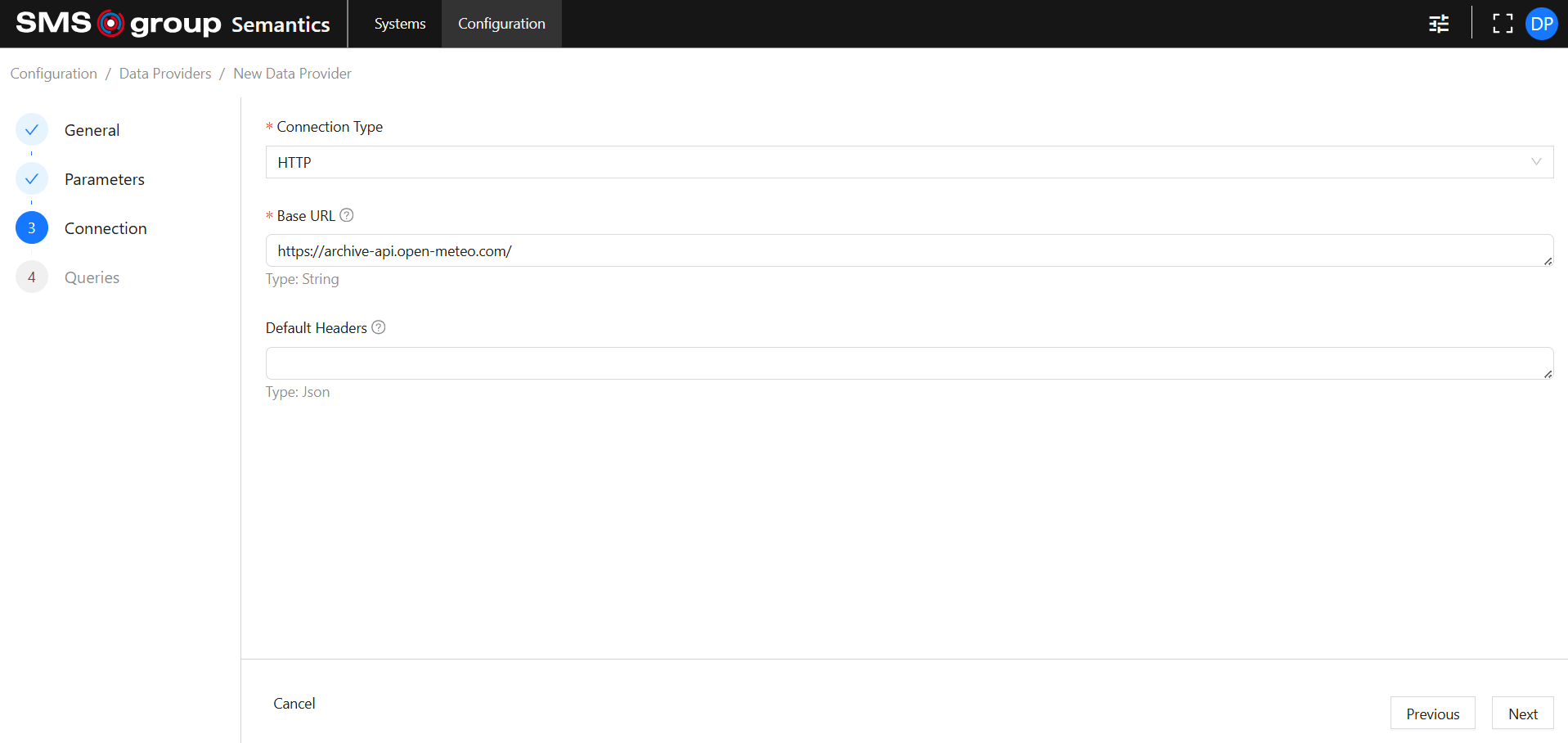
Select Connection Type. It specifies the connector to be used for the Data Provider.
A connector is an uploadable assembly. More connectors can be added via API calls.
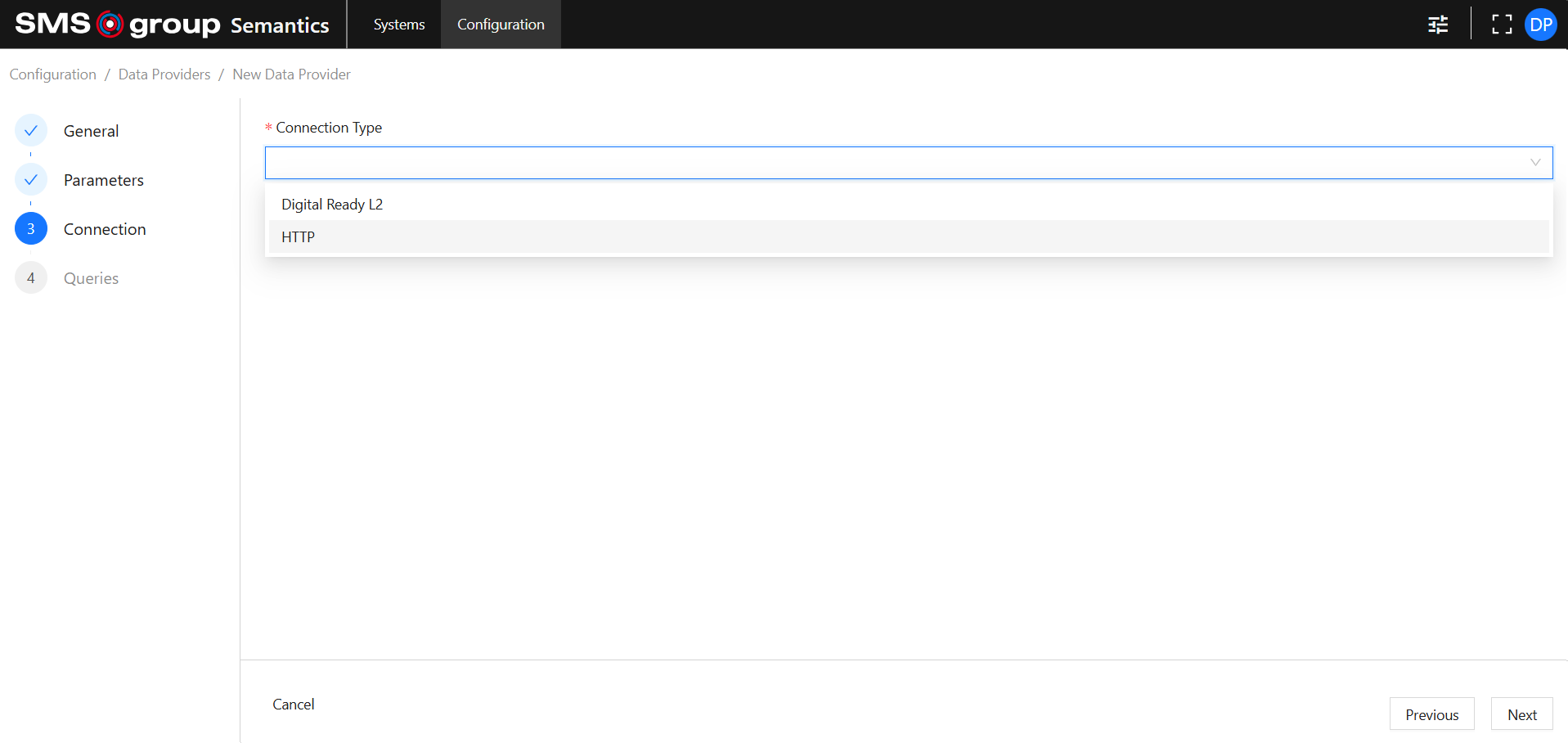
HTTP Connection Type
Provide:
- Base URL: is required. The URL for the API.
- Default Headers: optional default API request headers. Depends on the API specification.
Digital Ready L2 Connection Type
Provide:
- Connection String: is required. The database connection string.
Queries
Data Query Types and Connector Actions
Select a Data Query Type and an Action.
Available standard (pre-configured) Data Query Types are:
- Stored Data (time-based): used to access time series data.
- Stored Data (non time-based): used to access non time series data, e.g. length based data.
Available Actions depend on the Connection Type. E.g.:
- HTTP: GET, DELETE, POST, PATCH, PUT. That reflects HTTP request methods.
- Digital Ready L2: Get signal data (horizontal), Get signal data (vertical). That reflects how the specific DR L2 is stored in the Database.
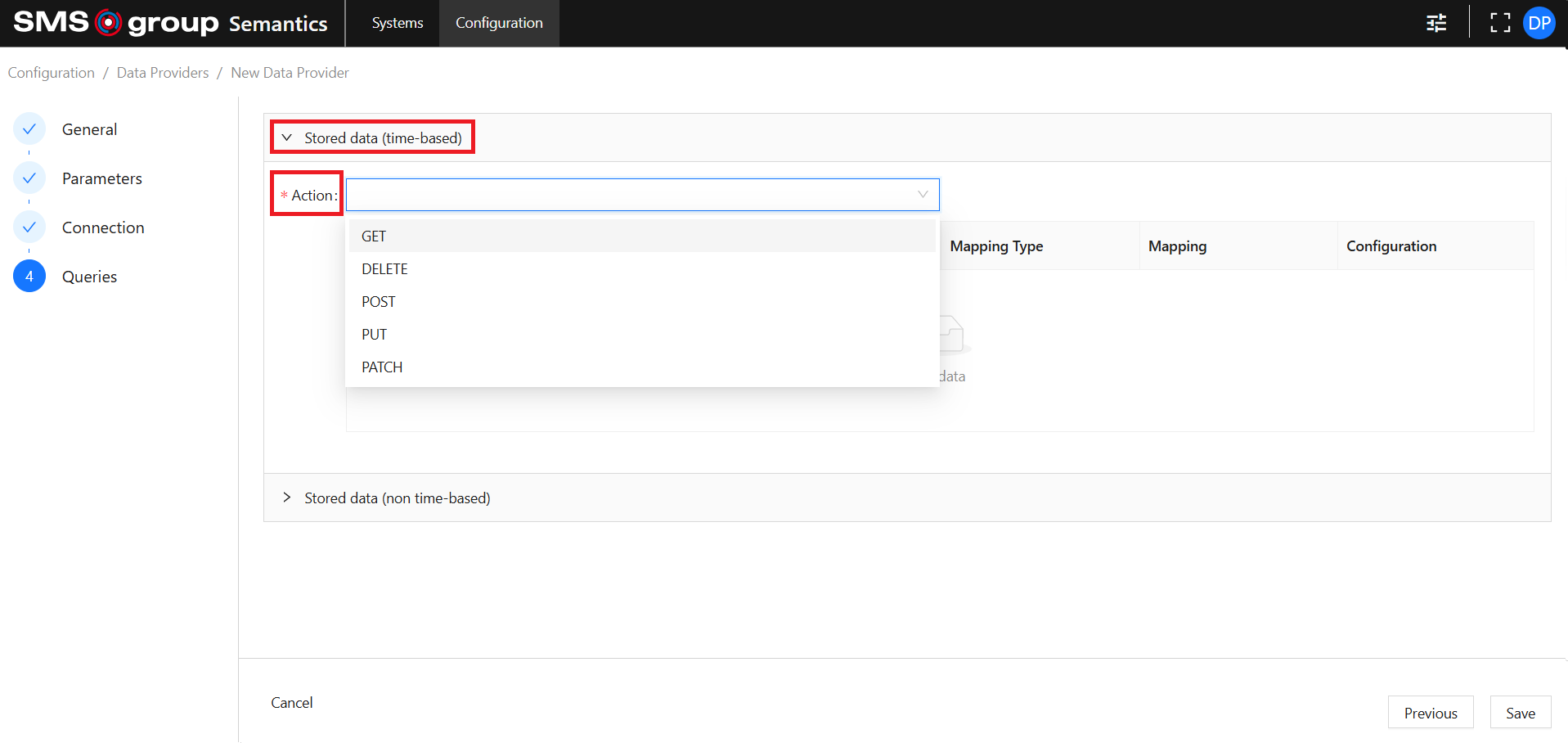
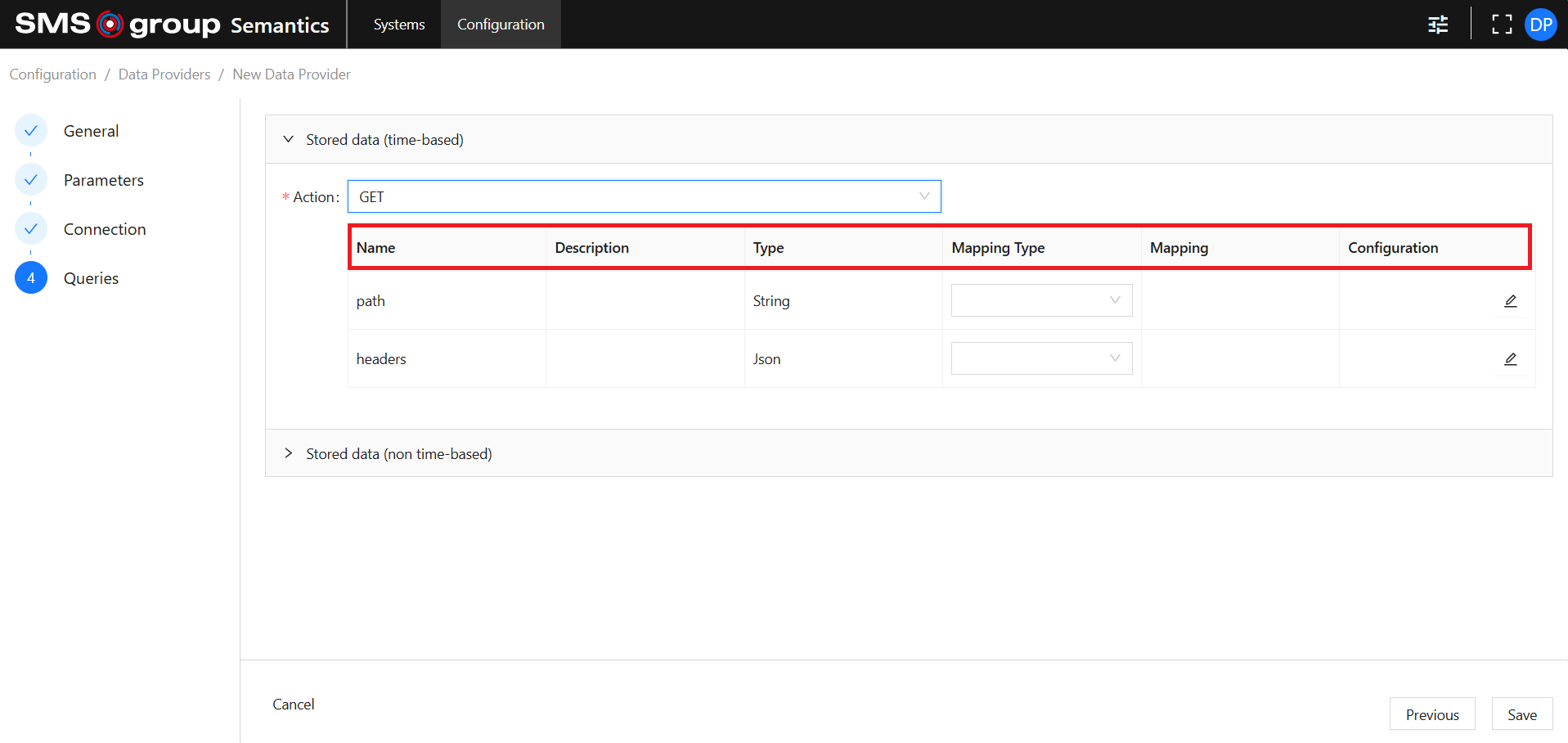
Data Provider Query
Table legend:
- Name: Connector parameter name. Is defined on the connector assembly side.
- Description: Connector parameter description. Is defined on the connector assembly side.
- Type: Connector parameter data type. Is defined on the connector assembly side.
- Mapping Type: is required. Defines what kind of value should be mapped to the connector parameter:
- QueryParameter: is defined on the Data Query Type side. Allows you to provide the parameter value in the request body of the API request.
- FixedValue: allows you to provide a static value by mapping the Data Provider parameter or by defining it directly in this configuration table.
- Mapping: allows you to map a query parameter to a connector parameter or to define the fixed value.
- Configuration: provides extra functionality for parameter mapping:
- Value: allows you to map the Data Provider parameter.
- Parameter: allows you to build composite fixed values in the Mapping column.
Navigation
Navigate through creation steps using the Previous and Next buttons.
Use the Save button to save changes and close the creation page.
Use the Cancel button to discard changes and close the creation page.


Data Provider Configuration Example
Set General:
- Set Feature Type to Metric.
- Set Name to Weather Service.
Set Parameters:
Weather Provider requires the following information to be provided in the path parameters of an API request:
- hourly: a hourly weather variable.
- latitude.
- longitude.
- start_date.
- end_date.
- timezone
Considering, that hourly, latitude and longitude might be different for different Things, but stable in the scope of the specific Thing, they should be defined on the Thing Metric Data Provider Setting side.
Therefore, Data Provider parameters should be defined to store this data.
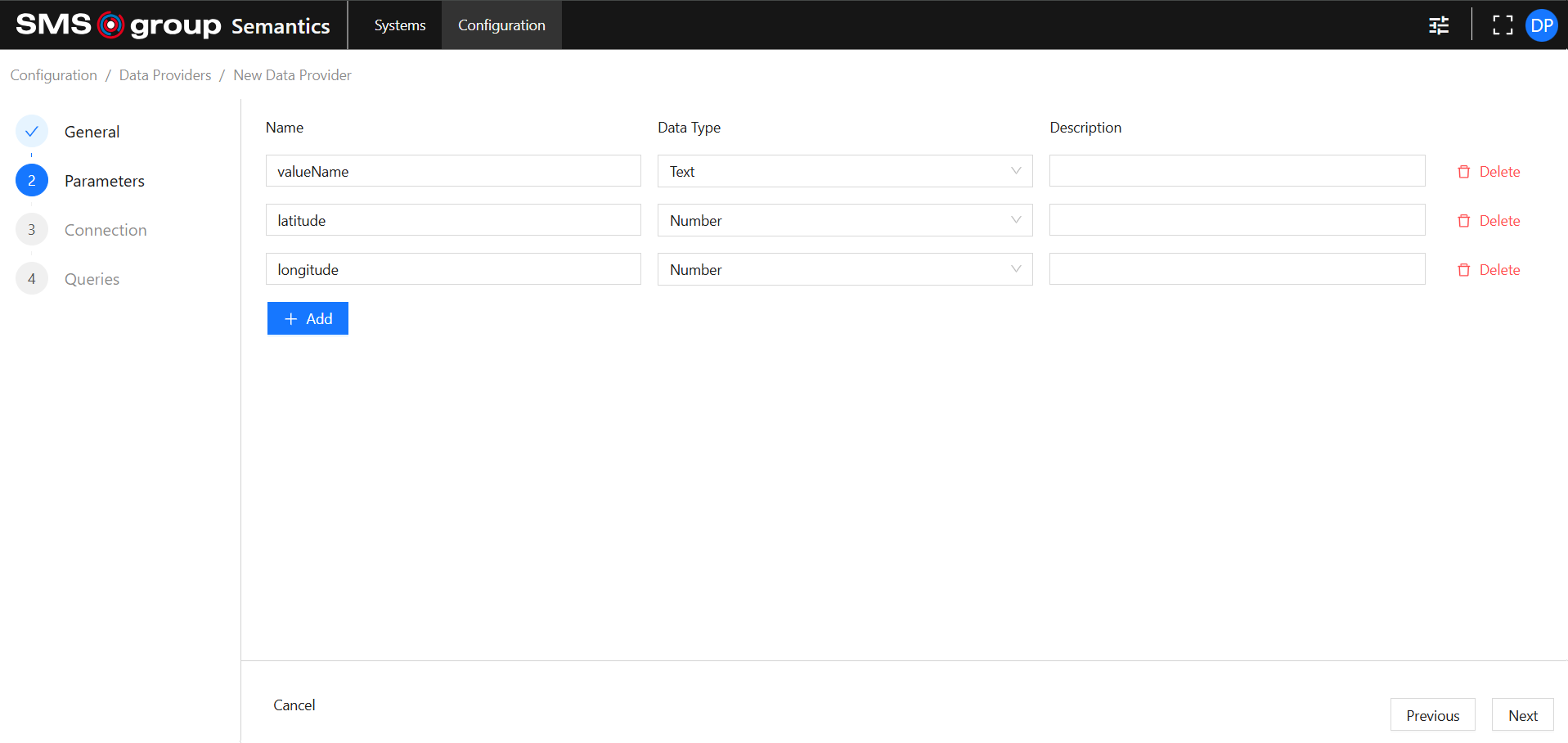
Set Connection
- Set Connection Type to HTTP.
- Set Base URL to
https://archive-api.open-meteo.com/.
Set Queries
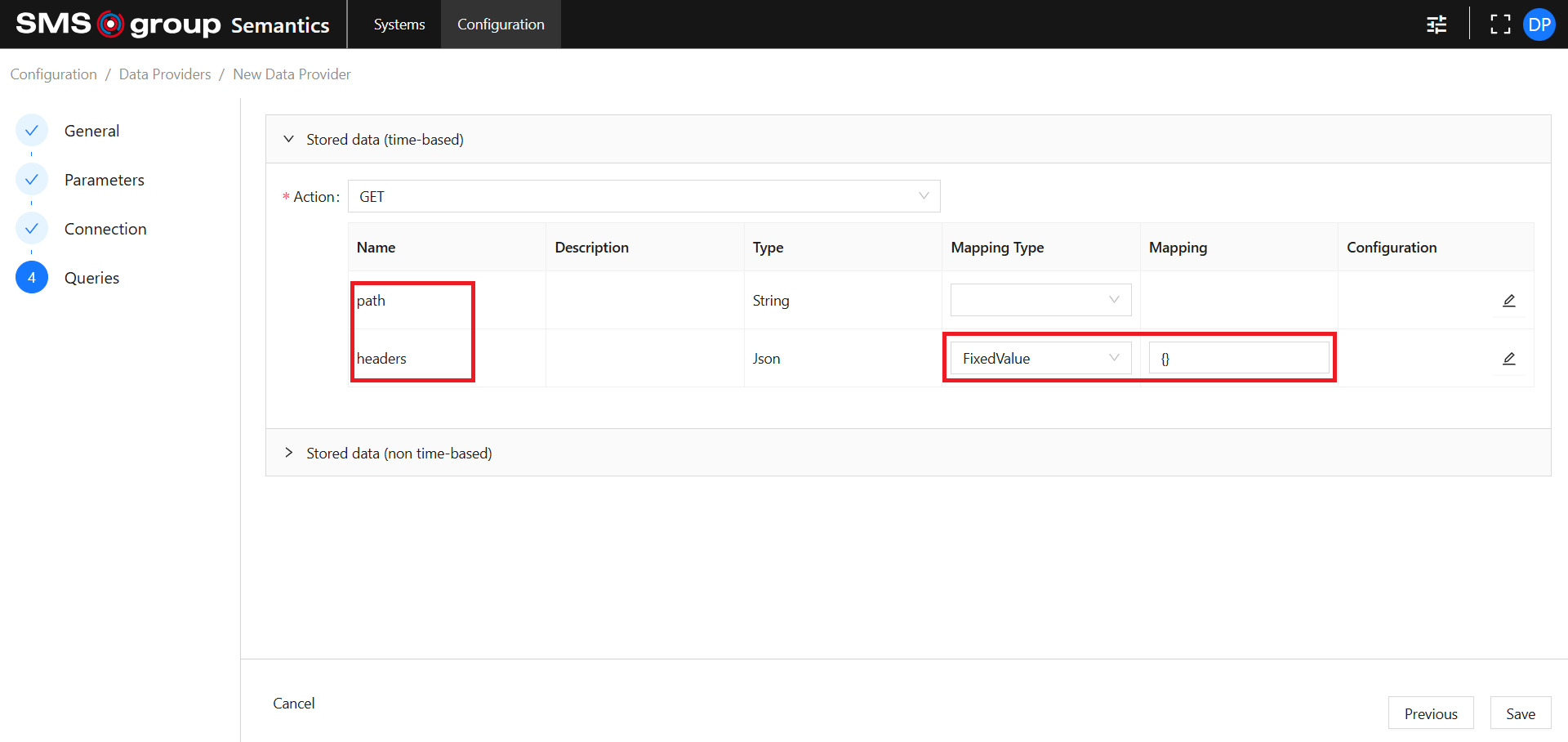
Since the response of the Weather Service is time series data, choose GET Action of Stored data (time-based).
HTTP connector requires two parameters to be provided:
- path: will be used to provide all the necessary information to the data source.
- headers: is not needed in this example. Set the following values:
- Mapping Type to FixedValue.
- Mapping to empty JSON.
Set the path parameter:
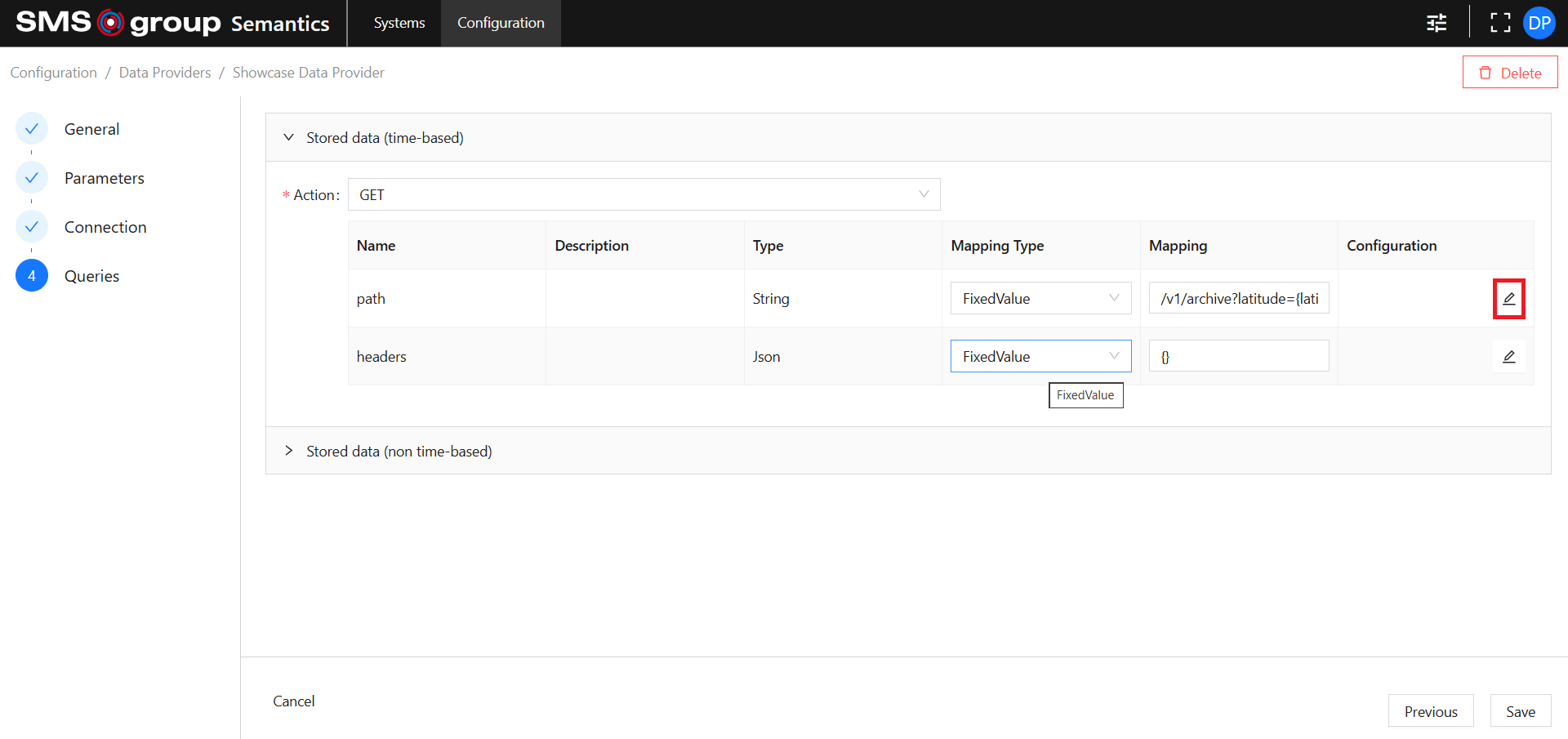
- Set Mapping Type to FixedValue.
- Set Mapping to:
This allows you to combine Query Parameters and Data Provider Parameters./v1/archive?latitude={latitude}&longitude={longitude}&start_date={startDate}&end_date={endDate}&hourly={valueName}&timezone=auto
- Configure extra parameters to allow mapping. Click the Edit button in the Configuration column.
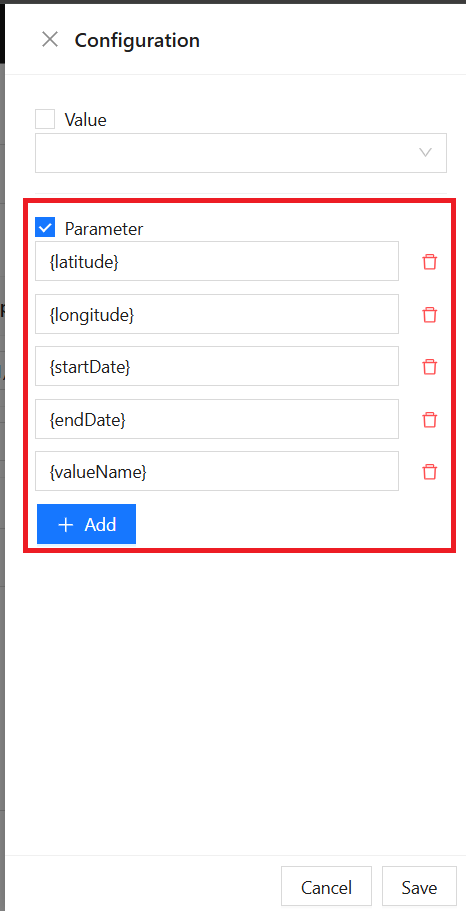
After configuring extra parameters for the path parameter, they appear in the Queries table.
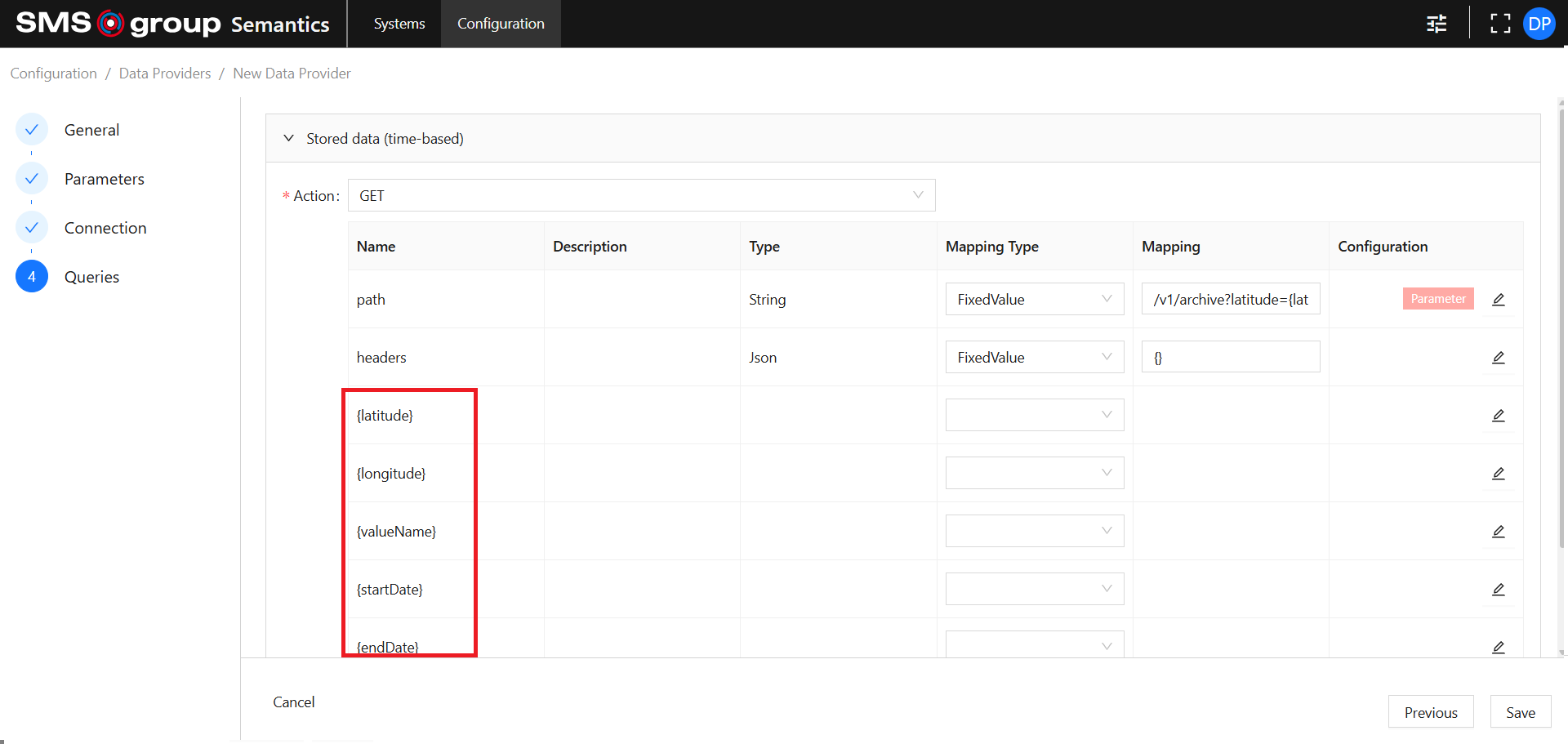
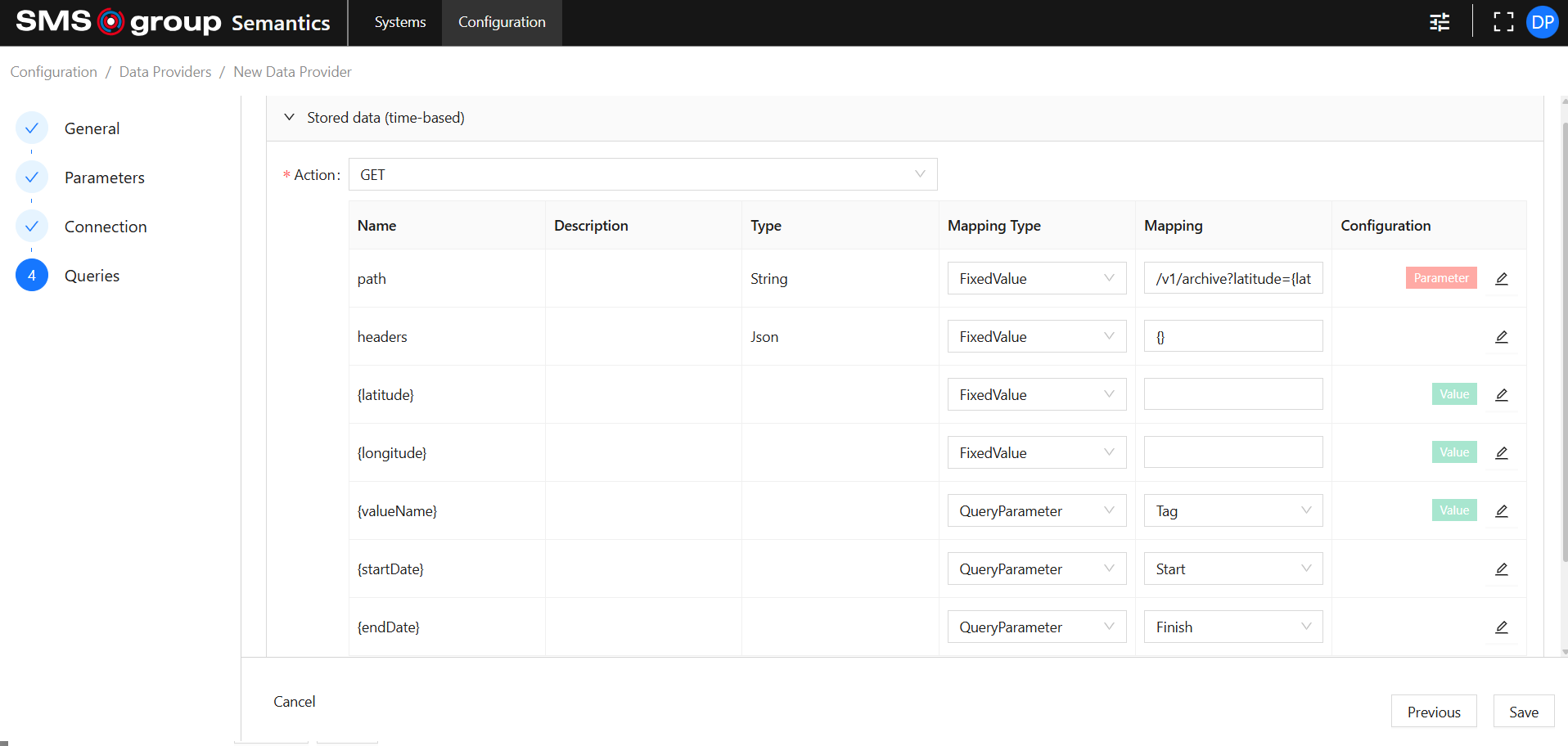
Set the {startDate} parameter:
- Set Mapping Type to QueryParameter.
- Set Mapping to Start.
Set the {endDate} parameter:
- Set Mapping Type to QueryParameter.
- Set Mapping to Finish.
Set the {valueName} parameter:
- Set Mapping Type to QueryParameter.
- Set Mapping to Tag.
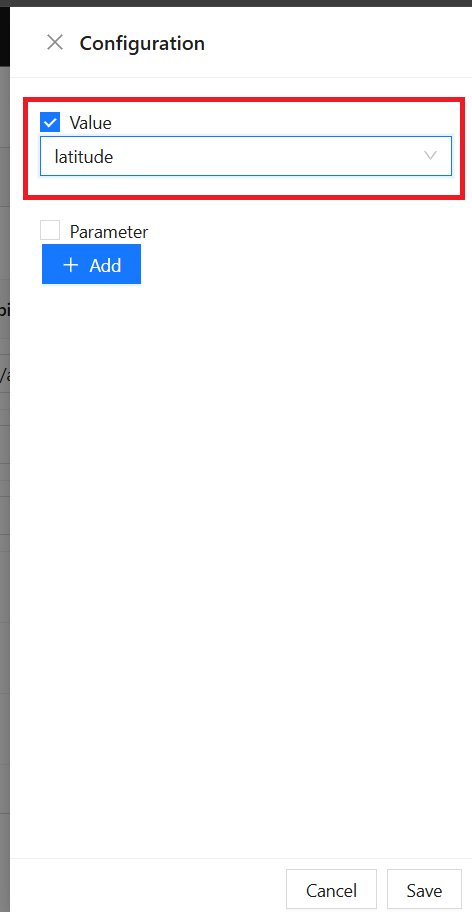
- Set Configuration Value to valueName (the Data Provider parameter).
Set the {latitude} parameter:
- Set Mapping Type to FixedValue.
- Leave Mapping empty.
- Set Configuration Value to latitude (the Data Provider parameter).
Set the {longitude} parameter:
- Set Mapping Type to FixedValue.
- Leave Mapping empty.
- Set Configuration Value to longitude (the Data Provider parameter).
Final result:
Summary
This Data Provider setup allows you to retrieve Weather data when the Data Provider is assigned to a Thing Metric.
timezone is always set to auto for every API request using this Data Provider.
hourly, longitude, and latitude values must be set on the Thing Metric side when assigning the Data Provider. They are then used in every API request using this Data Provider for the specific Thing Metric.
start_date and end_date should be provided by every API request by the User.
View Existing Data Provider
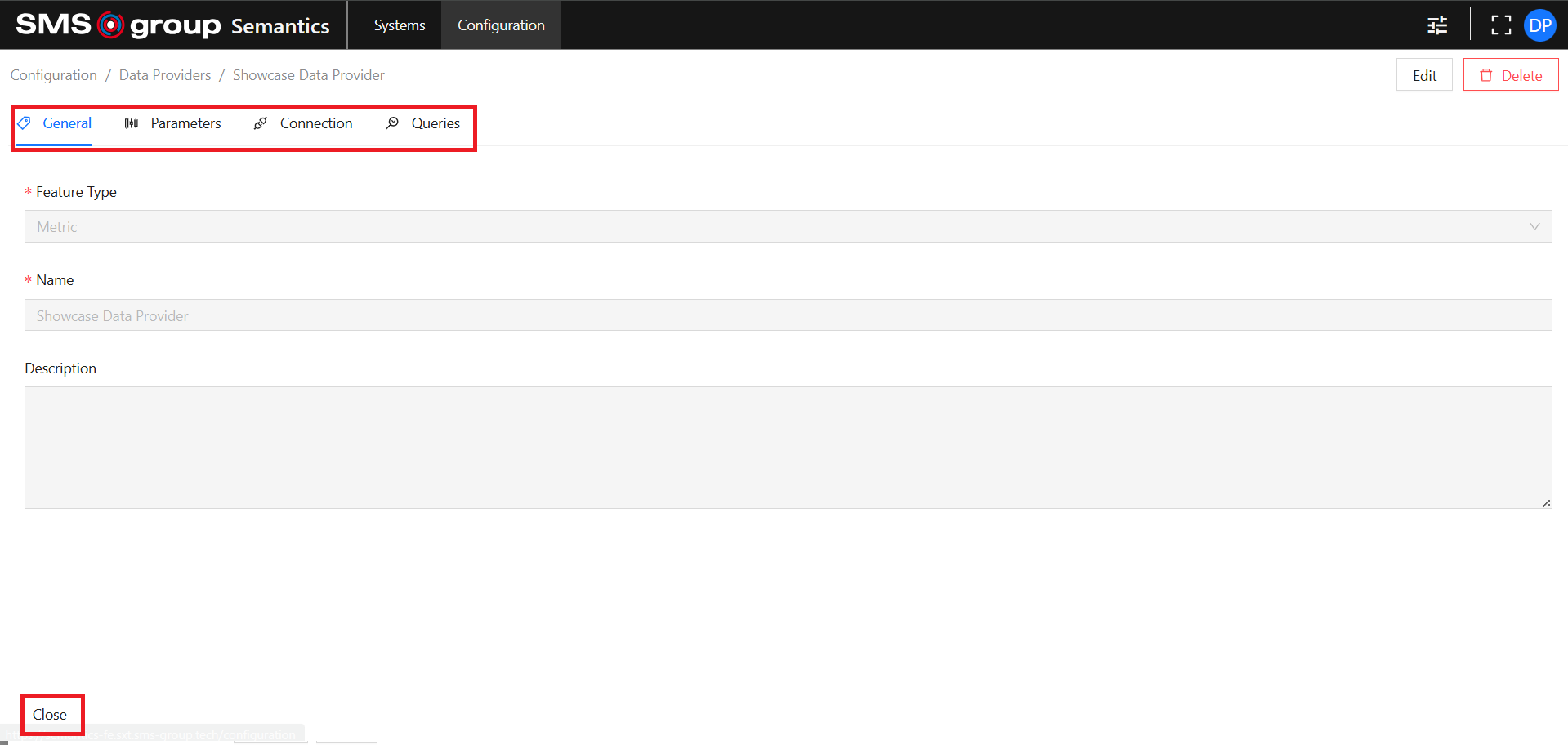
To view the existing Data Provider click on the desired Data Provider card:
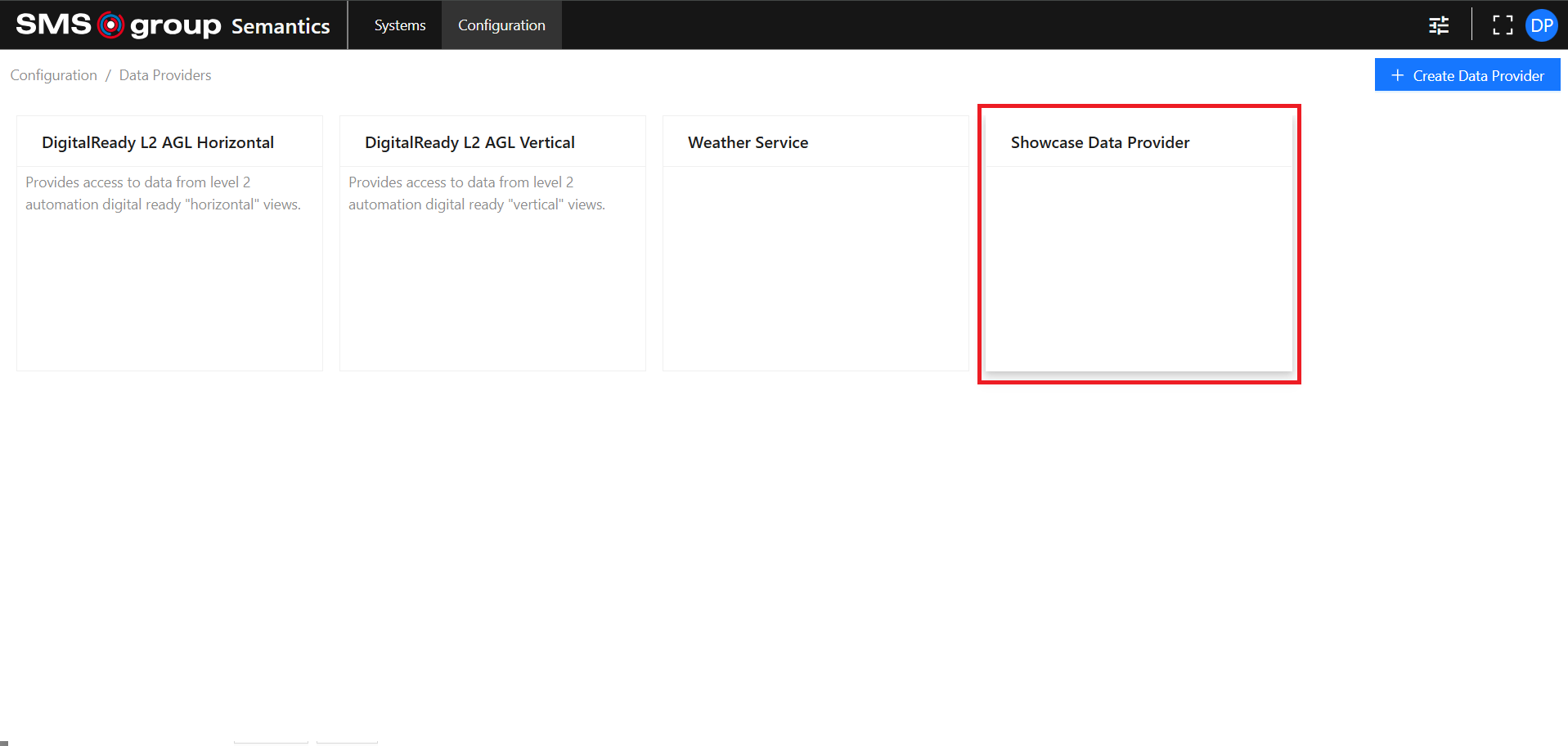
Use the Tab Menu to switch between different metadata categories.
Use the Close button to close the specific Data Provider page.
Edit Existing Data Provider
Use the Edit button to open the Data Provider edition page:

It has the same functionalities as the Create Data Provider page.
Delete Existing Data Provider
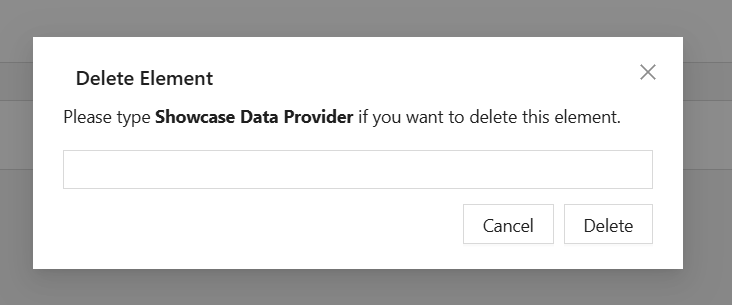
Use the Delete button to open the delete modal:

Type in the name of the Data Provider to be deleted in the input field and click the Delete button.
Use the Cancel button to abort deletion and close the delete modal.